DamDir Directory User Guide
This guide walks you through setting up your directory, creating listings, configuring features like search and reviews, and installing optional modules.
Getting Started
Installation
Automatic Installation
- In your WordPress admin, go to Plugins → Add New.
- Search for "DamDir Directory".
- Click Install Now, then Activate.
Manual Installation
- Download the plugin zip file.
- Go to Plugins → Add New → Upload Plugin.
- Upload the zip file and click Activate.
Initial Setup
After activation, follow these steps to get your directory running:
-
Configure Settings
- Go to Listings → Settings.
- Set your currency symbol and position.
- Choose the default listing status (pending or published).
- Enable or disable features (reviews, favorites, contact form).
-
Create Categories
- Go to Listings → Categories.
- Add your main categories (e.g., "Restaurants", "Hotels", "Services").
- Set icons and colors for visual distinction.
-
Create Required Pages
Create WordPress pages for each feature and add the corresponding shortcode:
Page Shortcode Purpose All Listings [apd_listings]Main listings archive Submit Listing [apd_submission_form]Frontend submission My Dashboard [apd_dashboard]User dashboard My Favorites [apd_favorites]Saved listings -
Add Menu Items
- Go to Appearance → Menus.
- Add your new pages to the navigation menu.
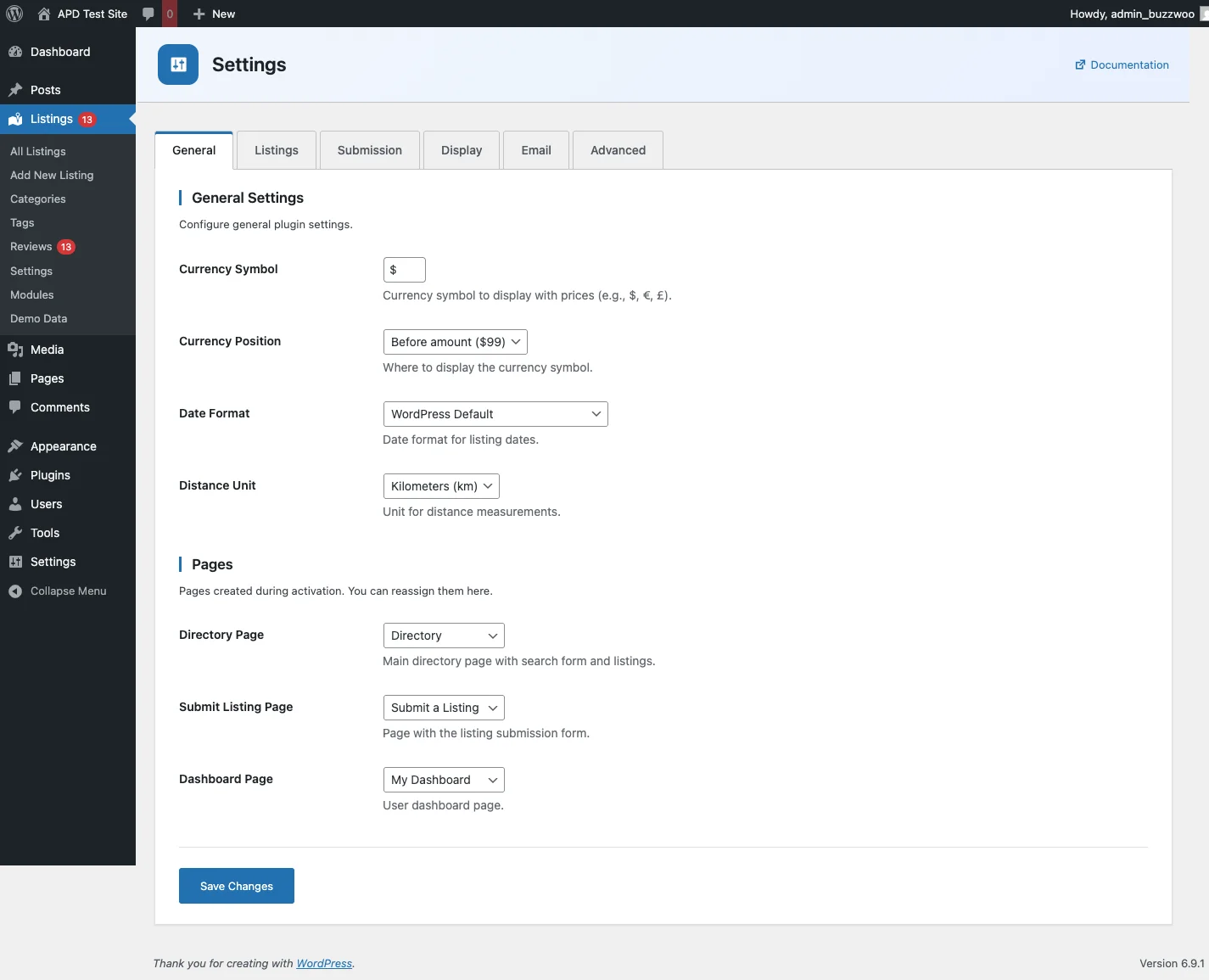 Settings page — General tab
Creating Listings
Creating Listings from Admin
- Go to Listings → Add New.
- Enter the listing title.
- Add a description in the content editor.
- Set a featured image (recommended size: 800×600px).
- Select categories and tags.
- Fill in custom fields in the "Listing Fields" meta box.
- Set the publish status.
- Click Publish or Save Draft.
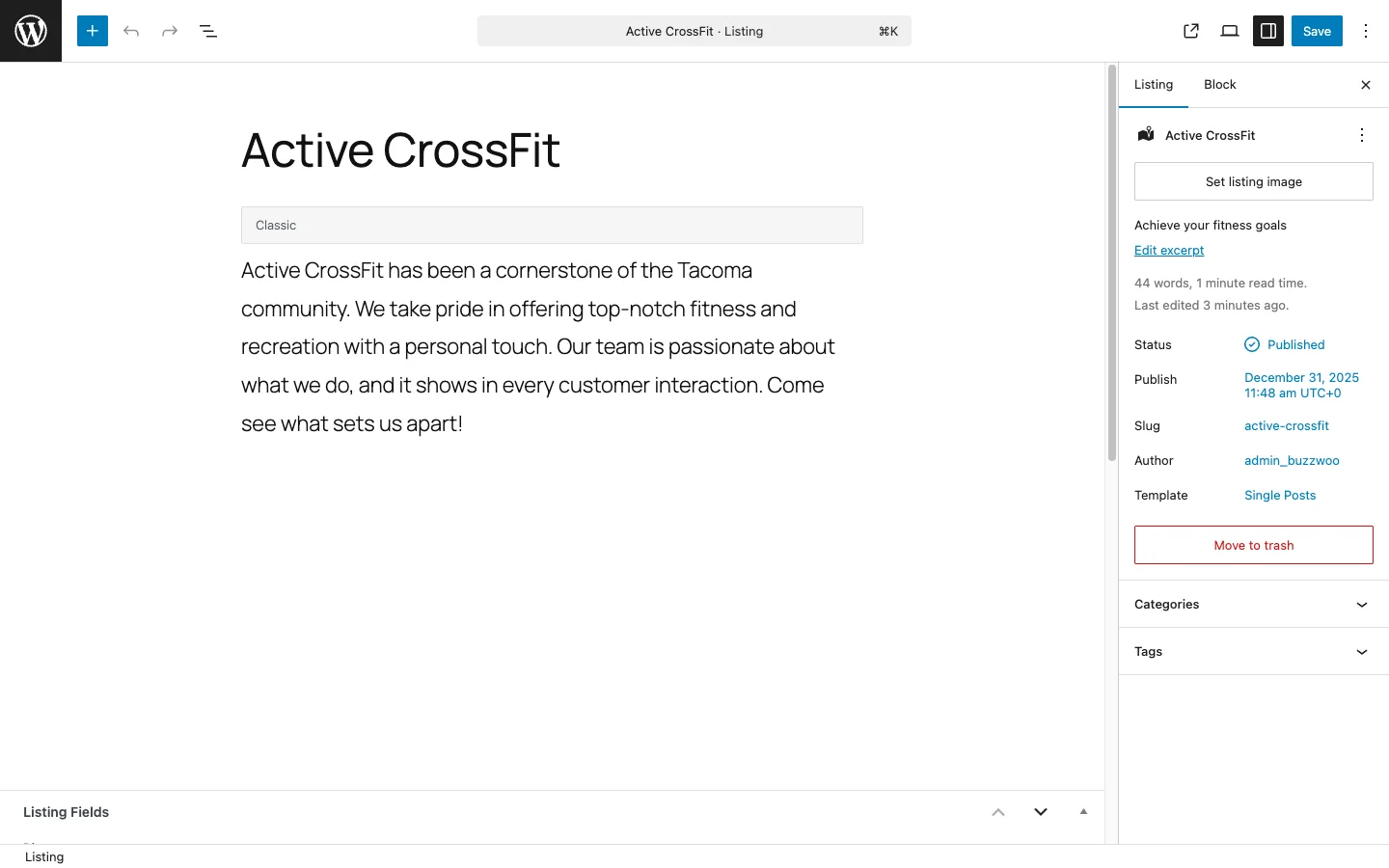 Listing editor — content and sidebar meta
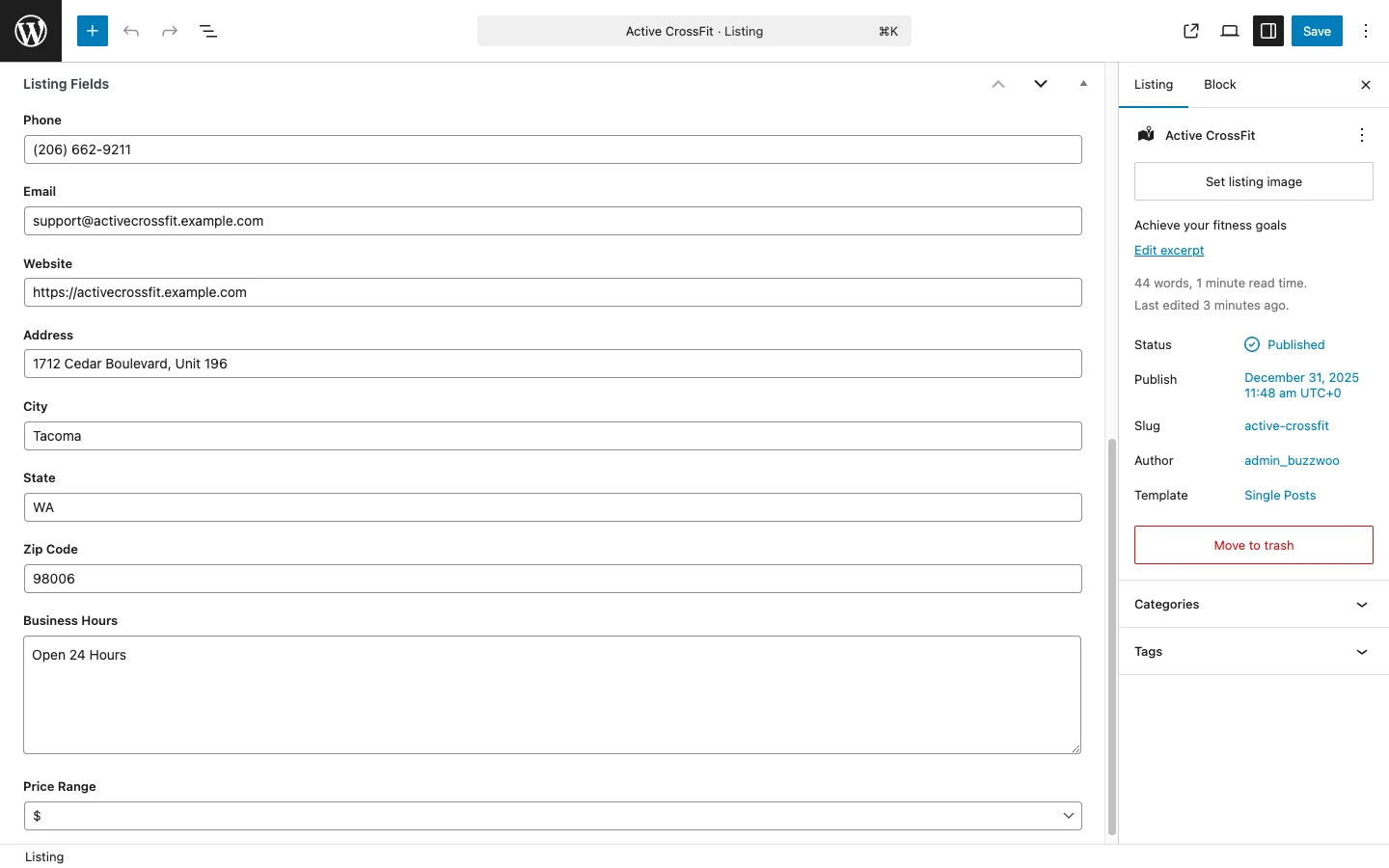 Listing editor — custom fields meta box
Listing Fields
The plugin ships with 24 field types. Installed modules may add more:
- Text fields — Single-line text (name, address, etc.)
- Textarea — Multi-line text (description, hours)
- Email — Email address with validation
- Phone — Phone number with formatting
- URL — Website links
- Number / Price — Numeric values with currency formatting
- Date / Time — Date and time pickers
- Select / Checkbox / Radio — Option selections
- File / Image — File uploads and images
- Gallery — Multiple images
Listing Statuses
| Status | Description |
|---|---|
| Published | Visible to everyone |
| Pending Review | Awaiting admin approval |
| Draft | Only visible to the author and admins |
| Expired | Time-limited listing that has ended |
Categories & Tags
Categories
Categories are hierarchical, so they can have parent/child relationships. Use them to organize listings into logical groups.
Creating Categories:
- Go to Listings → Categories.
- Enter a name and optional description.
- Choose a parent category (optional) to create a hierarchy.
- Select an icon (WordPress Dashicons).
- Pick a color for the category badge.
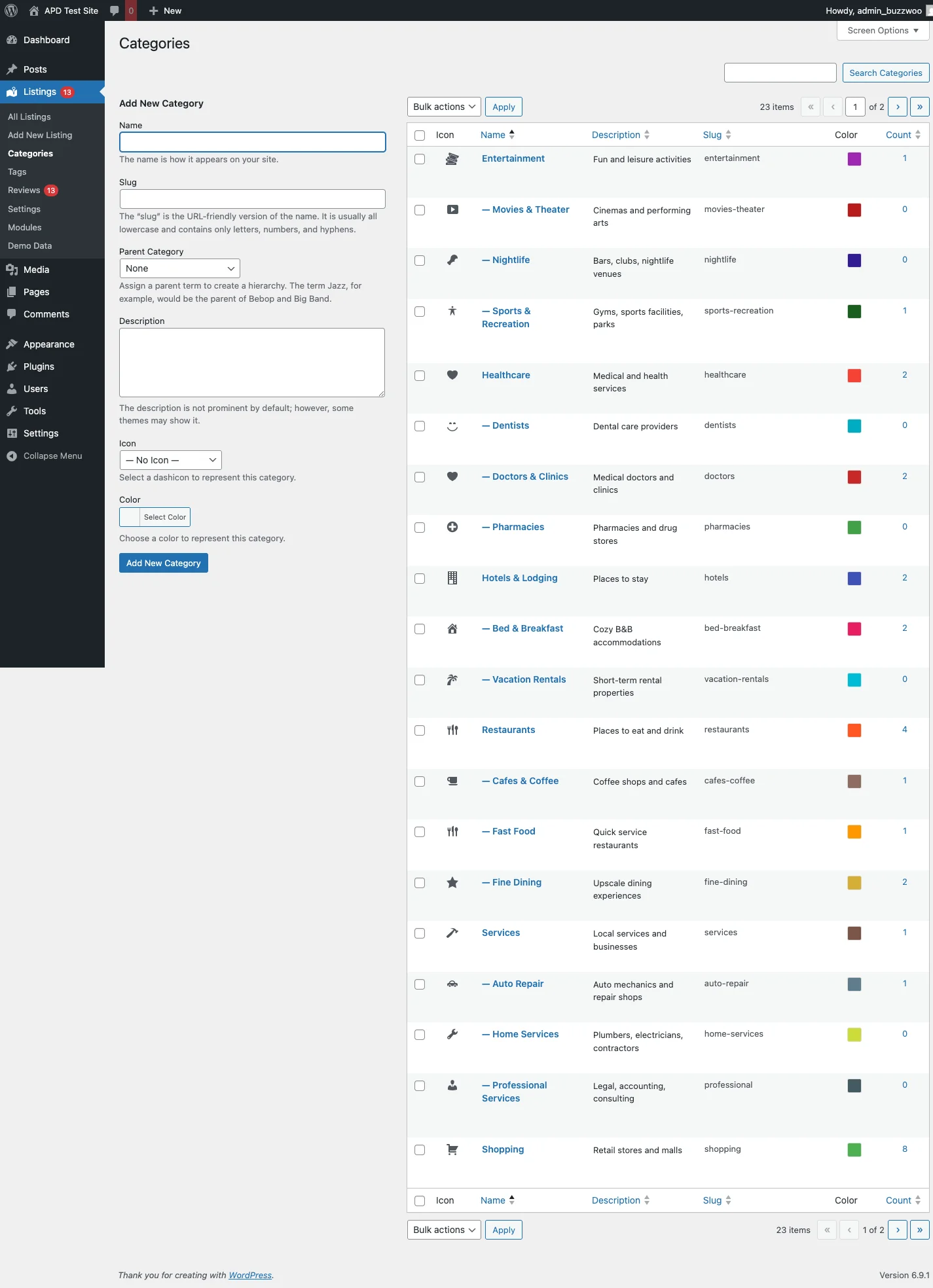 Category management page
Popular Icon Choices:
dashicons-location-alt— Location pindashicons-store— Store / shopdashicons-building— Buildingdashicons-food— Food / restaurantdashicons-hammer— Servicesdashicons-calendar— Events
Tags
Tags are flat (no hierarchy) and useful for features, amenities, or attributes that cut across categories.
Examples:
- "Free WiFi", "Parking", "Pet Friendly"
- "Open 24/7", "Delivery Available"
Frontend Submission
Allow users to submit listings from the front end of your site without needing WordPress admin access.
Frontend Submission Setup
- Create a page with the shortcode
[apd_submission_form]. - Configure submission settings in Listings → Settings → Submission:
- Who can submit — Anyone, logged-in users, or specific roles.
- Guest submission — Allow submissions without login.
- Default status — Usually "Pending Review" for moderation.
- Terms page — Require acceptance of your terms of service.
- Redirect after — Where to send users after submission.
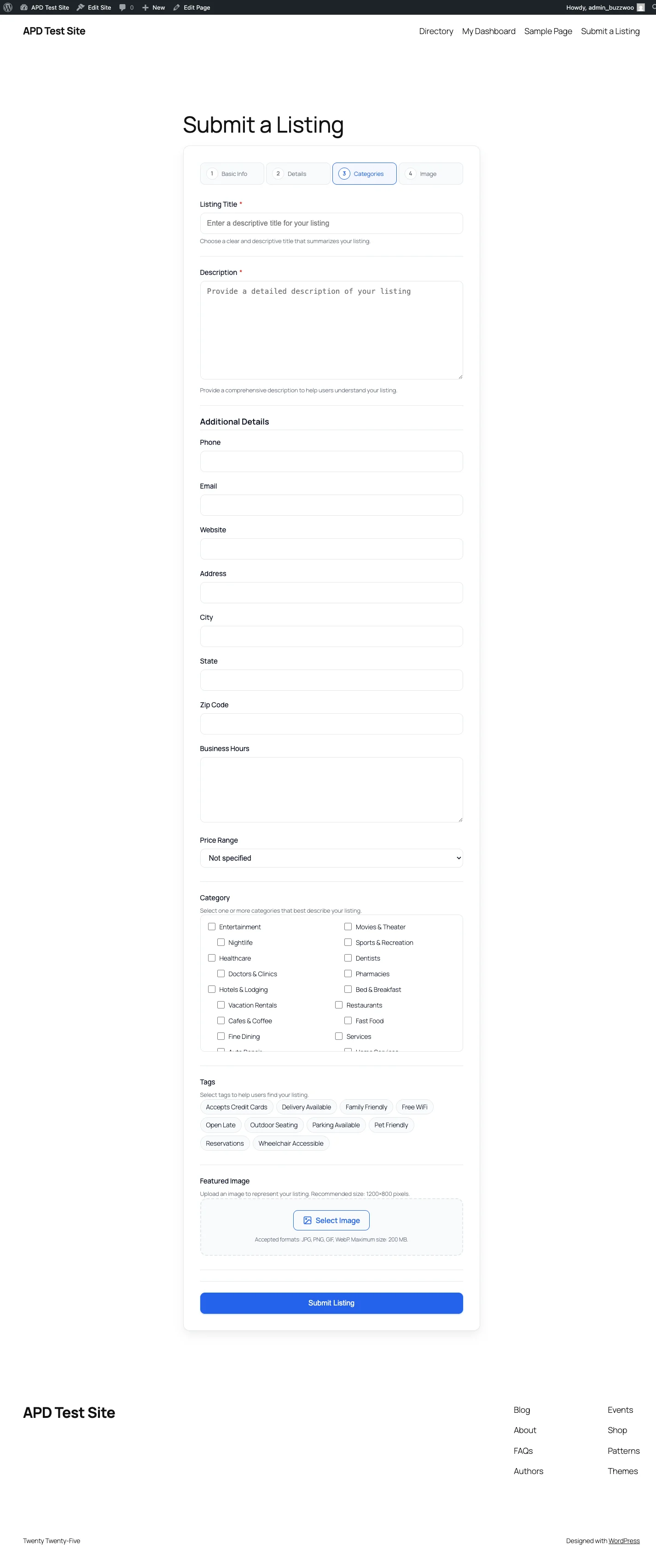 Frontend submission form
Submission Form Features
- All enabled fields are displayed automatically.
- Required fields are marked with asterisks.
- Client-side validation prevents incomplete submissions.
- Image uploads use the WordPress media library.
- Category and tag selection is included.
Spam Protection
The plugin includes built-in spam protection for frontend submissions:
- Honeypot fields — Invisible fields that only bots fill in.
- Time-based checks — Too-fast submissions are blocked.
- Rate limiting — Prevents mass submissions from the same user or IP.
Editing Listings
Users can edit their own listings after submission:
- From the dashboard, click Edit on any listing.
- Or navigate directly using the URL parameter:
/submit-listing/?edit_listing=123
Search & Filtering
Search Form
Add search to any page with the [apd_search_form] shortcode.
Available Filters:
- Keyword — Searches title, content, and all searchable fields.
- Category — Filter by category (dropdown).
- Tags — Filter by multiple tags (checkboxes).
- Range — Filter by numeric fields (price, etc.).
- Date Range — Filter by date fields.
AJAX Filtering
Filters update results without a full page reload:
- Select filter options.
- Results update automatically via AJAX.
- The URL updates so filtered results are shareable.
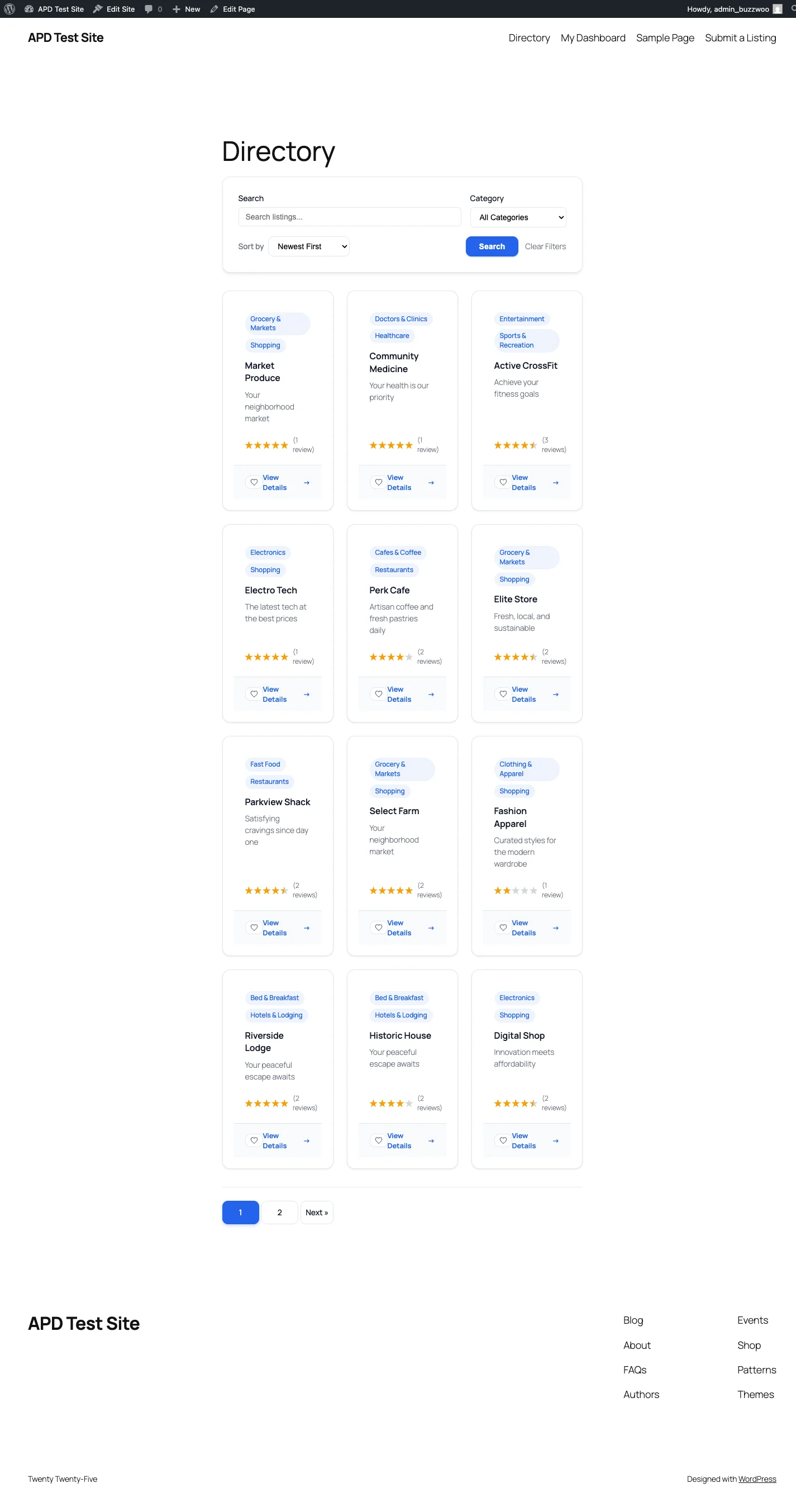 Search results with category filters
Sort Options
Users can sort results by:
- Date (newest / oldest)
- Title (A–Z, Z–A)
- View count (most / least viewed)
- Random
View Options
Switch between display modes:
- Grid View — Card layout with configurable columns.
- List View — Horizontal layout with more detail visible.
Reviews & Ratings
For Listing Owners
- Receive email notifications when someone reviews your listing.
- View reviews on your listing pages.
- Contact an admin to moderate inappropriate reviews.
Writing a Review
- Go to a listing page.
- Scroll to the reviews section.
- Click "Write a Review".
- Select a star rating (1–5).
- Enter a review title and content.
- Submit for moderation.
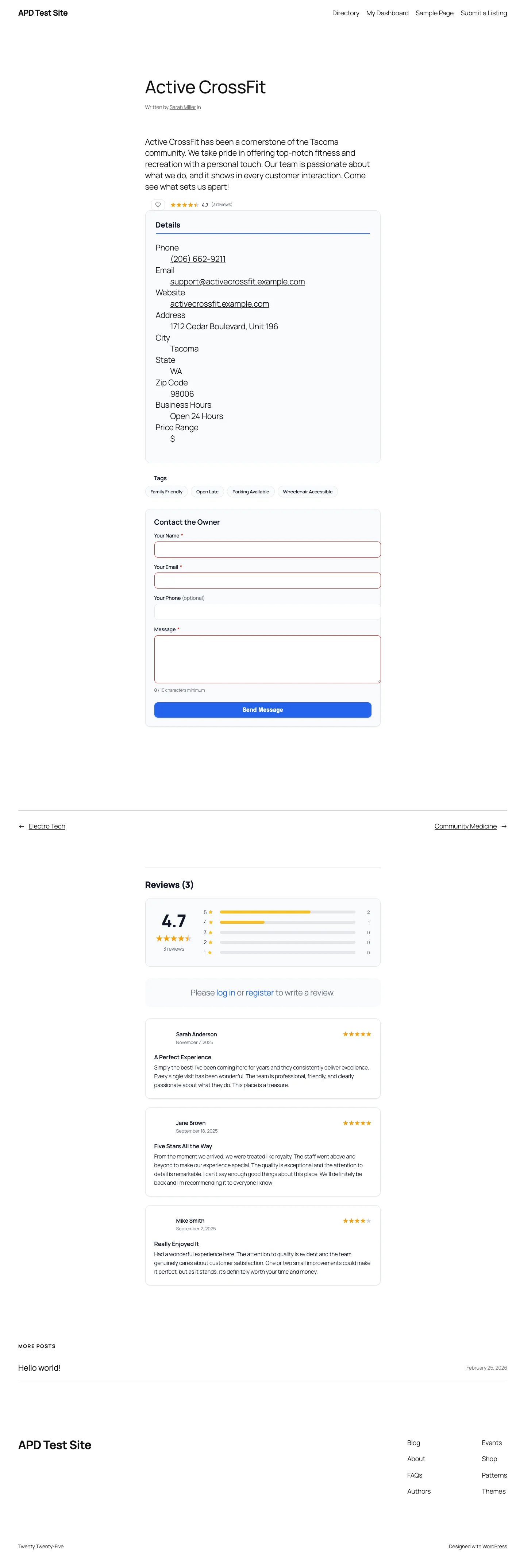 Single listing page with reviews
Review Rules:
- One review per user per listing.
- Users can edit their own reviews.
- Reviews may require admin approval before appearing publicly.
Review Moderation (Admins)
- Go to Listings → Reviews.
- View pending reviews.
- Actions available: Approve, Reject, Spam, Trash.
- Bulk actions are available for managing multiple reviews at once.
Favorites
Saving Favorites
Click the heart icon on any listing card to save it as a favorite.
- Logged-in users — Favorites are saved to their account permanently.
- Guests — Favorites are saved to browser cookies (30 days).
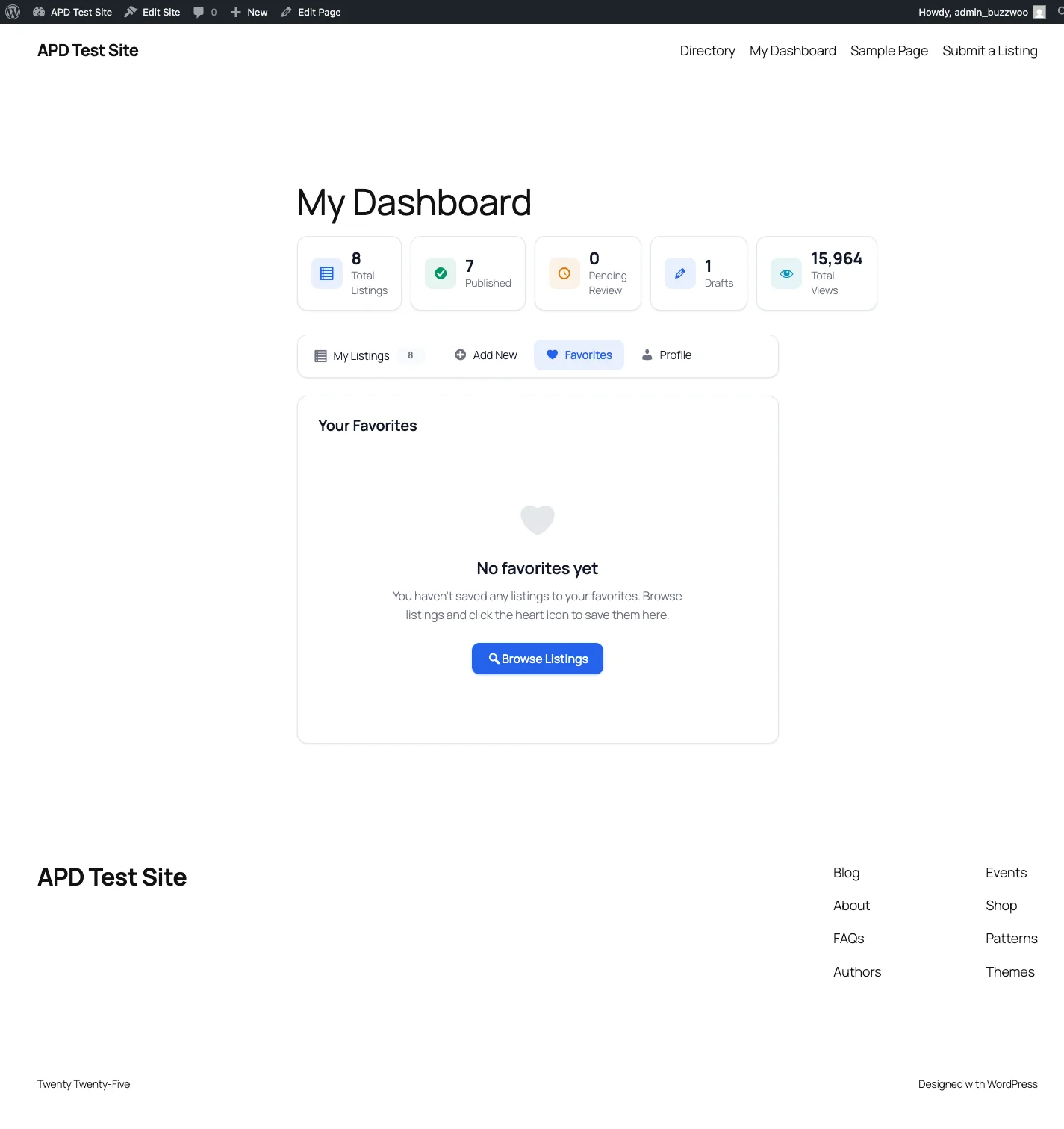 User dashboard — Favorites tab
Viewing Favorites
- Go to your dashboard's Favorites tab.
- Or use the
[apd_favorites]shortcode on any page.
Guest to User Migration
When a guest logs in or registers, their cookie-based favorites are automatically merged with their account. No favorites are lost.
Contact Forms
For Visitors
- Go to a listing page.
- Find the contact form (usually in the sidebar).
- Fill in your name, email, and message.
- Optionally include a phone number.
- Click Send.
For Listing Owners
- Receive email notifications for every inquiry.
- View inquiry stats in the dashboard.
- Optionally view full inquiry history.
For Admins
Enable or disable contact forms in Listings → Settings:
- "Enable Contact Form" checkbox to toggle the feature.
- Optional admin copy of all inquiries for oversight.
Email Notifications
The plugin sends email notifications automatically to keep admins and listing authors in the loop.
Admin Notifications
Listing Author Notifications
Configuration
Go to Listings → Settings → Email to configure notifications:
- Set the From Name and From Email used in outgoing messages.
- Set the Admin Email to receive admin notifications.
- Enable or disable individual notification types with toggle switches.
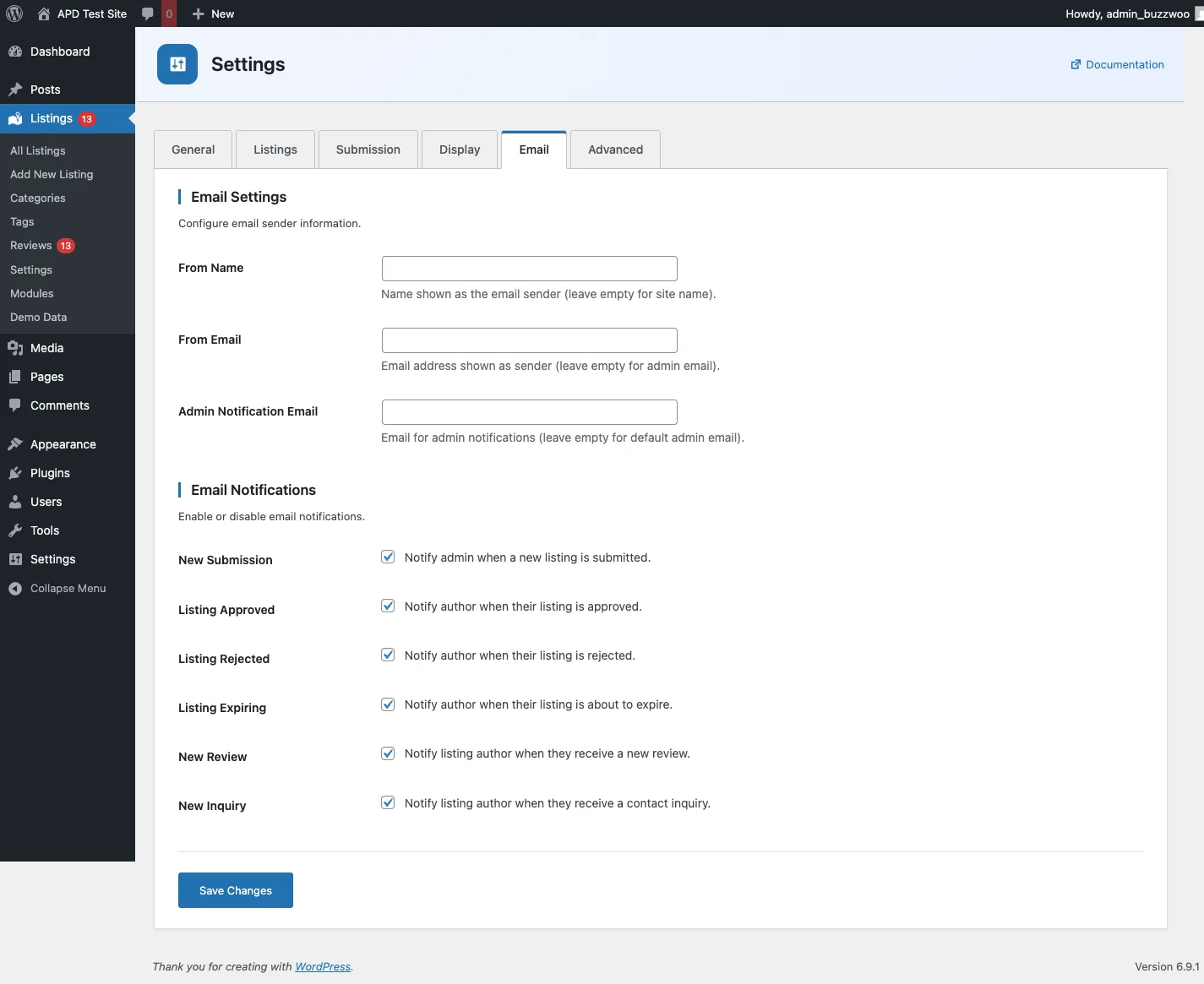 Settings — Email notifications tab
User Dashboard
The dashboard lets users manage their listings, favorites, and profile without needing WordPress admin access. Add it to any page with the [apd_dashboard] shortcode.
Dashboard Tabs
| Tab | Description |
|---|---|
| My Listings | View and manage all submitted listings |
| Add New | Submit a new listing |
| Favorites | View saved favorite listings |
| Profile | Update profile settings |
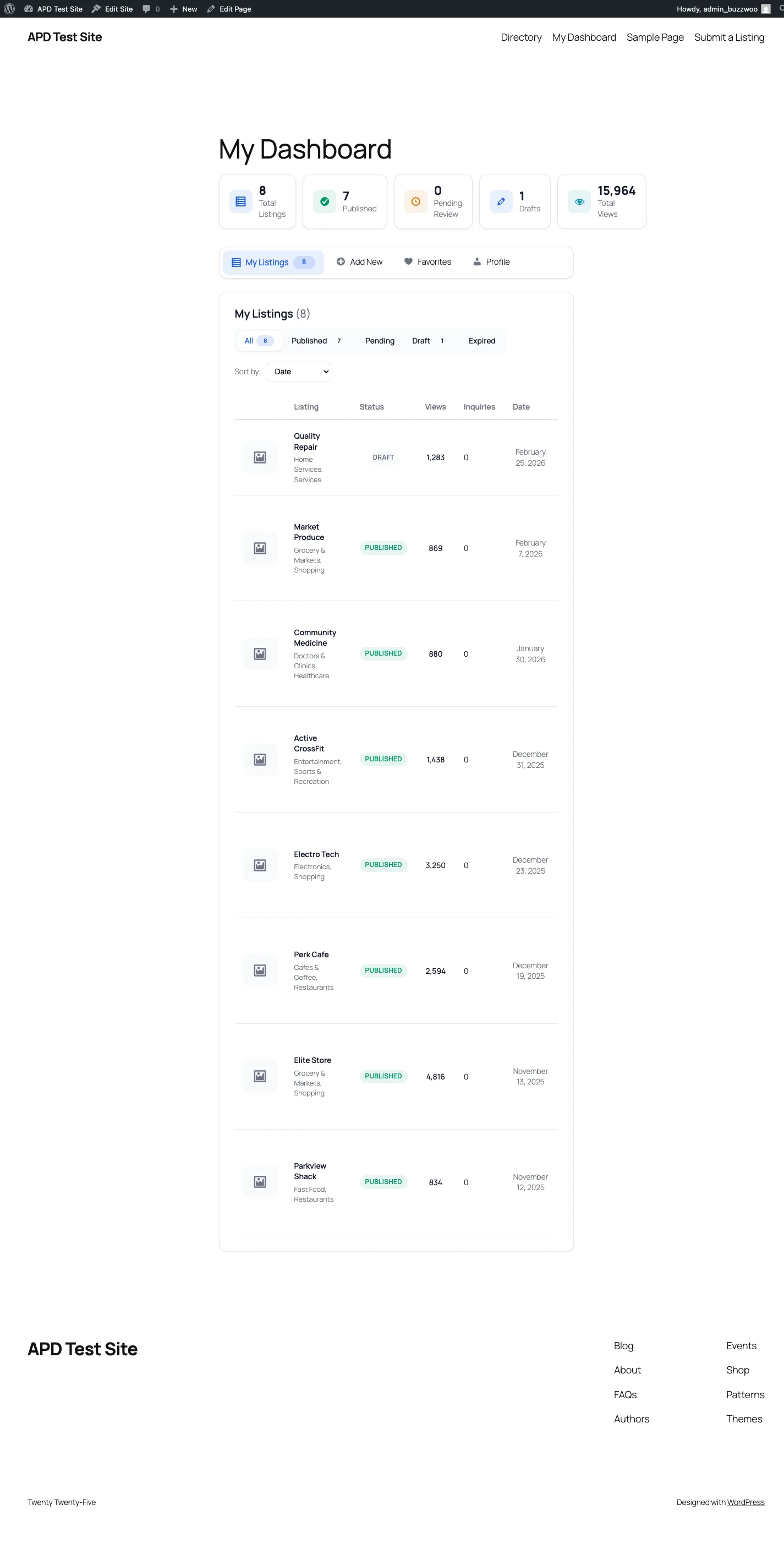 User dashboard — My Listings tab
My Listings Features
- View all listings with status badges (Published, Pending, Expired, etc.).
- See view counts and statistics for each listing.
- Available actions:
- Edit — Modify listing details.
- Delete — Remove a listing permanently.
- Mark as Sold — Change the status for sold items.
Profile Settings
Users can update the following from the Profile tab:
- Display name
- Email address
- Profile photo / avatar
- Bio / description
- Phone number
- Website
- Social links (Facebook, Twitter, LinkedIn, Instagram, YouTube)
Modules
DamDir Directory ships with five optional modules, each a separate plugin that adds specialized fields, templates, and features for a particular directory type. All modules require DamDir Directory 1.0.0 or later.
URL Directory
Turn your directory into a curated website and link collection. Good for bookmark directories, resource lists, blogrolls, and web directories.
Key Features:
- Favicon Fetching — Automatically grabs website favicons using Google's service with DuckDuckGo as a fallback, so each listing displays the site's icon without manual uploads.
- Link Health Monitoring — Periodically checks listed URLs using HEAD requests to detect broken links. A link is flagged as broken after 3 consecutive failures, helping keep your directory clean.
- Outbound Click Tracking — Tracks clicks on listed URLs using the
sendBeaconAPI with atomic SQL increments and rate limiting. See which listings get the most outbound traffic. - Per-Listing Nofollow Control — Add a
rel="nofollow"attribute on a per-listing basis to control how search engines follow outbound links. - Demo Data — Generates realistic URLs and website listings so you can preview the directory before adding real content.
Business Directory
Build a local business listing platform similar to Yelp or Yellow Pages. Adds location-based search, maps, hours, and verification to your directory.
Key Features:
- Google Maps Integration — Embed interactive maps on listing pages with geocoding via Google Maps API or Nominatim (free, OpenStreetMap-based).
- Business Hours — Display structured business hours with real-time Open, Closed, and Closing Soon status indicators based on the current time.
- Claim Listing Workflow — Allow business owners to claim their listings with an admin-managed verification process.
- Verified Badges — Four verification levels to indicate trust and authenticity of claimed listings.
- Proximity Search — Let visitors search for businesses within a radius of a location, using the Haversine formula for distance calculations.
- Social Links — Display social media profiles (Facebook, Twitter, Instagram, LinkedIn, etc.) on business listing pages.
- Business Categories — Ships with 7 parent business categories to get started quickly.
Classifieds
Create a buy/sell/trade marketplace similar to Craigslist or Facebook Marketplace. Adds pricing, seller profiles, and moderation workflows for classified ad directories.
Key Features:
- Pricing & Condition Fields — Dedicated fields for price, item condition (new, used, refurbished, etc.), and negotiable pricing.
- 5 Listing Types — For Sale, Wanted, Free, Services, and Gigs, each with appropriate field sets.
- Organized Categories — 10 parent categories with 50 subcategories covering electronics, vehicles, furniture, clothing, and more.
- Seller Profiles — Seller reputation system with 4-category ratings: communication, accuracy, timeliness, and overall.
- Saved Searches with Alerts — Users can save search criteria and receive email alerts (instant, daily, or weekly) when matching listings are posted.
- Bump & Renewal Systems — Bumping pushes a listing to the top for 24 hours (3 per week limit). Renewals extend listings in 30-day periods with optional auto-renewal.
- Flag & Report Workflow — Visitors can flag inappropriate listings. After 3 flags, the listing enters an admin moderation queue for review.
Job Board
Build a job listing and recruitment platform. Adds structured job fields, application management, company profiles, and automated job alerts.
Key Features:
- 14 Job Fields — Job type (full-time, part-time, contract, etc.), salary range, experience level, required skills, remote work options, benefits, education requirements, application deadline, and more.
- 7-Status Application Workflow — Applications progress through: Pending → Reviewing → Shortlisted → Interviewed → Offered → Hired or Rejected.
- Resume Uploads — Applicants can upload resumes in PDF, DOC, or DOCX format (5 MB default limit).
- Company Profiles — Dedicated company pages with logo, description, website, and all associated job listings.
- Job Alerts — Users subscribe to job alerts and receive email notifications (instant, daily, or weekly) when new jobs matching their criteria are posted.
- 6 Shortcodes — Dedicated shortcodes for job listings, single job views, application forms, company profiles, job alerts, and job search.
Real Estate
Create a property listing website for sales and rentals. Adds property-specific fields, comparison tools, and virtual tour support.
Key Features:
- Property Details — Dedicated fields for bedrooms, bathrooms, square footage, lot size, year built, and property type (house, condo, townhouse, land, etc.).
- Listing Status — Track whether a property is For Sale, For Rent, or Sold.
- Virtual Tours — Embed virtual tour links or 360-degree media directly on property listing pages.
- Property Comparison — Visitors can compare up to 4 properties side by side, reviewing key details like price, size, bedrooms, and features in a comparison table.
Shortcodes Reference
view, columns, count, category, tag, author, orderby, order, show_pagination[apd_listings view="grid" columns="3" count="12" category="restaurants"]| Attribute | Values | Default | Description |
|---|---|---|---|
view | grid, list | grid | Display style |
columns | 2, 3, 4 | 3 | Number of grid columns |
count | number | 12 | Listings per page |
category | slug | — | Filter by category slug |
tag | slug | — | Filter by tag slug |
author | ID | — | Filter by author ID |
orderby | date, title, views, random | date | Sort field |
order | ASC, DESC | DESC | Sort direction |
show_pagination | true, false | true | Show pagination controls |
filters, layout, show_submit[apd_search_form filters="keyword,category,tag" layout="horizontal"]| Attribute | Values | Default | Description |
|---|---|---|---|
filters | comma-separated | all | Which filters to display |
layout | vertical, horizontal | vertical | Form layout orientation |
show_submit | true, false | true | Show submit button |
layout, columns, show_count, show_icon, parent, hide_empty[apd_categories layout="grid" columns="4" show_count="true"]| Attribute | Values | Default | Description |
|---|---|---|---|
layout | list, grid | grid | Display style |
columns | 2, 3, 4 | 3 | Number of grid columns |
show_count | true, false | true | Show listing count per category |
show_icon | true, false | true | Show category icon |
parent | ID | 0 | Only show children of this category |
hide_empty | true, false | true | Hide categories with no listings |
listing_id[apd_submission_form]| Attribute | Values | Default | Description |
|---|---|---|---|
listing_id | ID | — | Pre-populate the form for editing an existing listing |
tab[apd_dashboard]| Attribute | Values | Default | Description |
|---|---|---|---|
tab | listings, favorites, profile | listings | Default active tab |
view, columns[apd_favorites view="grid" columns="3"]| Attribute | Values | Default | Description |
|---|---|---|---|
view | grid, list | grid | Display style |
columns | 2, 3, 4 | 3 | Number of grid columns |
redirect[apd_login_form redirect="/dashboard/"]redirect[apd_register_form redirect="/dashboard/"]Settings Reference
Access all plugin settings at Listings → Settings. Settings are organized into tabs.
General Tab
| Setting | Description |
|---|---|
| Currency Symbol | Symbol to display with prices (e.g., $, €, £) |
| Currency Position | Before or after the amount |
| Date Format | How dates are displayed throughout the directory |
| Distance Unit | Kilometers or miles |
Listings Tab
| Setting | Description |
|---|---|
| Listings Per Page | Number of listings shown on archive pages |
| Default Status | Status assigned to new submissions (Published or Pending Review) |
| Expiration Days | Days until a listing expires (set to 0 for no expiration) |
| Enable Reviews | Allow reviews on listings |
| Enable Favorites | Allow users to save favorite listings |
| Enable Contact Form | Show the contact form on listing pages |
Submission Tab
| Setting | Description |
|---|---|
| Who Can Submit | Anyone, logged-in users, or specific roles |
| Guest Submission | Allow submissions without requiring login |
| Terms Page | Page with terms that users must accept before submitting |
| Redirect After | Where to redirect users after a successful submission |
Display Tab
| Setting | Description |
|---|---|
| Default View | Grid or list layout for listing archives |
| Grid Columns | 2, 3, or 4 columns for grid view |
| Show Thumbnail | Display featured image on listing cards |
| Show Excerpt | Display listing excerpt on cards |
| Show Category | Display category badge on listing cards |
| Show Rating | Display star rating on listing cards |
| Show Favorite | Display favorite button on listing cards |
| Archive Title | Custom title for the listings archive page |
| Single Layout | Full width or sidebar layout for single listing pages |
Email Tab
| Setting | Description |
|---|---|
| From Name | Sender name displayed on outgoing emails |
| From Email | Sender email address for outgoing emails |
| Admin Email | Where admin notifications are sent |
| Notification Toggles | Enable or disable each individual email notification type |
Advanced Tab
| Setting | Description |
|---|---|
| Delete Data | Remove all plugin data when uninstalling |
| Custom CSS | Add custom styles without editing theme files |
| Debug Mode | Enable debug logging for troubleshooting |
Template Customization
Overriding Templates
Customize the look of your directory by copying template files from the plugin to your theme. The plugin will automatically use your theme's version instead of the default.
plugins/damdir-directory/templates/
    → your-theme/damdir-directory/
Available Templates
| Template | Purpose |
|---|---|
archive-listing.php | Listings archive page |
single-listing.php | Single listing page |
listing-card.php | Grid view card |
listing-card-list.php | List view card |
submission-form.php | Frontend submission form |
dashboard/*.php | Dashboard templates |
review/*.php | Review display and form templates |
search/*.php | Search form templates |
emails/*.php | Email notification templates |
Template Priority
WordPress checks for template overrides in this order:
- Child theme:
your-child-theme/damdir-directory/ - Parent theme:
your-theme/damdir-directory/ - Plugin:
damdir-directory/templates/
Always use a child theme for template overrides so your changes are preserved during theme updates.
Troubleshooting
Listings Not Appearing
- Check the listing status — it must be "Published" to be visible.
- Verify permalink settings: go to Settings → Permalinks and click Save Changes to flush rewrite rules.
- Clear any caching plugins (WP Super Cache, W3 Total Cache, etc.).
- Check that listings are assigned to the correct categories.
Search Not Working
- Ensure the search form shortcode is placed on a published page.
- Check that fields are marked as "searchable" in the field settings.
- Verify that AJAX requests are not blocked by a security plugin or firewall.
User Actions Failing (REST / AJAX Errors)
If actions like favoriting, submitting reviews, or saving listings fail silently or show errors:
- Open your browser's developer tools (F12) and check the Network tab for failed requests.
- Look for the
X-WP-Nonceheader on outgoing requests — it must be present for all write operations. - Check the response body for these common error codes:
401 rest_not_logged_in— The user is not authenticated. Ensure the user is logged in.403 rest_nonce_invalid— The nonce is missing, expired, or invalid. A page reload usually resolves this.
- If nonces expire frequently, check if a caching plugin is serving stale pages to logged-in users.
Emails Not Sending
- Install a mail plugin such as WP Mail SMTP to ensure reliable delivery.
- Check your spam and junk folders.
- Verify email settings in Listings → Settings → Email.
- Enable debug mode to view error logs.
Images Not Uploading
- Check file size limits in
php.ini(upload_max_filesizeandpost_max_size). - Verify folder permissions on
/wp-content/uploads/. - Check allowed file types in the plugin settings.
Performance Issues
- Reduce the number of listings per page.
- Enable a caching plugin.
- Optimize images before upload.
- Check server resources (memory, CPU) with your hosting provider.
404 Errors on Listings
- Go to Settings → Permalinks.
- Click "Save Changes" — this flushes rewrite rules.
- If the issue persists, deactivate and reactivate the plugin.
Getting Help
If you need further assistance:
- Check the WordPress.org support forum.
- When reporting an issue, include: WordPress version, PHP version, error messages, and steps to reproduce the problem.
FAQ
What versions of WordPress and PHP are supported?
DamDir Directory requires WordPress 6.0 or later and PHP 8.0 or later.
Does APD use custom database tables?
No. APD stores everything using WordPress native post types, taxonomies, and post meta, so it works with standard WordPress backup and migration tools.
Can I use APD with any WordPress theme?
Yes. APD works with any well-coded WordPress theme. It ships with its own templates, which you can override in your theme for full customization.
How many field types are available?
The core plugin includes 24 field types: text, textarea, email, phone, URL, number, decimal, currency, date, time, datetime, date range, select, multi-select, radio, checkbox, checkbox group, switch, color, file, image, gallery, hidden, and rich text. Modules add additional specialized fields.
Can users submit listings from the frontend?
Yes. Use the [apd_submission_form] shortcode on any page. You can configure who can submit (anyone, logged-in users, or specific roles), whether guest submission is allowed, and whether submissions require admin approval.
Do I need to install all modules?
No. Each module is a separate plugin that extends the core. Install only the ones you need. You can also use APD core on its own without any modules.
Is there a REST API?
Yes. APD provides a full REST API under the apd/v1 namespace for listings, categories, reviews, favorites, and more. Each module also adds its own API endpoints. See the Developer Reference for details.
How do I migrate from another directory plugin?
APD uses standard WordPress post types and meta. You can use a migration plugin or write a custom import script to map your existing data to APD's meta keys (all prefixed with _apd_). See the Developer Reference for the full list of meta keys.
What happens to my data if I deactivate the plugin?
Your listings, categories, reviews, and all other data stay in the database. Reactivate the plugin at any time to restore everything. If you want to remove all data permanently, enable the "Delete Data" option in Listings → Settings → Advanced before uninstalling.
Is APD accessible (WCAG compliant)?
APD follows WCAG 2.1 AA best practices. All forms, navigation, and interactive elements include ARIA attributes, keyboard navigation, and screen reader support. Full compliance also depends on your theme and hosting environment.