User Guide
How to install Folio, import books, organize your library, and read comfortably. Covers the main features without assuming you're already familiar with the app.
Getting Started
System requirements
| Platform | Minimum version |
|---|---|
| macOS | 10.15 Catalina or later |
| Windows | Windows 10 (64-bit) or later |
| Linux | Ubuntu 20.04 or equivalent |
No extra runtimes or dependencies needed. The installer is self-contained.
Downloading
Go to the GitHub Releases page and grab the package for your OS:
- macOS:
.dmg - Windows:
.msi - Linux:
.AppImageor.deb
Installing
macOS: Open the .dmg, drag Folio into your Applications folder, then double-click to launch it.
Because this app is not notarized, macOS 14 (Sonoma) and later may block it. Open Terminal and run:
xattr -cr /Applications/Folio.appThen launch the app as normal. This only needs to be done once after each install or update.
Windows: Run the .msi installer and follow the prompts.
Linux (AppImage): Make the file executable (chmod +x Folio.AppImage), then run it.
Linux (.deb): Run sudo dpkg -i folio.deb.
First launch
A short onboarding wizard walks you through three steps: a welcome screen, importing your first book (by file, folder, or drag-and-drop), and a few quick tips on Focus Mode, online catalogs, and drag-and-drop. You can skip at any step. Your data stays on your machine — nothing is sent to the cloud.
Importing Books
Supported formats
| Format | Type |
|---|---|
| EPUB 2 and EPUB 3 | Reflowable ebooks |
| Fixed-layout documents | |
| CBZ | Comic book archives (ZIP) |
| CBR | Comic book archives (RAR) |
How to import
Click the + Add books button in the top-right corner to open the import menu:
- Add files: Opens a file picker for one or more files in any supported format.
- Import folder: Scans an entire directory for supported files and imports them in batch, with a progress indicator.
- Import from URL: Paste a direct link to an EPUB, PDF, CBZ, or CBR file. Folio downloads and imports it.
Drag and drop: You can also drag files from Finder or File Explorer directly onto the library window. A “Drop to import” overlay appears. Release to import them.
When you import a book, Folio copies the file into its own managed library folder (default ~/Documents/folio/). The original file is not modified or moved. Duplicate files are detected by content hash and skipped automatically.
Viewing Your Books
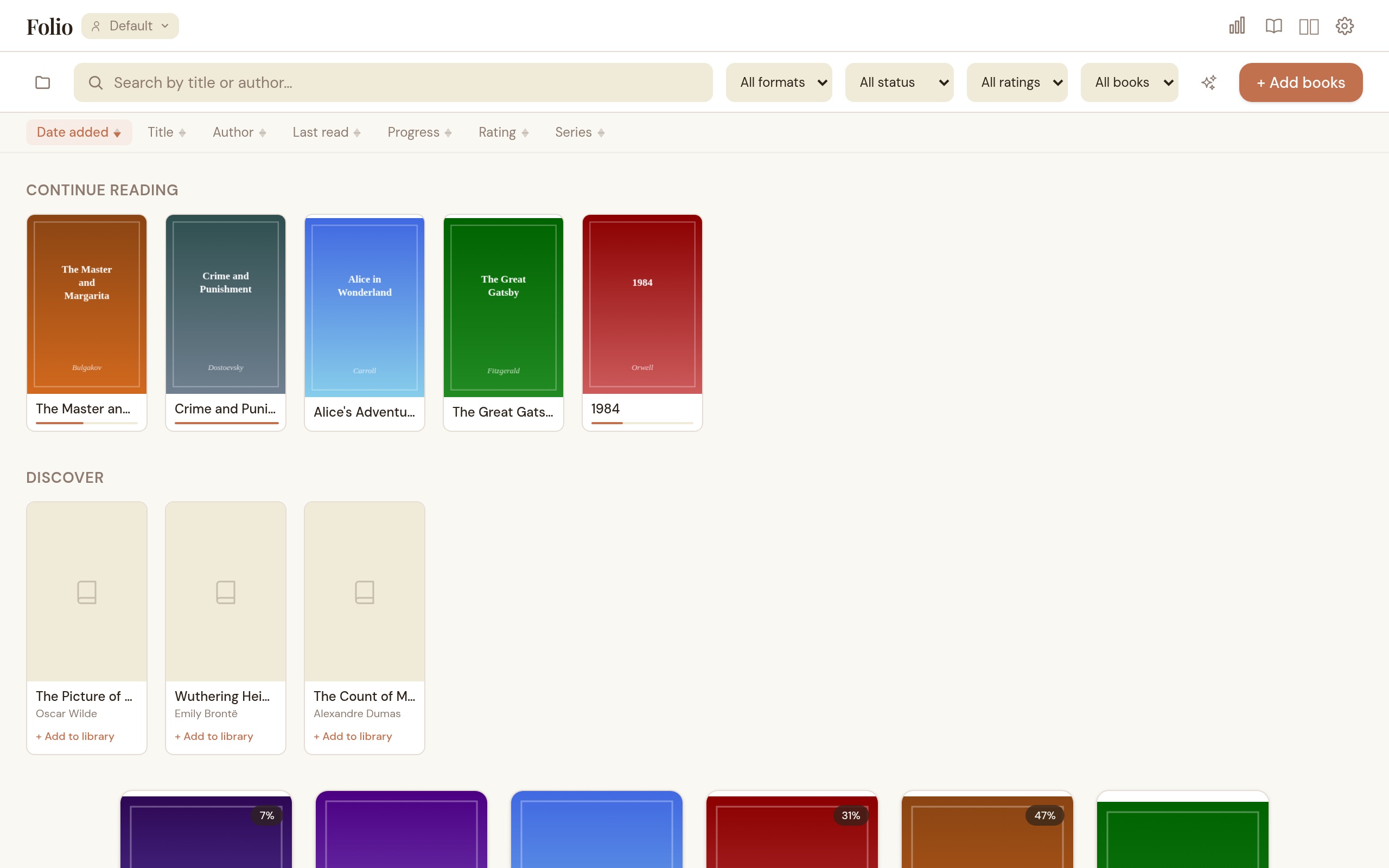
Books are shown as a cover grid. Each card displays the cover image, title, author, star rating (if set), a reading-status badge, and a format badge for non-EPUB books.
The status badge in the top-right of the cover tells you where you are with a book:
- Active (green, shows the percentage) — in progress and read within the last 14 days.
- Paused (amber, shows the percentage) — in progress but untouched for more than 14 days.
- Finished (a checkmark) — read to the end.
- Unread books show no badge.
In the full library view, a “Continue Reading” row at the top shows your most recently read books, and a “Discover” row shows popular titles from your configured OPDS catalogs. Both sections are hidden when viewing a collection or series, so you see only the relevant books.
The grid is built for large libraries. Covers are stored as lightweight thumbnails, and only the rows currently on screen are rendered, so scrolling stays smooth even with thousands of books.
Searching and Filtering
- Search: Type in the search bar to filter by title or author. Results update as you type.
- Format filter: Filter by All, EPUB, PDF, CBZ, or CBR.
- Status filter: Filter by All, Unread, In Progress, or Finished.
- Rating filter: Filter by minimum star rating (1+ through 5 stars).
- Sorting: Sort by date added, title, author, last read, progress, rating, or series — ascending or descending.
- Source filter: Filter by All, Imported, or Linked books.
- Tag filter: Click the Tags button to open a searchable dropdown. Select one or more tags to filter — books must have all selected tags (AND logic). Your tag selection persists between sessions.
All filters combine, so you can search for “asimov” within “epub” books tagged “sci-fi” that are “in progress.”
Editing and Removing Books
Hover over a book card to reveal action buttons:
- Edit: Opens a dialog to change the title, author, cover image, and tags.
- Delete: Removes the book from your library (with a confirmation prompt).
Bulk Actions
When you need to act on several books at once, click the selection icon in the toolbar (the grid icon next to the import button). This puts the library into selection mode:
- Click book cards to select or deselect them. A checkbox appears on each card.
- A floating action bar shows at the bottom with the selection count.
- Select all / Deselect all toggles between selecting every visible book or clearing the selection.
- Delete removes all selected books (with a confirmation prompt).
- Cancel exits selection mode.
Drag-and-drop is disabled while in selection mode to prevent accidental imports.
Linked Books
By default, importing a book copies the file into Folio’s managed library folder. With linked books, you can keep the file in its original location and still get full features: progress tracking, bookmarks, highlights, metadata, and collections.
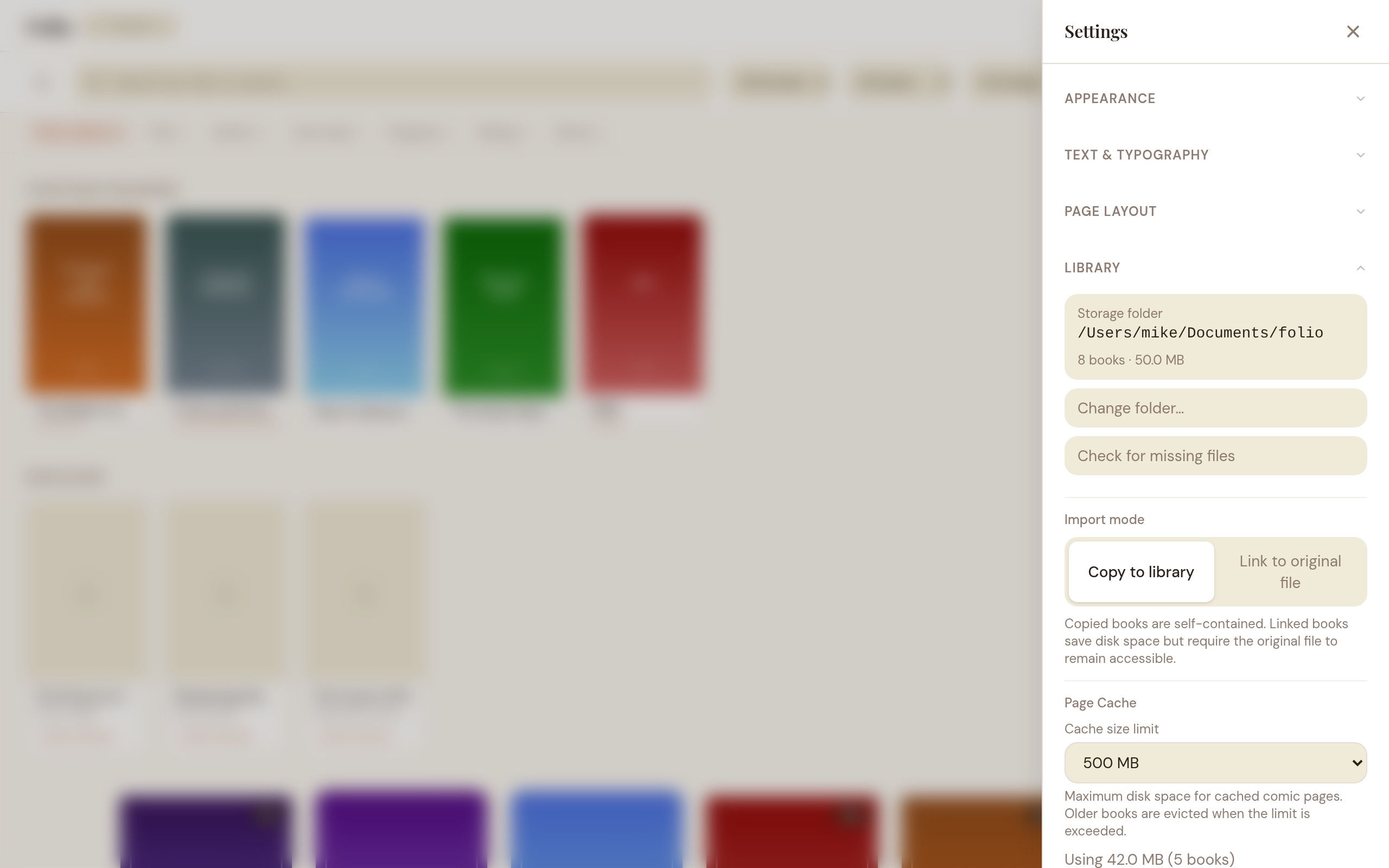
- Default import mode: In Settings > Library, toggle the default between “Copy to library” and “Link in place”. Applies to file picker, folder import, and drag-and-drop.
- Visual badge: Linked books show an external-link icon on their card to distinguish them from library-local books.
- Library filter: Filter by All, Imported, or Linked.
- Missing files: If the original file becomes unavailable (drive ejected, path moved), Folio shows an error toast with an option to remove the entry.
- Copy to library: You can internalize a linked book later via the “Copy to library” action in the Edit Book dialog.
Remote backups and ZIP exports skip linked book files (metadata is still included).
Manual Collections
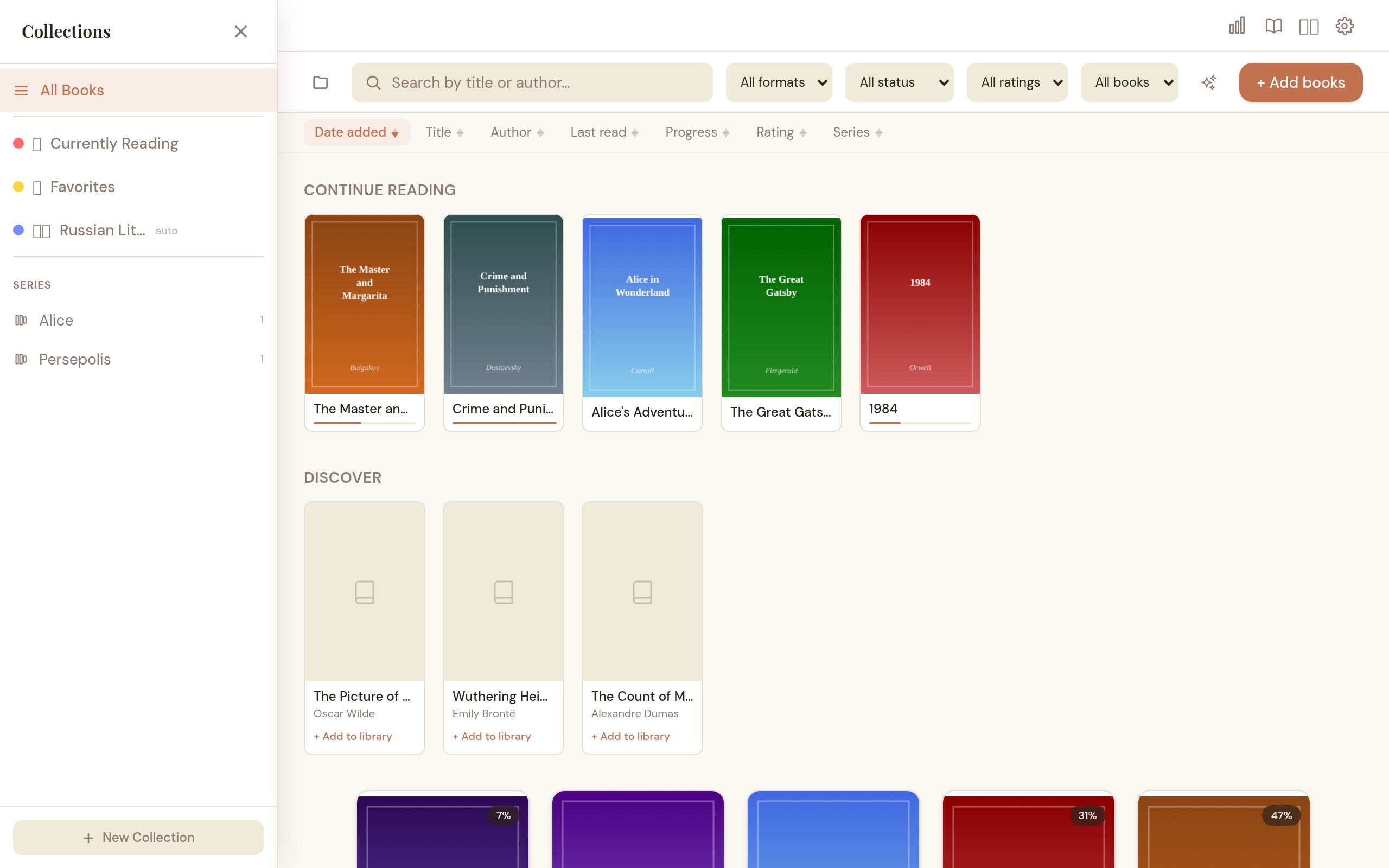
Collections let you organize books into groups. Open the collections sidebar by clicking the collections icon or pressing C.
Create a collection, then drag book cards onto it to add them. You can remove books from a manual collection via the book card’s context actions.
Automated Collections
Define rules and Folio populates the collection automatically. Available rule types:
| Field | Operators |
|---|---|
| Author | contains, is |
| Title | contains |
| Series | contains, is |
| Language | is, contains |
| Publisher | contains |
| Description | contains |
| Format | is (epub, pdf, cbz, cbr) |
| Tag | is, contains |
| Date added | within last N days |
| Reading progress | is unread / in progress / finished |
Multiple rules are combined with AND logic — a book must match all rules to appear in the collection.
Smart suggestions
Click Suggest Collections at the bottom of the sidebar. Folio scans your library and offers rule-based templates based on patterns it finds: authors with 3+ books, series with 2+ books, reading status groups, and non-dominant formats. Each suggestion shows how many books match. You can add it immediately, tweak the rules first, or dismiss it.
Collection options
- Custom icon (choose from preset emoji)
- Custom color (choose from preset palette)
- Export as Markdown
- Delete collection
Series Grouping
Books with series metadata are automatically grouped in two ways:
- Sidebar: A “Series” section appears below collections, showing each series with its book count. Click a series to filter the library to just those books, sorted by volume order.
- Sort by Series: Select the “Series” sort option in the library toolbar. Two view modes are available via a pill toggle: Expanded groups books under collapsible series headers sorted by volume. Stacked shows each series as a single tile with fanned-out covers — click a stack to drill in, press Escape or the back bar to return. Books without series data appear at the bottom.
Series data comes from book file metadata (EPUB/CBZ). You can also set or edit series info manually via the edit dialog on any book.
Reading EPUBs
Click any book card to open it. If you’ve read it before, Folio picks up where you left off — same chapter, same scroll position.
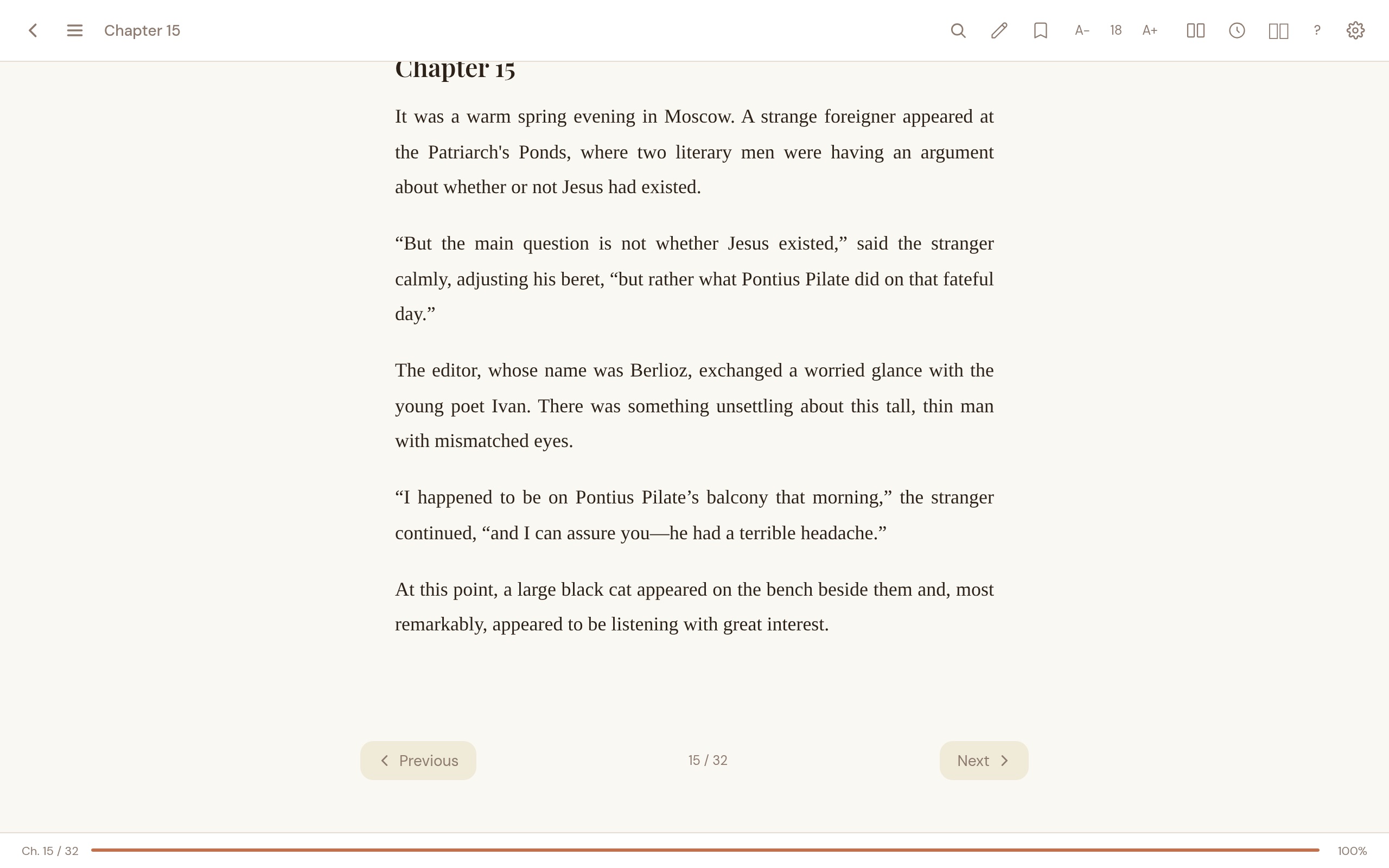
Folio offers two reading modes for EPUBs, selectable in Settings > Page Layout:
Paginated mode (default)
Read one chapter at a time. Navigate with the Previous/Next buttons at the bottom, press the left/right arrow keys, or pick a chapter from the Table of Contents. Floating chapter arrows appear on the left/right edges when you scroll past the bottom navigation bar.
Continuous scroll mode
All chapters are loaded and rendered as a single scrollable page with chapter title dividers between them. Scroll naturally through the entire book. The Table of Contents still works — clicking a chapter scrolls directly to it.
Common to both modes
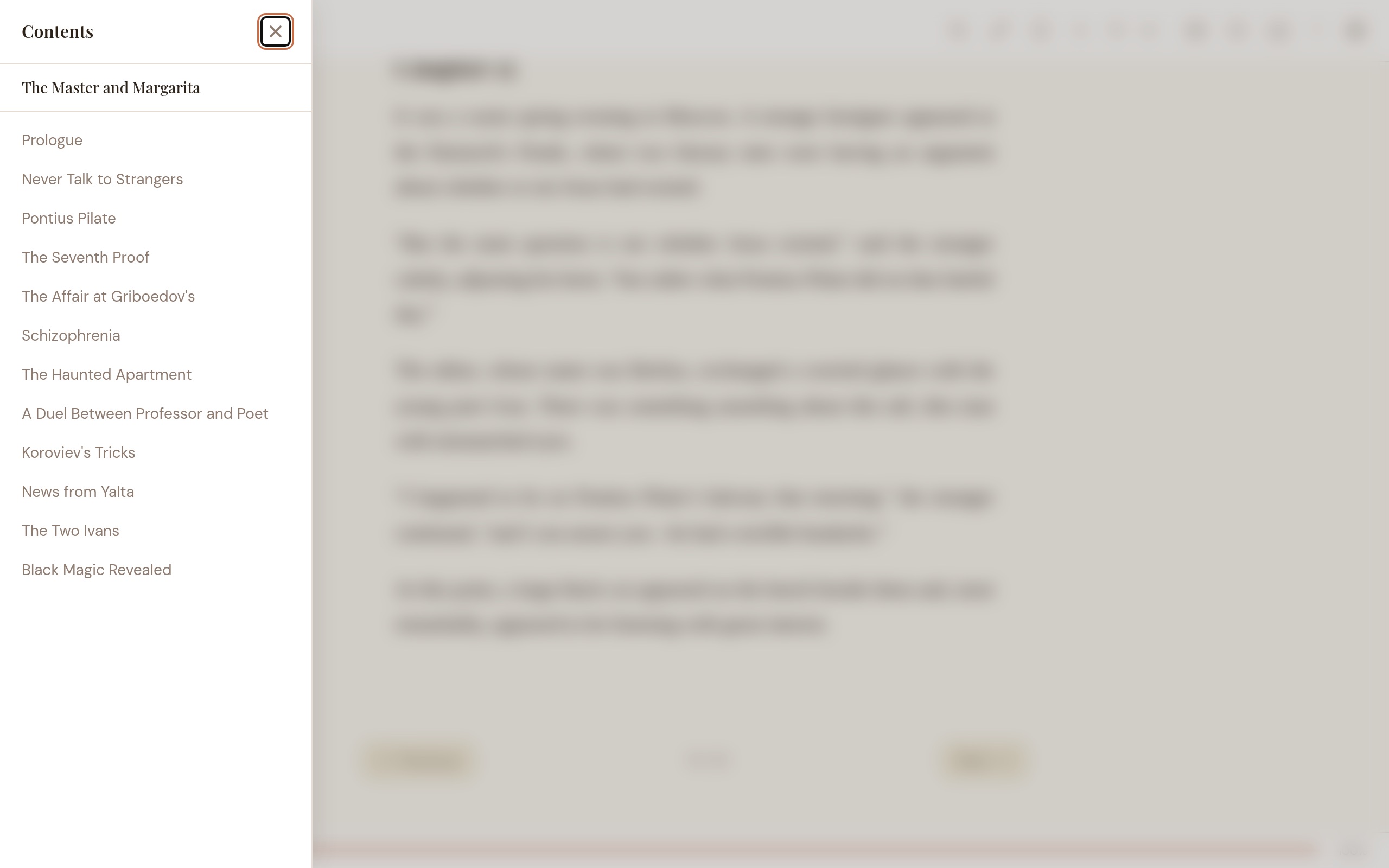
- Table of Contents: Click the list icon in the header or press
T. The sidebar shows a searchable, hierarchical chapter list with the current chapter highlighted. - Focus mode: Press
Dto hide all UI and read distraction-free. Move the mouse to the top or bottom edge to temporarily reveal controls. - Progress tracking: Your reading position is saved automatically and restored when you reopen the book.
- Time-to-finish: The footer shows an estimated reading time based on 250 words per minute. Hover for chapter-level and book-level estimates.
Reading progress
Progress is saved automatically as you read. The library shows a percentage on each book card. When you reopen a book, you return to exactly where you stopped. Folio also records reading sessions (time spent, pages read) for the reading stats dashboard.
Returning to the library
Click the back arrow in the top-left corner or press Escape. Your progress is saved when you exit.
Book completion
When you reach the last page or chapter, Folio shows a short celebration with the book cover, your total reading time, and a star rating you can set on the spot. It only fires once per book.
PDF and Comic Book Reading
PDF, CBZ, and CBR formats use a page-by-page viewer. Navigate with the Previous/Next buttons, arrow keys, or mouse wheel. The footer shows the current page number and total page count.
Go to page: Click the page label in the footer (e.g., “Page 5 / 45”). It turns into a number input — type the page you want and press Enter. Press Escape or click away to cancel.
Thumbnail strip: Press M or click the three-bar icon in the header to open a horizontal strip of page thumbnails below the reader. Click any thumbnail to jump to that page. Pages nearest to the current page decode first, so the strip fills outward. The strip remembers its open/closed state per book.
Split view: Press \ or click the split icon in the header to read two books side by side. The companion pane starts on the same book — click “Choose another book” to pick a different one. Each pane tracks its own progress and zoom. The pairing persists per book, so reopening restores both panes.
Page cache: When you open a comic for the first time, Folio extracts all pages to a disk cache. Subsequent page turns read from disk (~1–5ms). PDFs work the same way: the first ten pages are rendered at high resolution and cached, with more cached on demand as you read. Reopening a cached book skips extraction entirely. Cache is managed automatically (LRU, 7-day expiry, configurable size cap in Settings > Library).
Zoom: Use Cmd/Ctrl + scroll to zoom in and out. A zoom level indicator appears with a reset button. Use Cmd/Ctrl + / − / 0 for keyboard zoom control. When you zoom into a PDF, Folio re-renders the page at the higher resolution so text stays sharp.
Highlights and Bookmarks
Highlights (EPUB only)
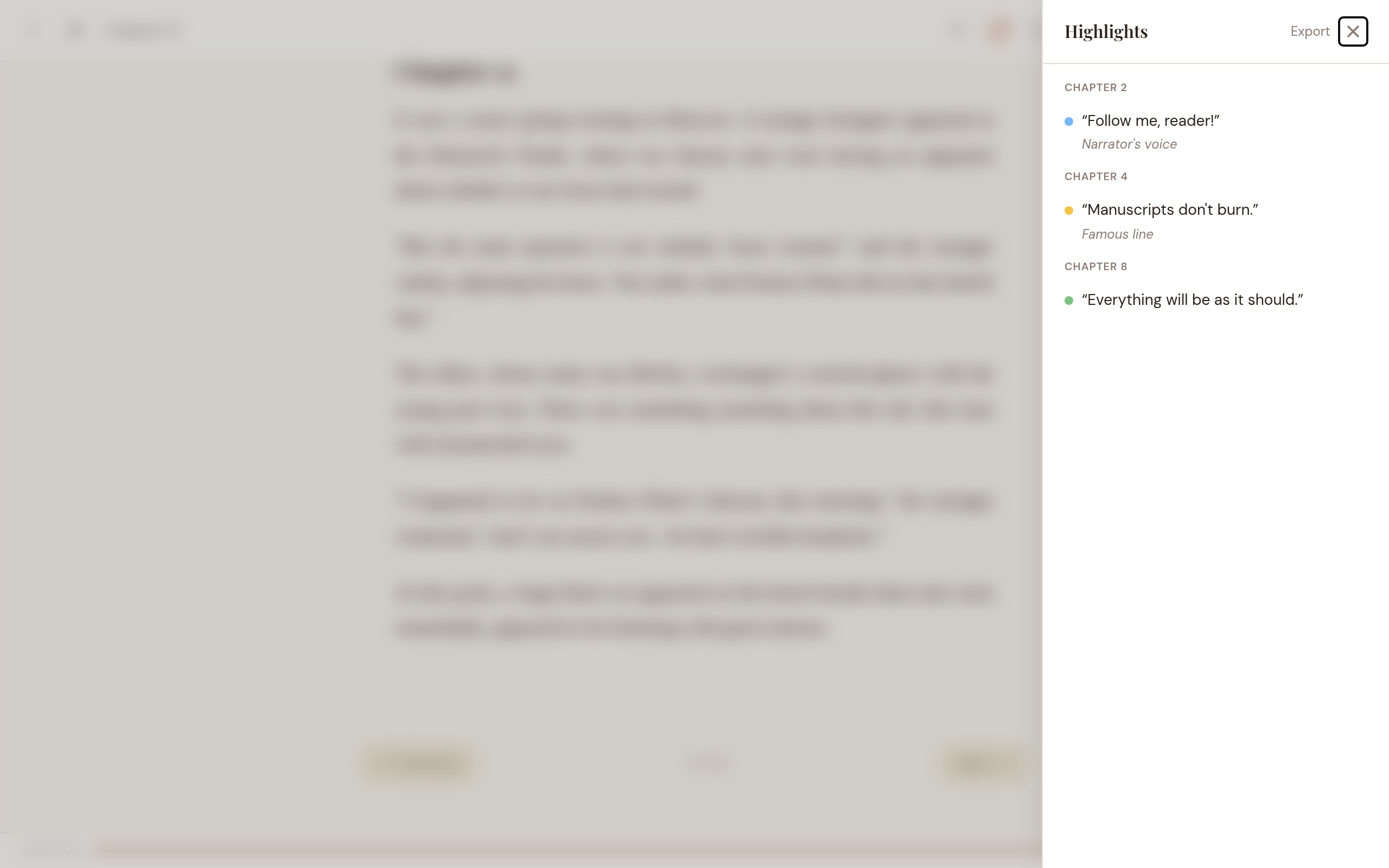
Select text while reading to see a color picker popup. Choose from five colors: yellow, green, blue, pink, or orange. The highlighted text is saved with its position.
Open the highlights panel to:
- View all highlights grouped by chapter
- Add or edit notes on any highlight
- Click a highlight to jump to that chapter
- Delete individual highlights
- Export all highlights as Markdown
Cross-book highlight search
Click the highlighter-search icon in the library toolbar to search across all your highlights and notes at once. Results are grouped by book and show the highlight text, color, note, and chapter. Click any result to open that book in the reader.
Bookmarks
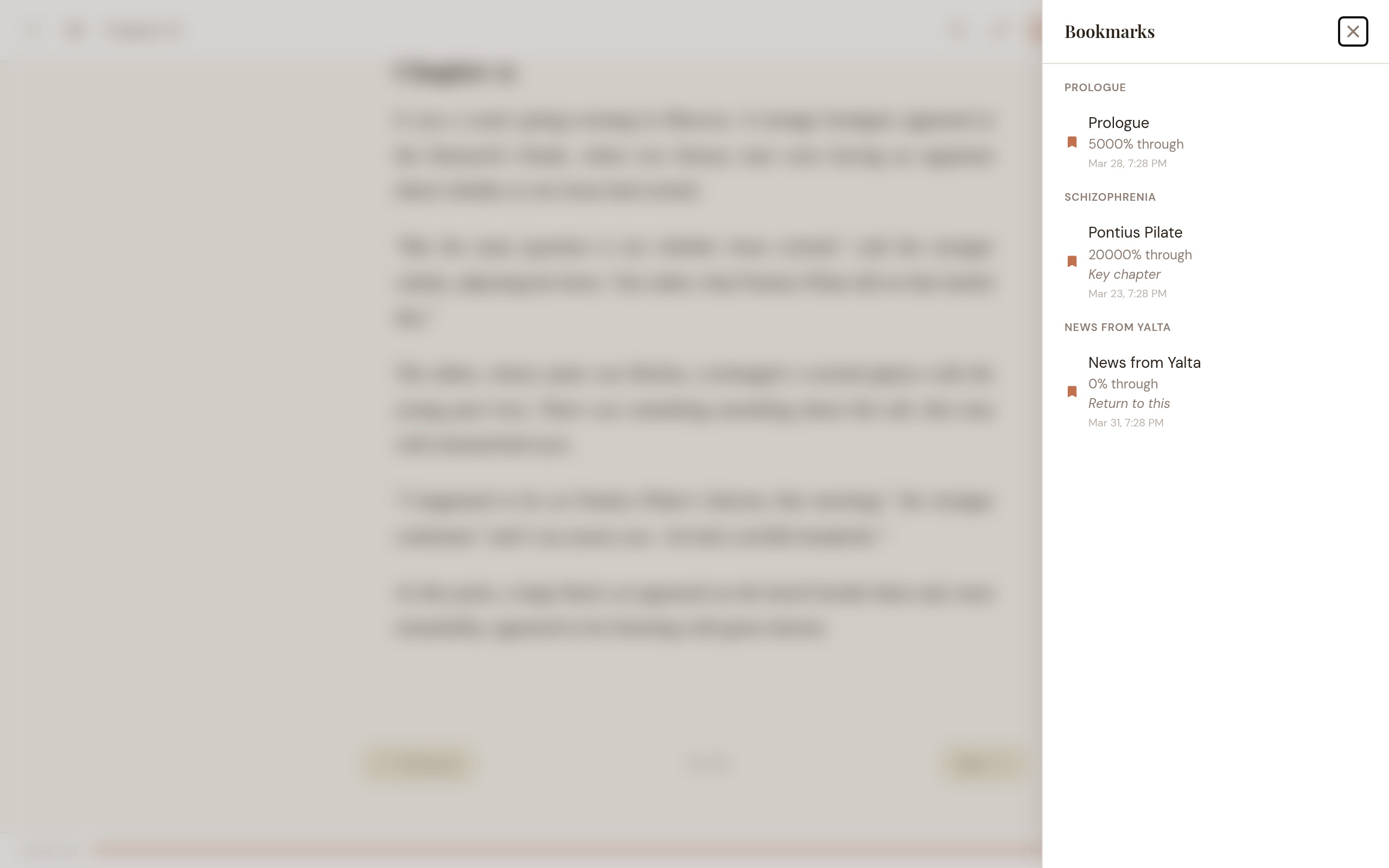
Press B in the reader to bookmark the current position. A toast notification appears — expand it to give the bookmark a name. You can also rename bookmarks later by clicking the name in the bookmarks panel (click to edit, Enter to save, Escape to cancel). Bookmarks are listed alongside your reading progress.
Full-Text Search (EPUB)
Search the full text of any EPUB book:
- Click the magnifying glass icon in the reader header or press ⌘/Ctrl+F to open the search bar.
- Type at least 2 characters to see results. Matches appear with chapter name and a text snippet.
- Click a result to jump to that chapter. Search highlights appear in blue in the text.
- Results are capped at 200 matches. If you hit the cap, try a more specific query.
- Press Escape to close the search panel.
Book Metadata Editing
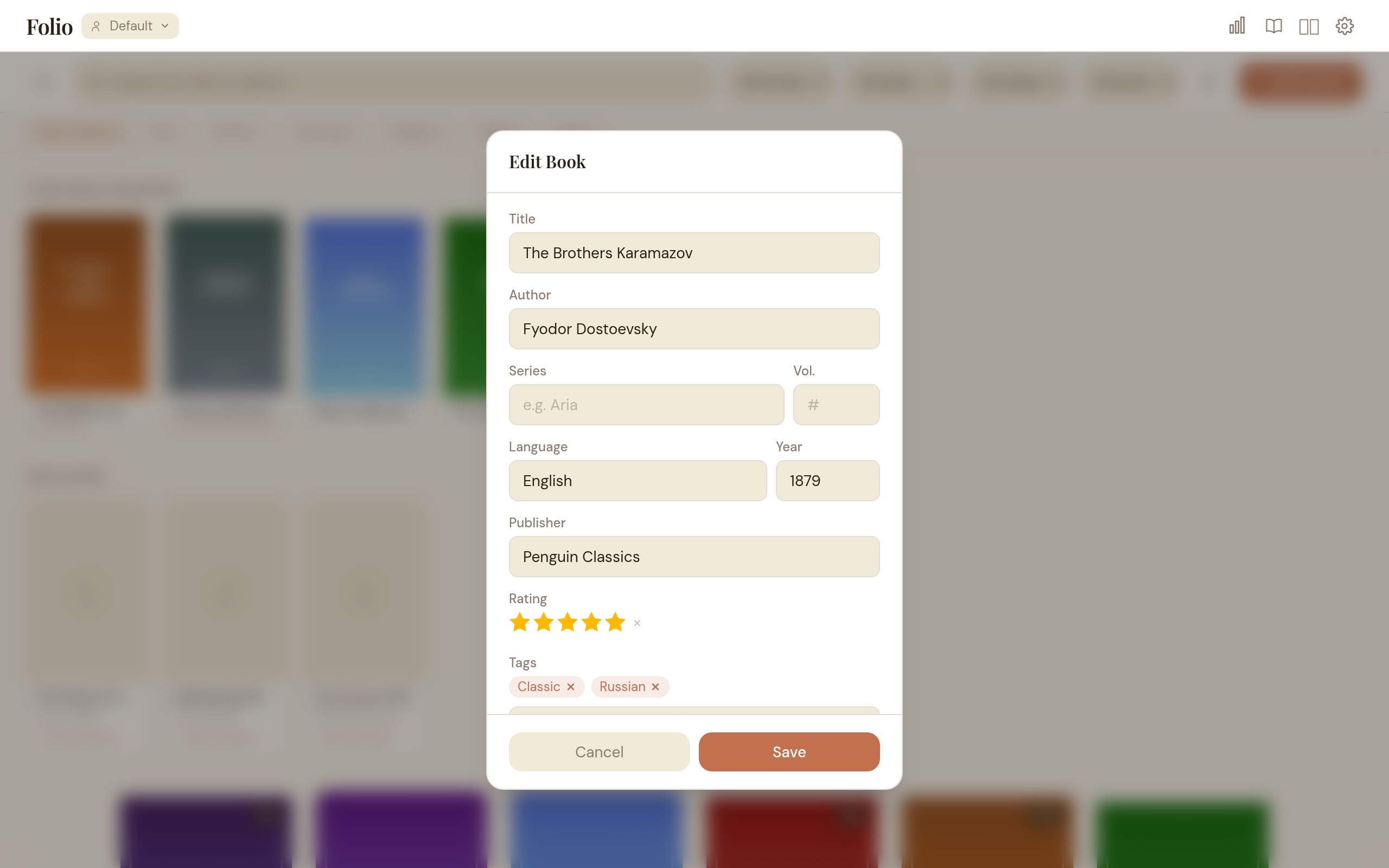
Click the edit button on any book card to open the metadata editor.
Editable fields
- Title
- Author
- Series and volume number
- Language
- Publisher and publish year
- Cover image (upload a JPG, PNG, or WebP)
- Star rating (1–5 stars — click a star to rate, click the same star again to clear)
- Tags (with autocomplete from your existing tags)
Automatic Metadata Enrichment
Folio can automatically look up metadata for your books from multiple sources. Click “Search” in the edit dialog to manually look up a book by title and author, or let the auto-scan handle it.
Enrichment providers
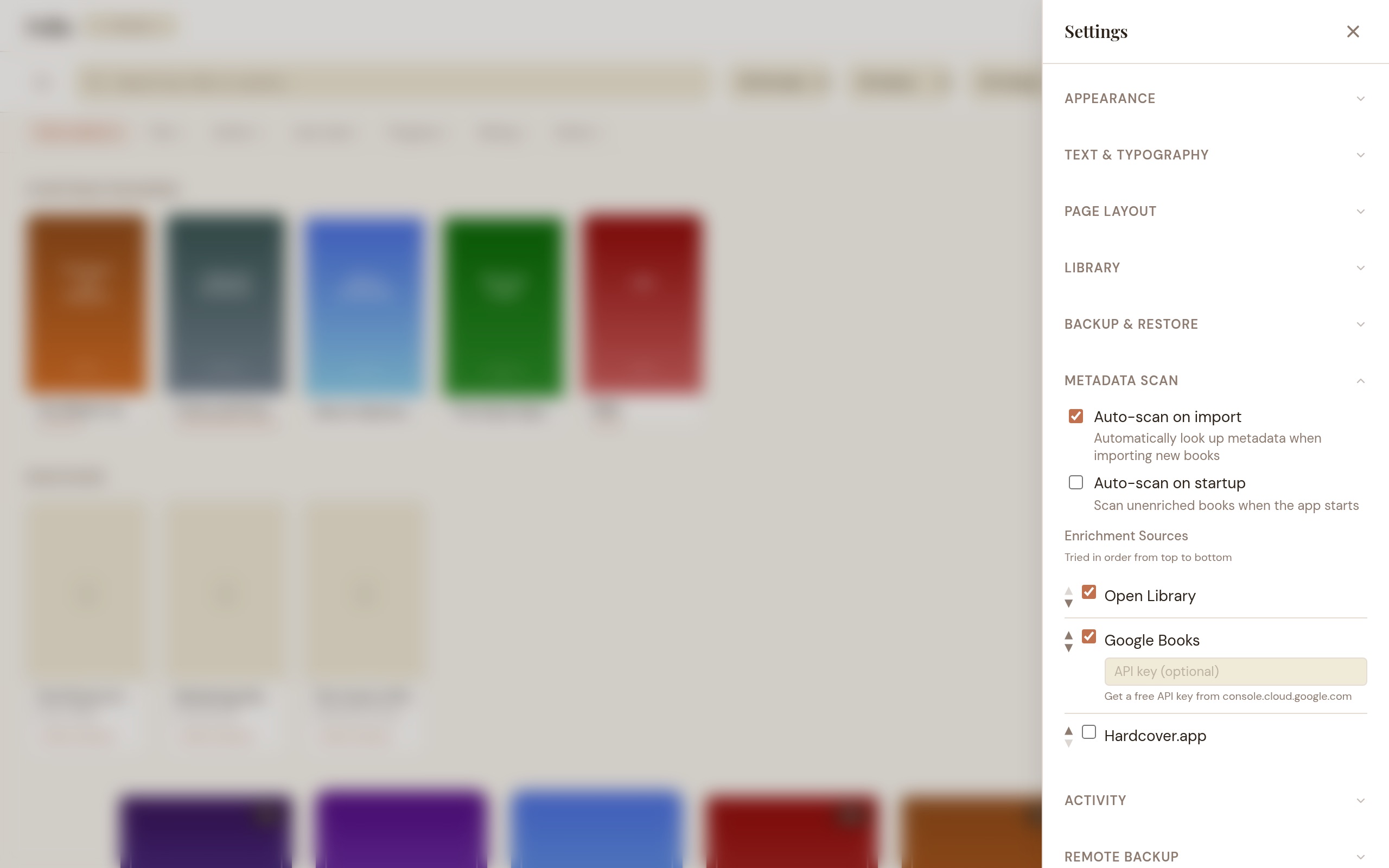
Providers are tried in order — the first one that finds a match wins. Configure which providers are active in Settings > Metadata Scan > Enrichment Sources.
| Provider | Coverage | API Key | Default |
|---|---|---|---|
| Google Books | General books, good international coverage | Optional (for higher rate limits) | Enabled |
| OpenLibrary | Open data, ratings, subjects | None | Enabled |
| Comic Vine | Comics, BD, manga — the most comprehensive free comics database | Free key from comicvine.gamespot.com/api | Disabled (needs key) |
| BnF | French national library — excellent for French editions | None | Enabled |
The scan uses multiple strategies in order of confidence:
- ISBN lookup — if the book contains an ISBN in its metadata, Folio does a direct lookup (highest accuracy).
- Title + Author search — searches providers and auto-applies if the match is strong.
- Filename parsing — for CBR/CBZ comics and files with no embedded metadata, Folio parses the filename to extract title, author, and year.
Scan controls
- Scan Library button in the toolbar (magnifying glass icon) — scans all unenriched books. Also retries previously skipped books (they may match with newly enabled providers).
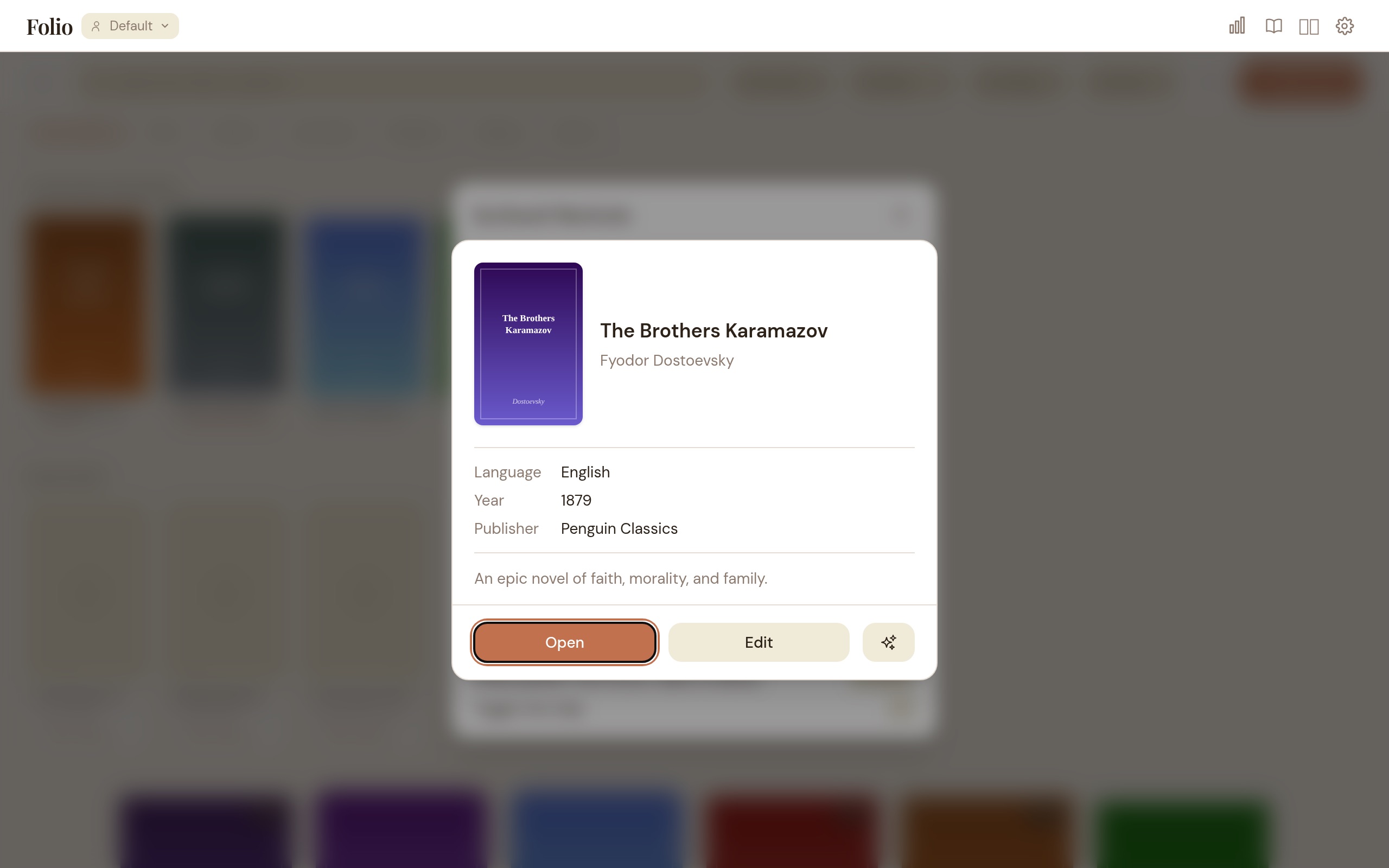
- Per-book scan — click the scan icon in the book detail popup to enrich a single book.
- Progress indicator — shows “Enriching 3/12: Book Title” with a cancel button.
Settings
- Auto-scan on import (default: on) — newly imported books are automatically queued for metadata lookup.
- Auto-scan on startup (default: off) — scan unenriched books when the app launches.
Comics metadata
Comics (CBZ and CBR) get metadata from two sources:
- ComicInfo.xml — if present inside the archive, Folio extracts writer, title, series, volume, year, language, publisher, genre, and summary automatically at import time.
- Enrichment providers — Comic Vine is recommended for comics. Get a free API key from comicvine.gamespot.com/api, enable it in Settings, then run a scan.
Catalog Browsing (OPDS)
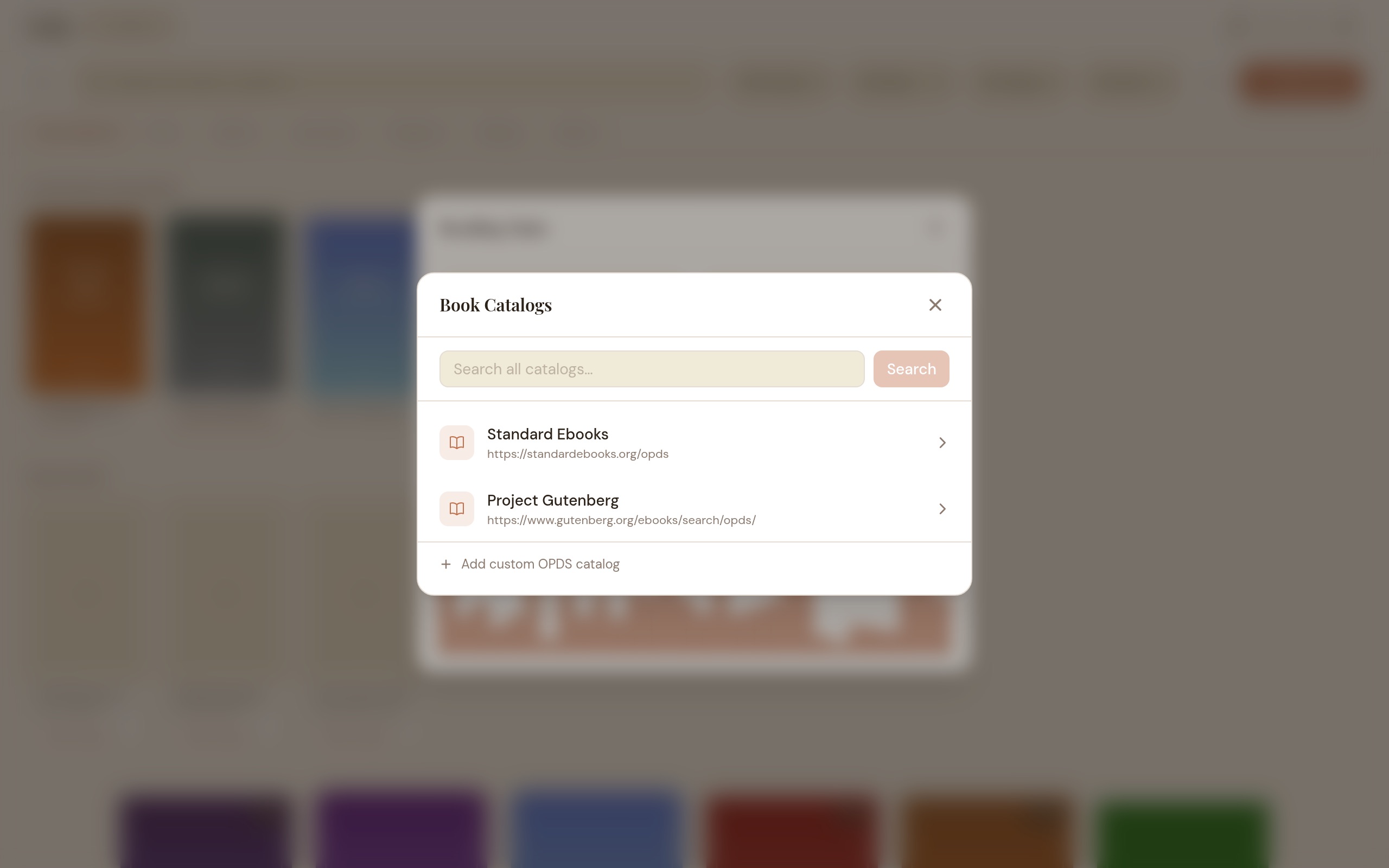
Folio can browse online book catalogs that use the OPDS protocol (Open Publication Distribution System). Three catalogs ship out of the box — Project Gutenberg, Standard Ebooks (New Releases), and Wikisource — and you can add more from a curated preset list, from self-hosted Calibre servers, or by pasting any OPDS URL.
Browsing
Open the catalog browser from the library. Pick a catalog to browse its categories and entries. Each entry shows the title, author, summary, and cover when available.
Searching
Unified search: From the catalog list, type a query in the “Search all catalogs” bar. Folio searches every configured catalog in parallel and shows aggregated results — one search, all sources.
Per-catalog search: When browsing inside a catalog that supports search, a “Search this catalog” bar appears at the top.
Downloading
Click a download link to grab a book (EPUB, PDF, CBZ, CBR, or MOBI/AZW/AZW3) and import it directly into your library.
Discover
The library home page includes a Discover section showing popular and new books from your configured OPDS catalogs. Results are cached for 24 hours and fetched in the background so they don’t slow down startup. Click any Discover card to download and import the book.
Adding more catalogs
Browse presets: An inline picker offers a curated list of OPDS catalogs — Gallica, OpenEdition, ManyBooks, arXiv, Elephant Editions, and more. Filter by language or category, and click + Add on any row. Already-added presets show an “Added” badge.
Add custom URL: Enter the OPDS root URL of any catalog, including self-hosted Calibre/COPS servers and other Folio instances on your LAN (e.g. http://192.168.0.12:7788/opds). Custom catalogs can be removed at any time.
Themes
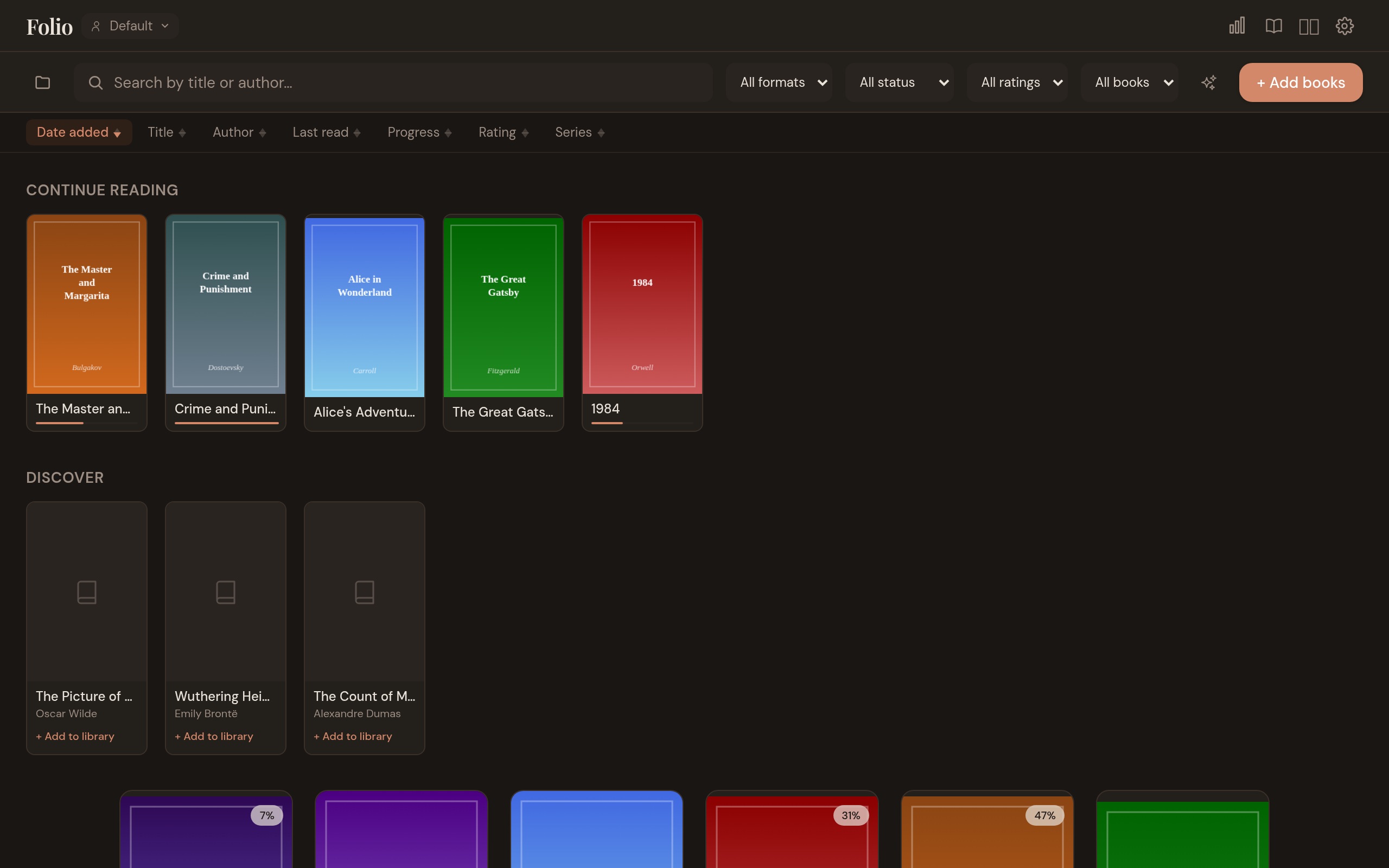
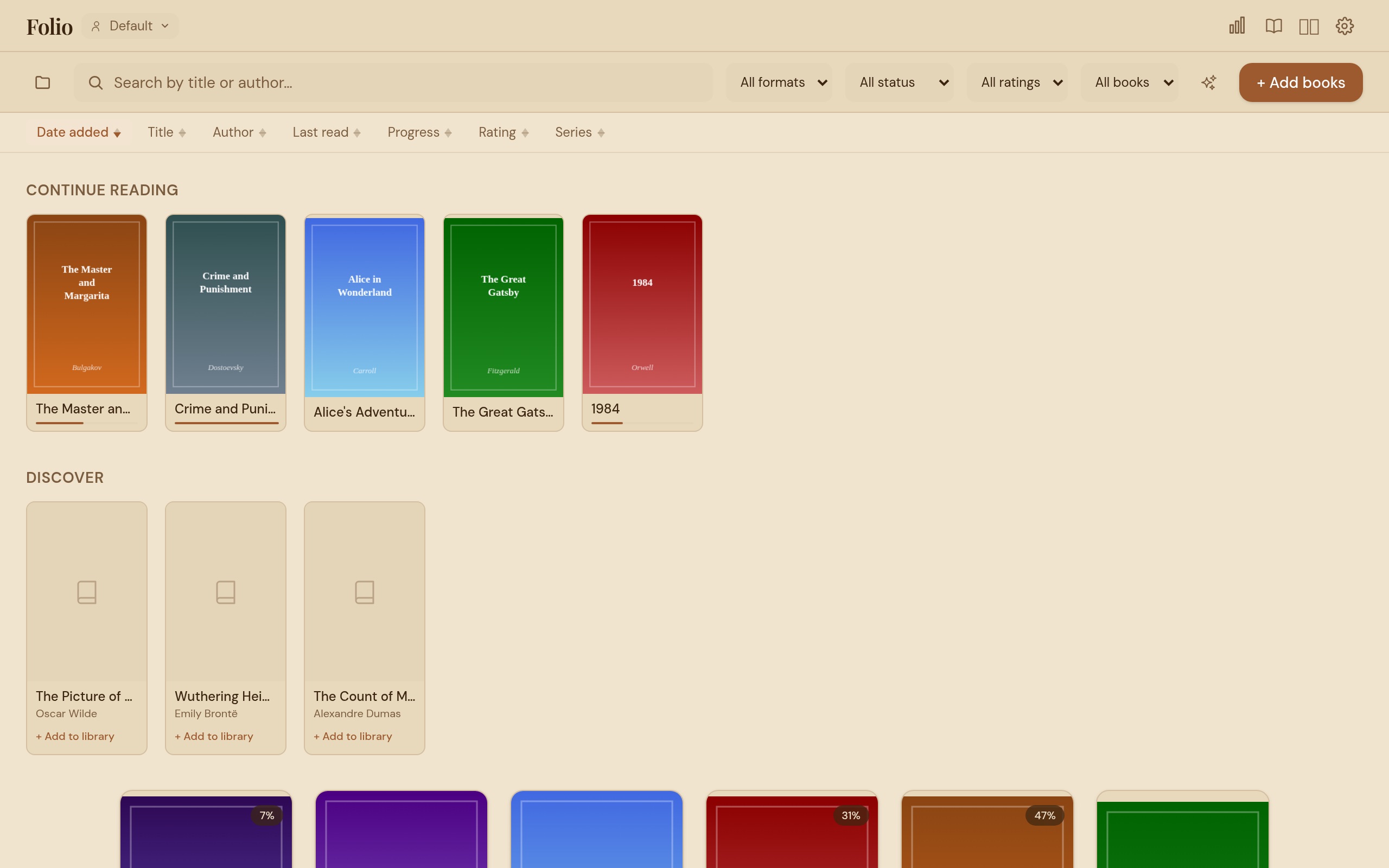
Click the gear icon in the reader header (or library toolbar) to open Settings. Choose from four presets or create your own:
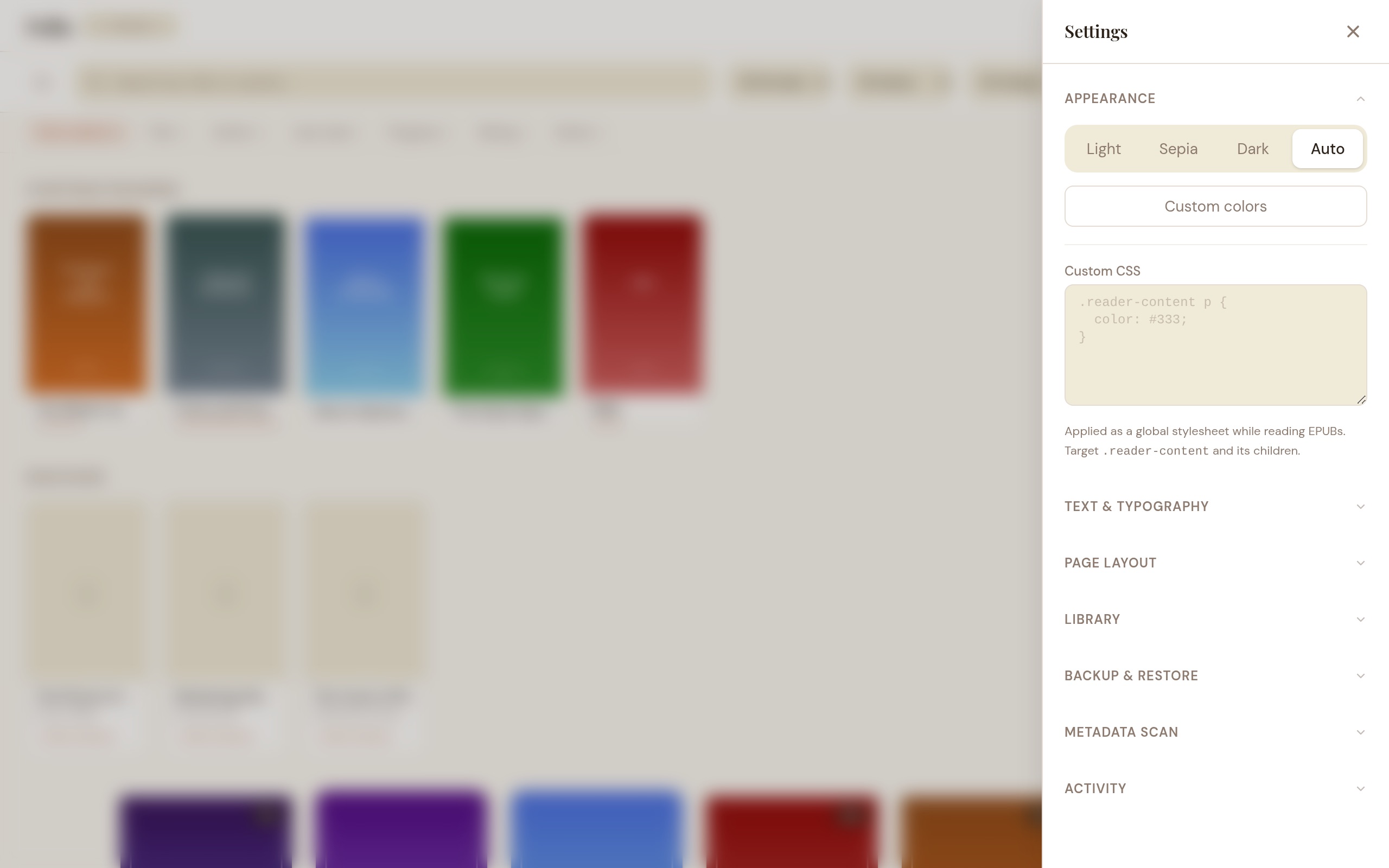
- Light — warm off-white with brown text (default).
- Sepia — deeper amber/parchment background with rich brown text, designed for comfortable extended reading.
- Dark — dark background with light text for low-light environments.
- Auto — follows your operating system’s light/dark setting.
Custom colors: Click “Custom colors” to open the color editor. Pick a background and text color — the remaining UI colors are automatically derived. Expand “Advanced” to fine-tune individual color tokens.
Saved themes
Save your current visual setup as a named theme (colors, font, size, and all typography settings). Click + Save as theme in Settings > Appearance > Saved Themes. Click any saved theme to apply it instantly. Hover to rename or delete. Up to 50 themes. Custom CSS is global and not included in saved themes.
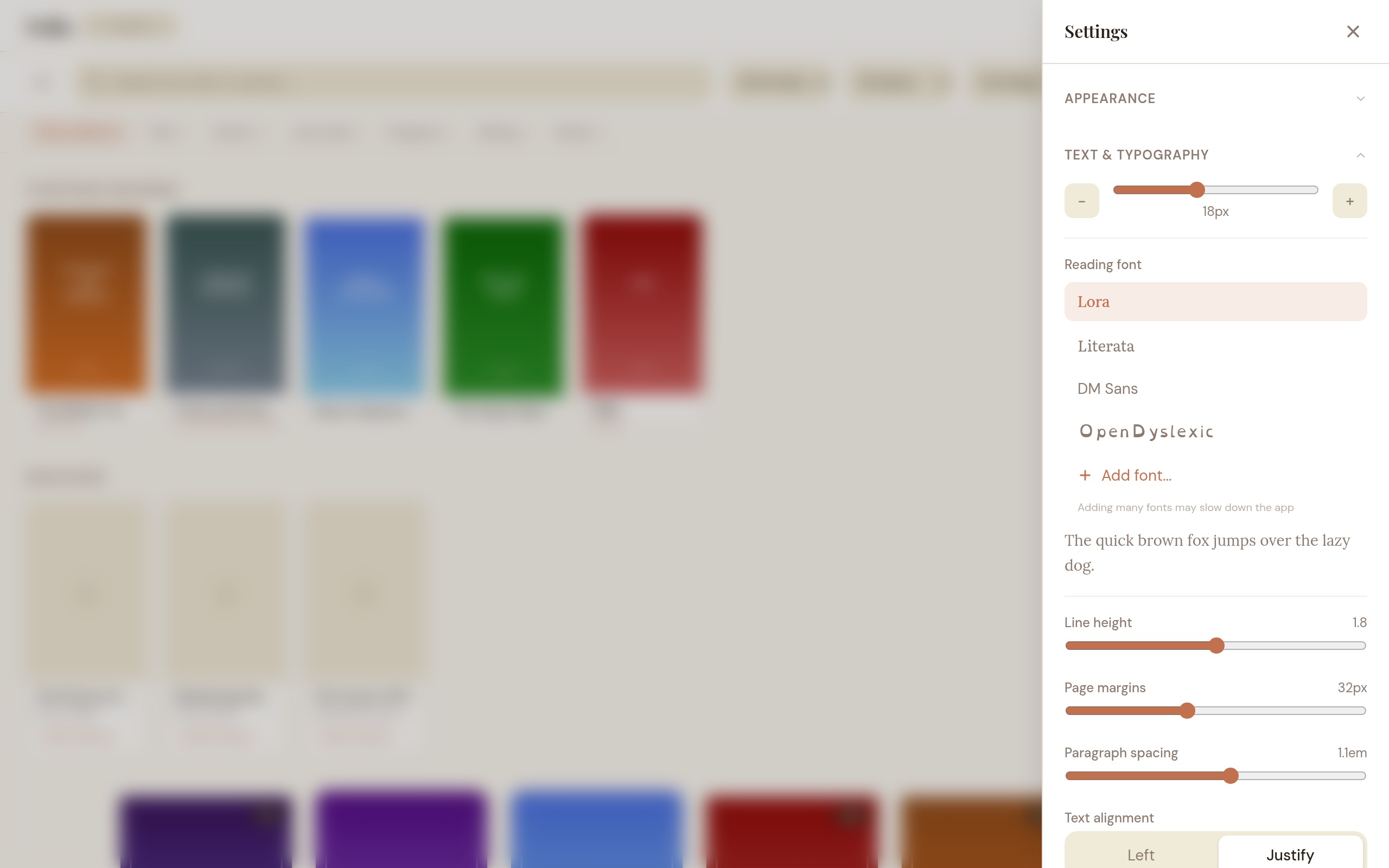
Reading font
Choose from four built-in fonts for EPUB reading content:
- Lora — elegant serif font (default).
- Literata — a serif font designed for e-reading (created by Google for Play Books).
- DM Sans — clean sans-serif font.
- OpenDyslexic — a font designed for readers with dyslexia, with weighted letterforms that prevent visual rotation and flipping.
You can also add your own fonts: click Add font... at the bottom of the font list and select a .ttf, .otf, or .woff2 file. Custom fonts appear alongside the built-in options. To remove a custom font, hover over it and click the X icon.
Built-in fonts are bundled locally — no internet connection required.
Dual-Page Spread
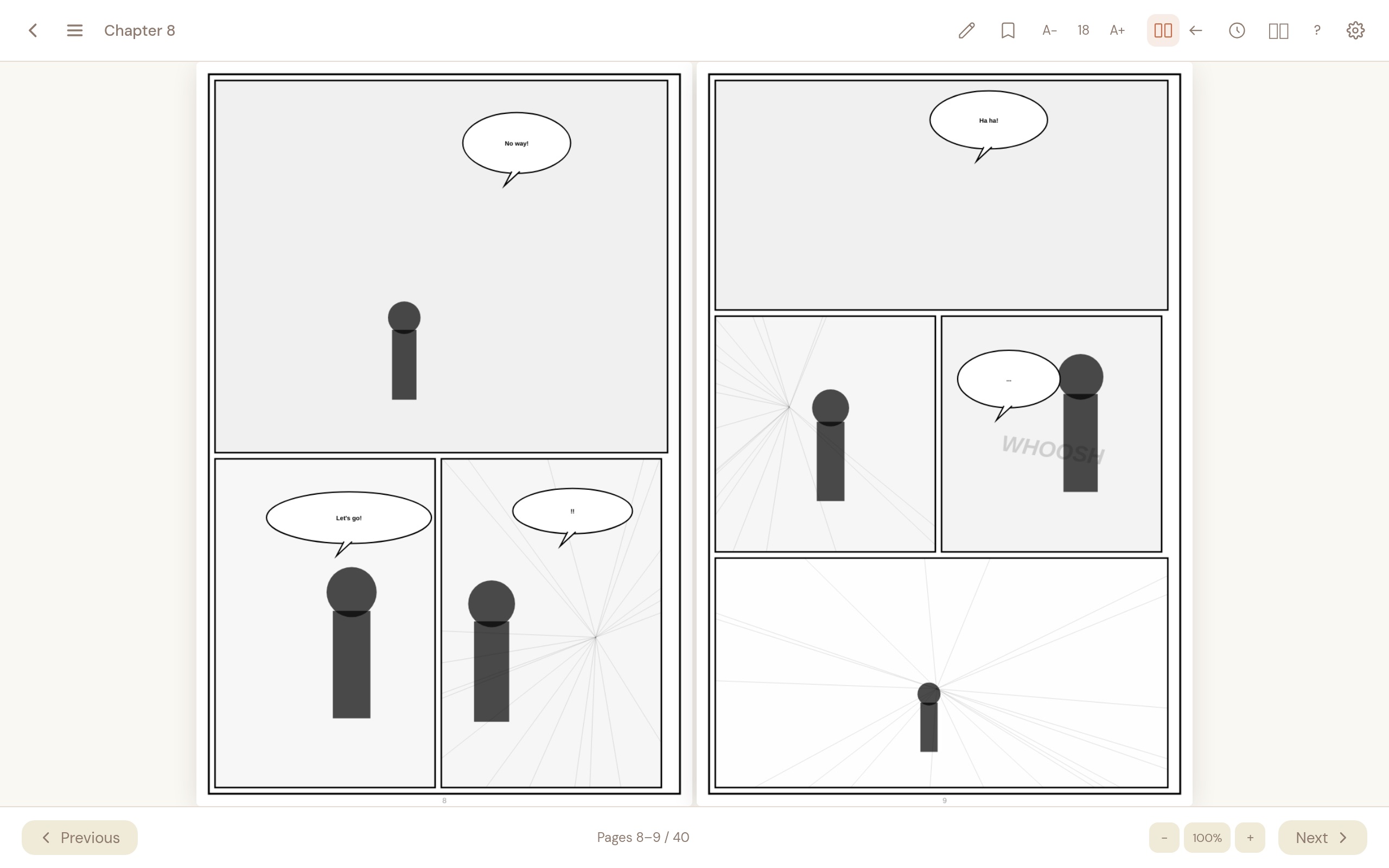
Show two pages side by side, like an open book. Works for all formats: comics (CBZ/CBR), PDFs, and EPUBs in paginated mode.
Toggling on/off
- Reader header: Click the dual-page icon (two rectangles) in the header bar. When active, the icon highlights.
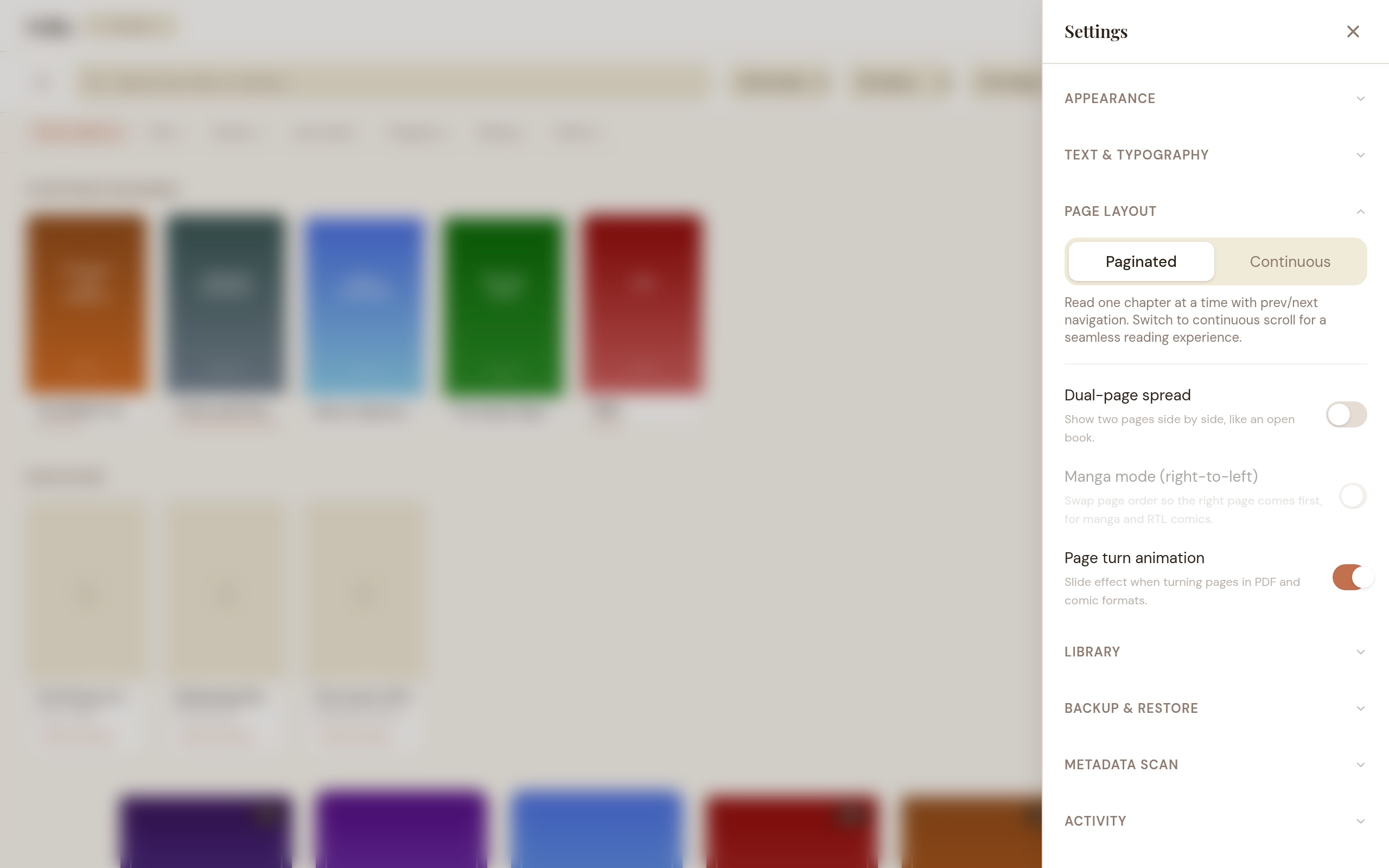
- Settings > Page Layout: Toggle “Dual-page spread” on or off.
Page pairing
The cover page (page 1) always displays solo. Subsequent pages are paired: 2–3, 4–5, 6–7, etc. If the last page has no partner, it displays solo.
Manga mode (right-to-left)
When dual-page is active, a second button appears in the header bar (left arrow icon). Toggle it to swap the page order within each spread — the right page displays on the left and vice versa. This also reverses the arrow key direction so that left-arrow advances forward, matching the RTL reading direction. For EPUBs, manga mode flows the text columns right-to-left.
Zoom and pan
In dual-page mode, zoom and pan apply to both pages as a unit. Pan is bounded so you can’t drag the content off-screen.
Both settings are global (apply to all books) and persist between sessions. Dual-page is automatically hidden when EPUB is in continuous scroll mode.
Font size
Adjust between 14px and 24px using the slider or +/− buttons in Settings, or the A−/A+ buttons in the reader header.
Page Turn Animation
When you turn pages in PDF or comic formats (CBZ/CBR), the new page slides in from the side with a short fade. It gives you a sense of direction when flipping forward or backward.
Toggle: Settings > Page Layout > “Page turn animation” — on by default. Turn it off if you prefer instant page changes.
Adjacent pages are preloaded in the background after you pause on a page, so the animation plays without any stutter. During fast navigation the preloads back off to keep the current page responsive.
This setting does not affect EPUB, which uses its own chapter-based navigation.
Advanced Typography
Fine-tune your reading experience under Settings > Appearance > Typography:
- Line height — adjust spacing between lines (1.2× to 2.4×).
- Page margins — control horizontal padding (0px to 80px).
- Text alignment — choose between left-aligned or justified text.
- Paragraph spacing — set the gap between paragraphs (0em to 2em).
- Hyphenation — toggle automatic word breaking at line endings.
All typography settings apply to EPUB content only and are saved globally.
Custom CSS
For advanced customization, you can inject your own CSS that applies to EPUB reading content:
- Open Settings > Appearance and scroll to the Custom CSS section.
- Type or paste CSS rules in the text area.
- Changes apply immediately with a live preview.
- Use the Clear button to remove all custom CSS.
Profiles
Profiles give you completely separate libraries. Each profile has its own books, reading progress, collections, and highlights.
Create and switch profiles from the profile dropdown in the library header. The dropdown only appears once you have more than one profile. Non-default profiles can be deleted.
Backup and Restore
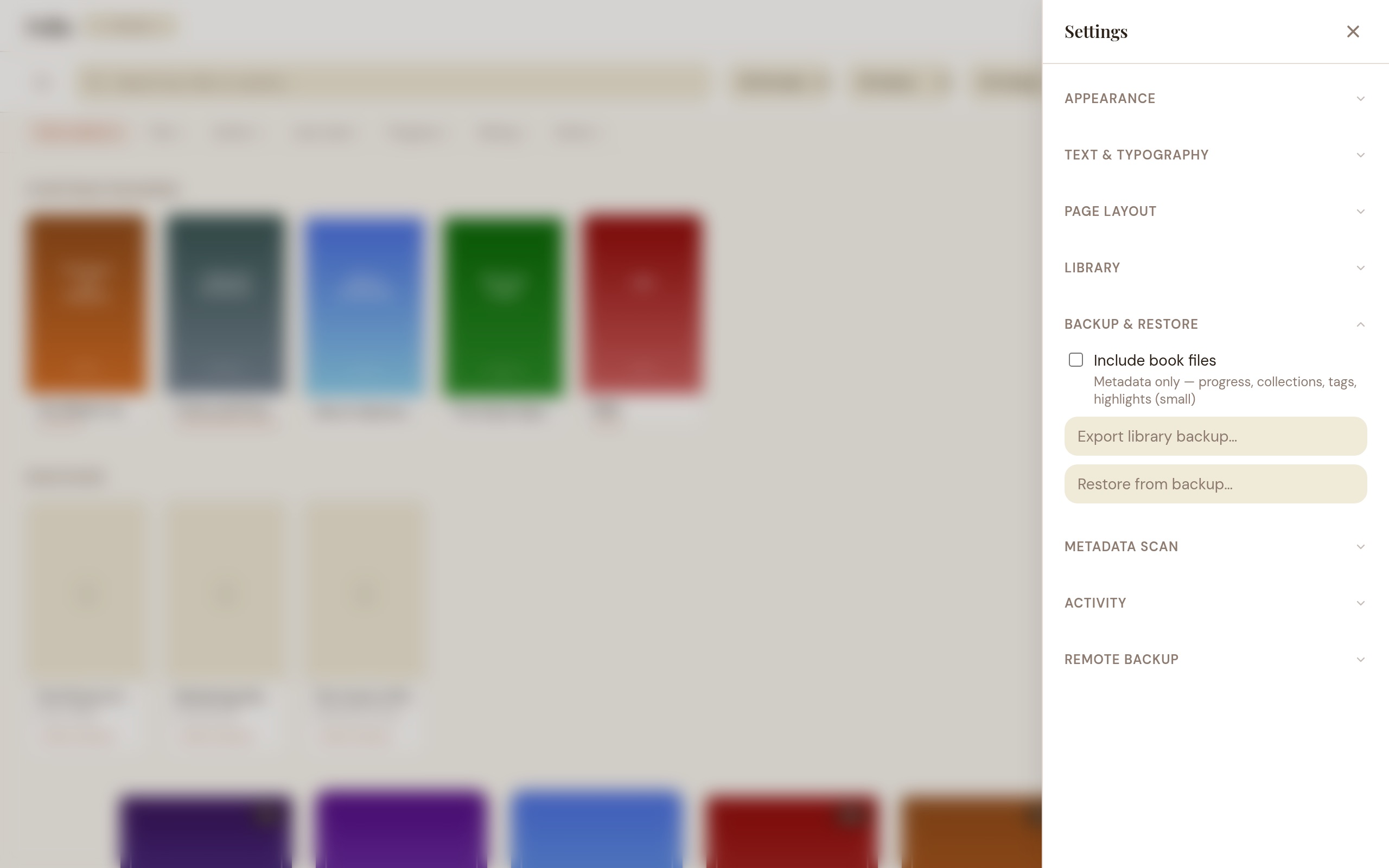
From Settings > Backup & Restore you can export and restore library backups.
Export options
- Metadata only — small file containing your reading progress, collections, tags, and highlights.
- Full backup — includes all book files alongside the metadata.
Restore from backup
Click “Restore from backup” to open the restore picker:
- Automatic backups — Folio creates automatic backups before destructive operations like library cleanup. These are listed with their date, type, and file size. Click “Restore” on any entry.
- From file — Click “Choose file” to select a backup ZIP you exported previously.
Restoring a backup imports books and metadata. Existing data is not deleted — it’s a non-destructive merge.
Library cleanup
From Settings > Library, click “Check for missing files” to scan your library for books whose files no longer exist on disk (moved, deleted, or on a disconnected drive). Folio automatically creates a metadata backup before removing any broken entries. The result shows how many books were removed and where the backup was saved.
If you try to open a book whose file is missing, Folio shows a dialog offering to remove it from your library.
Remote backup
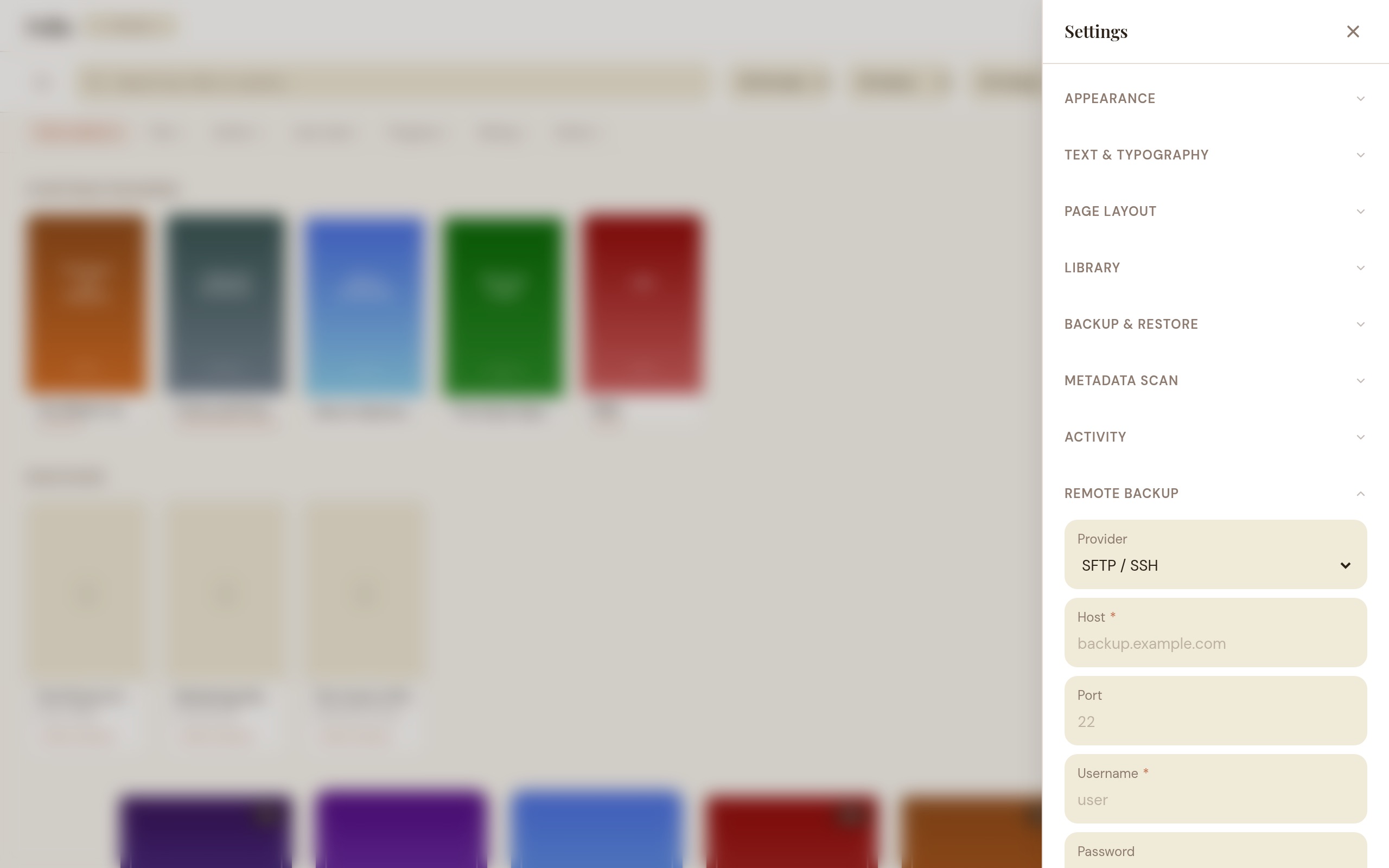
Folio can sync your library to a remote storage provider. Configure in Settings > Remote Backup.
| Provider | Auth | Notes |
|---|---|---|
| AWS S3 | Access key + secret | Any S3-compatible service (MinIO, Backblaze B2, etc.) |
| FTP | Username + password | FTP and FTPS (TLS) |
| SFTP (SSH) | Username + SSH key | Key-based auth via system ssh |
| WebDAV | Username + password | Nextcloud, ownCloud, etc. |
How it works: Select a provider, fill in connection details, and click Save Configuration. Passwords are stored in your OS keychain, not in the database. Click Backup Now to start a sync.
Book files are uploaded incrementally — only new or changed files are transferred. Metadata files always contain the full library. During backup, the button shows real-time progress like “Uploading books 3/12”. If a backup is interrupted, the next run picks up where it left off. Both successful and failed backups are logged in the activity log.
Multi-device Sync
If you read on more than one computer, Folio can keep your reading progress, bookmarks, and highlights in sync across devices. Sync piggybacks on the same remote storage provider you already configured for backup.
Enabling sync
- Configure a remote backup destination (S3, FTP, SFTP, or WebDAV) as described above.
- In Settings > Remote Backup, toggle “Sync reading progress across devices” on.
How it works
- When you open a book: Folio checks the remote storage for newer data from other devices. If another machine has more recent progress, bookmarks, or highlights, they are merged into your local library. This happens in the background with a 5-second timeout — the book opens immediately regardless.
- When you close a book: Folio pushes your current reading state to remote storage in the background. Other devices pick up those changes next time they open the same book.
- Book matching: Books are matched by content hash (SHA-256), so the same file on different devices syncs correctly even if the filenames differ.
What syncs
- Reading position (chapter and scroll position)
- Bookmarks (including names and notes)
- Highlights (including colors and notes)
- Deletions — removing a bookmark or highlight on one device removes it on others
What does not sync
- Book files (use backup for that)
- Collections, tags, or star ratings
- Reading statistics
- Settings or theme preferences
Conflict resolution
When the same item is edited on two devices, the most recent edit wins (based on timestamps). If timestamps are equal, the remote version is preferred. This is automatic — no manual conflict resolution needed.
Sync status
When sync is on, the Settings panel shows the time of the last successful sync. If a sync fails (network issues, server unreachable), an error message appears and clears automatically after the next successful sync.
Sync and backup are independent features. Sync is a lightweight, per-book data exchange for reading state. Backup is a full library export. You can use one without the other, though both need a remote storage provider.
Remote Access
Browse and read your library from any device on the same WiFi — phone, tablet, or another computer — without installing anything. Two surfaces are available, toggled independently:
- Web UI — an HTML library browser for phones, tablets, and other computers.
- OPDS — an Atom catalog feed for ebook reader apps (KOReader, Thorium, Calibre, Moon+ Reader, etc.).
The server runs whenever at least one toggle is on. Turn both off to stop it entirely.
Setting up
- Open Settings and scroll to the Remote Access section.
- Enter a PIN (this is the password for web access) and click Save PIN.
- Tick Web UI, OPDS, or both.
- A URL and QR code appear. Scan the QR code with your phone or type the URL into any browser.
The server runs on port 7788 by default. The port is editable while the server is running.
Using the web interface
On your phone or tablet, open the URL in a browser. You get:
- Login screen — enter the PIN you set in the desktop app.
- Library — a grid of book covers with a search bar. Tap any book for details.
- Book detail — shows cover, title, author, and format. Tap Read to open the book or Download to save it to your device.
- Reader — EPUBs show chapter content with prev/next navigation. PDFs and comics show page images with prev/next buttons.
- Reading Stats — time read, sessions, pages, books finished, streaks, and a 30-day chart.
- Collections — browse your collections and series, filter by name, sort alphabetically.
Everything stays on your local network. No internet connection needed, no data leaves your WiFi.
OPDS for reader apps
If you use a reader app that supports OPDS (KOReader, Calibre, Moon+ Reader, etc.), you can connect it directly to Folio:
- In the reader app, add a new OPDS catalog.
- Enter the URL:
http://<your-ip>:7788/opds - For authentication, use HTTP Basic Auth with any username and your PIN as the password.
- Browse your library and download books into the reader app.
Auto-start
Whatever surfaces were enabled when you last closed Folio start automatically next time. Untick both checkboxes to disable auto-start.
Tray menu
The system tray shows the same two toggles (Web UI: ON/OFF, OPDS: ON/OFF). Click either to flip its state without opening Settings.
Security
- Your PIN is hashed (SHA-256) and stored in your OS keychain.
- Web sessions expire after 24 hours.
- Login attempts are rate-limited (5 tries per 5 minutes per device).
- The server is read-only — nobody can modify your library from the web interface.
- All served content is sanitized to prevent malicious scripts in EPUB files.
Login audit trail
Folio keeps a security log of login attempts against the remote-access server. Each entry records the timestamp, IP address, user-agent, and outcome (success, invalid PIN, or rate-limited). Entries are kept for 90 days (capped at 5,000) and pruned automatically. Your PIN is never written to the log. The trail is readable via GET /api/audit/login-history on the running server.
Data export
Request GET /api/data-export from an authenticated client. The server returns a timestamped ZIP with your books metadata, reading progress, bookmarks, highlights, the activity log, and settings. Credentials and API keys are excluded. The endpoint requires authentication and a configured PIN.
Stopping the server
Untick both checkboxes (or use the tray menu). The server also stops when you close Folio.
Activity Log
Folio keeps a log of data-changing actions (imports, edits, deletes, collection changes, backup/restore, profile switches, and more):
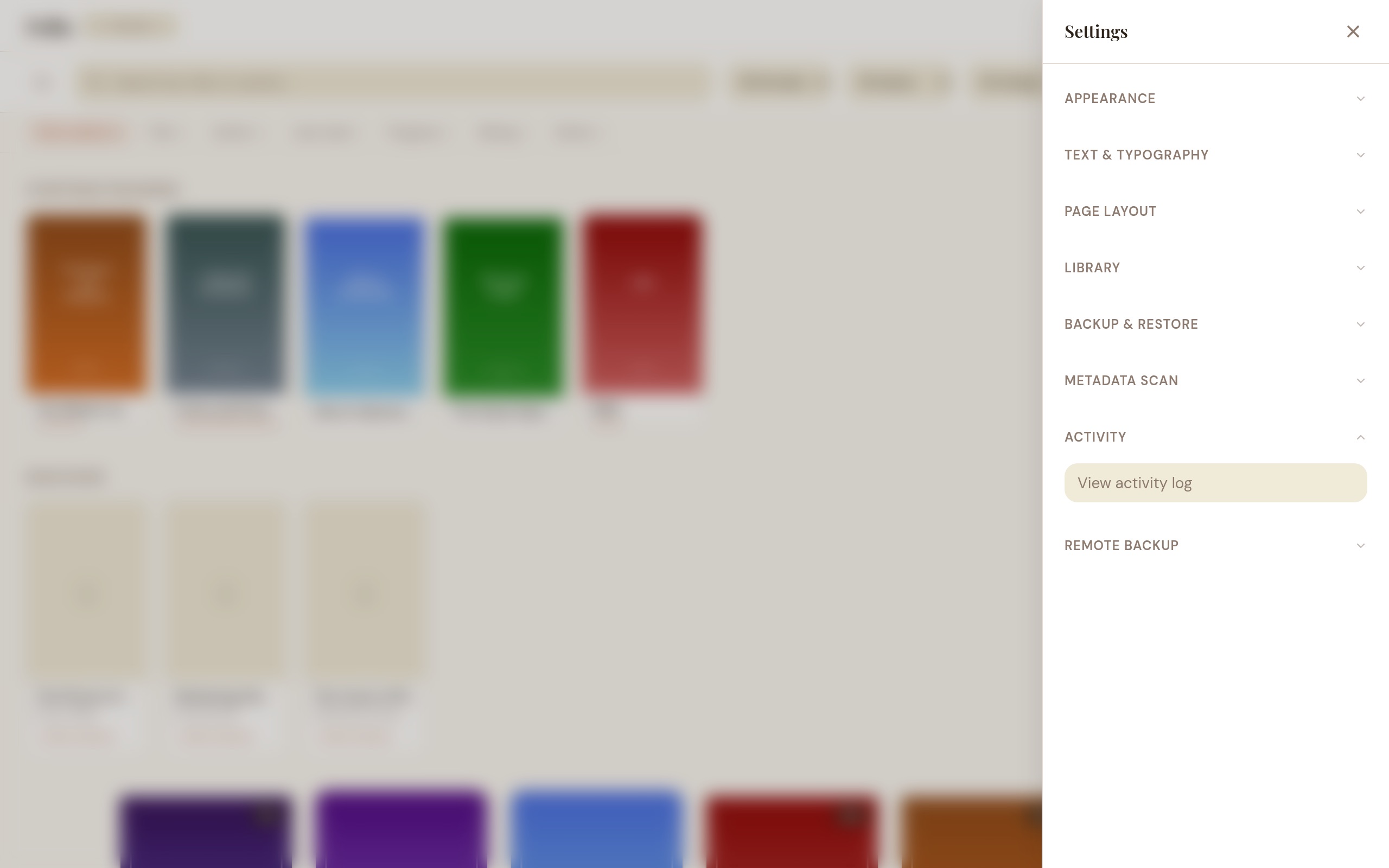
- Open Settings > View Activity Log to browse recent activity.
- Filter by action type (e.g., only imports, only edits).
- Each entry shows the action, affected item, and timestamp.
- Pagination via “Load more” for long histories.
Reading Stats
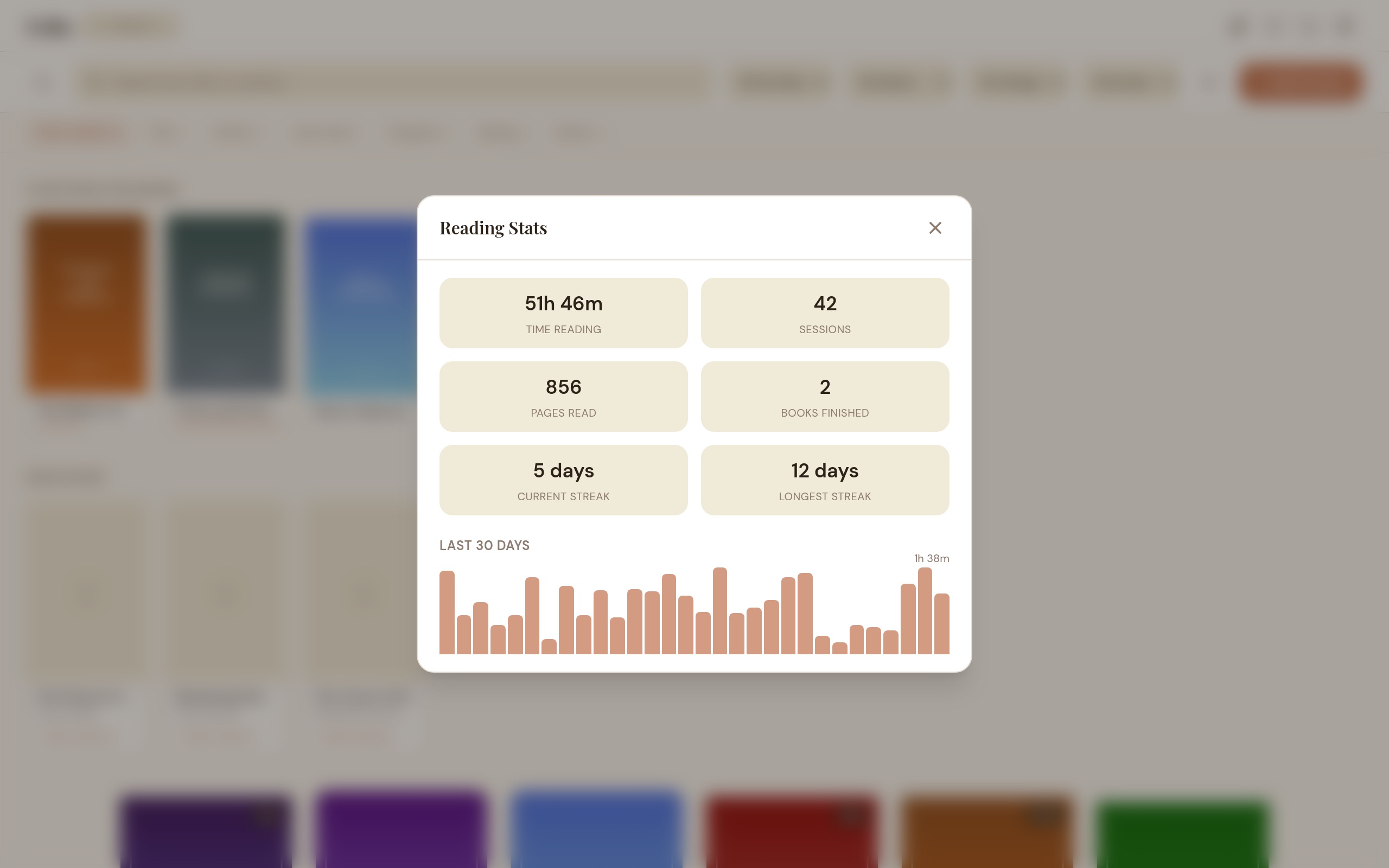
Open the reading stats dashboard from the library toolbar (bar chart icon).
Tracked metrics
- Books — total number of books in your library.
- Time Reading — total time spent in the reader.
- Sessions — number of reading sessions.
- Pages Read — total pages turned (PDF/CBZ/CBR).
- Books Finished — books read to completion.
- Current Streak — consecutive days with reading activity.
- Longest Streak — your all-time record.
A 30-day bar chart shows your daily reading time over the past month. Stats are tracked automatically — reading sessions are recorded when you open and close a book.
Language
Folio supports multiple interface languages. Currently available: English and French.
- Switching: Click the flag icon in the library toolbar or reader header. A dropdown shows available languages with flag emojis. Select one to switch immediately — no restart needed.
- Auto-detection: On first launch, Folio detects your operating system language. If it matches a supported language, that language is used. Otherwise, English is the default.
- Persistence: Your language choice is saved and remembered across sessions.
Keyboard Shortcuts
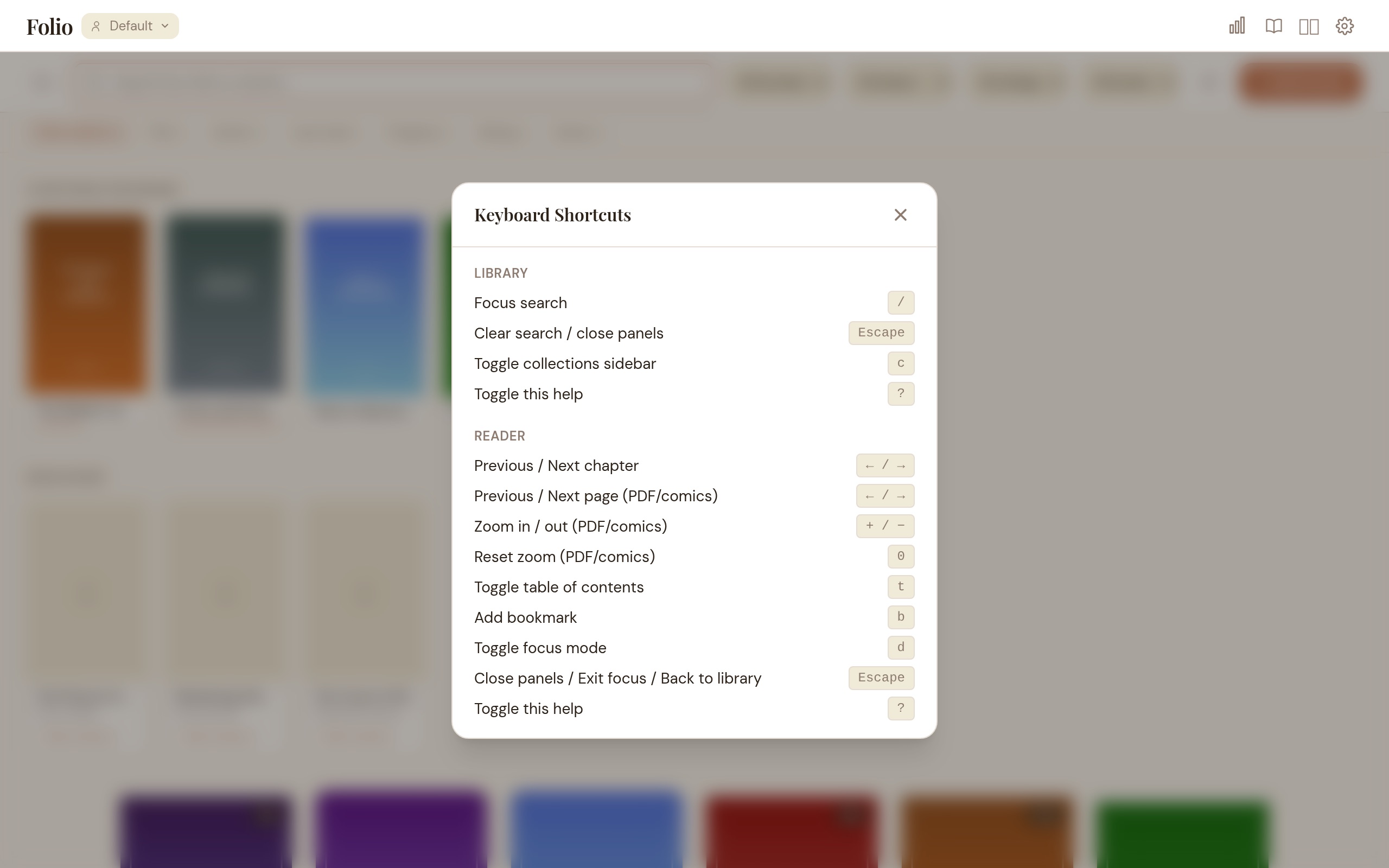
Press ? at any time to see the shortcut reference.
Library
| Shortcut | Action |
|---|---|
/ | Focus search bar |
C | Toggle collections sidebar |
Escape | Clear search / close panels |
? | Toggle shortcut help |
Reader
| Shortcut | Action |
|---|---|
← | Previous chapter / page |
→ | Next chapter / page |
⌘/Ctrl+F | Search in book (EPUB only) |
T | Toggle Table of Contents |
B | Add bookmark |
D | Toggle focus mode |
M | Toggle page thumbnails (PDF / CBZ / CBR) |
\ | Toggle split view |
Escape | Close panel / exit focus mode / back to library |
? | Toggle shortcut help |
Troubleshooting
“Failed to load book”
The file is probably corrupted or uses a format variant the parser can’t handle. Try re-downloading the file, or open it in another reader to check if the file itself is the problem.
Supported formats
Folio supports EPUB (versions 2 and 3), PDF, CBZ, CBR, and MOBI/AZW/AZW3. MOBI works on arm64 macOS, Windows, and Linux. The Intel (x86_64) macOS build is the only release without MOBI support, so reach for it if you don’t need Kindle formats. DjVu is not supported.
How libmobi (the MOBI parser, LGPL v3+) is delivered depends on the platform:
- macOS (Apple Silicon): statically linked into the app — nothing to install.
- Windows: statically linked into
folio.exe— the installer is self-contained. - Linux (Debian / Ubuntu):
sudo apt install libmobi0. The.debdeclares it as a dependency, so installing Folio pulls it in automatically. - Linux (Fedora / RHEL):
sudo dnf install libmobi.
Where is my data stored?
Library database and app data:
| Platform | Location |
|---|---|
| macOS | ~/Library/Application Support/com.mike.folio/ |
| Windows | %APPDATA%\com.mike.folio\ |
| Linux | ~/.local/share/com.mike.folio/ |
Book files: Imported books are copied to the library folder, which defaults to ~/Documents/folio/. You can change this in Settings. Since Folio keeps its own copy of each book, moving or deleting the original file has no effect on your library.
The app won’t start
Check that your OS meets the minimum version listed in Getting Started.
macOS — “damaged and can’t be opened”: This is a Gatekeeper quarantine flag on unsigned apps. Run the following in Terminal, then try launching again:
xattr -cr /Applications/Folio.appAlternatively go to System Settings > Privacy & Security and click Open Anyway after the first blocked launch attempt.