User Guide
How to install Carrel, import books, organize your library, and read comfortably. Covers the main features without assuming you're already familiar with the app.
Getting Started
System requirements
| Platform | Minimum version |
|---|---|
| macOS | 10.15 Catalina or later |
| Windows | Windows 10 (64-bit) or later |
| Linux | Ubuntu 20.04 or equivalent |
No extra runtimes or dependencies needed. The installer is self-contained.
Downloading
Go to the GitHub Releases page and grab the package for your OS:
- macOS:
.dmg - Windows:
.msi - Linux:
.AppImageor.deb
Installing
macOS: Open the .dmg, drag Carrel into your Applications folder, then double-click to launch it. The disk image also contains Read Me First.txt, which walks through the first-launch step below.
Because this app is not notarized, macOS may block the first launch even though the download is intact. Open Terminal and run:
xattr -cr /Applications/Carrel.appThen launch the app as normal. The command clears the quarantine flag, needs no sudo, and only has to be run once after each install or update. Only do this for a disk image downloaded from Carrel’s official GitHub releases.
Windows: Run the .msi installer and follow the prompts.
Linux (AppImage): Make the file executable (chmod +x Carrel.AppImage), then run it.
Linux (.deb): Run sudo dpkg -i carrel.deb.
Upgrading from Folio
Carrel used to be called Folio. Your library, reading progress, highlights, bookmarks, settings, profiles, and offline downloads carry over on their own — nothing to migrate, nothing to re-import.
What you do have to do is remove the old app. Installers identify an app by its name, and the name changed, so most of them treat Carrel as a new program and leave Folio where it was. Removing Folio is safe: your books and reading data live outside the app, and Carrel is already using them.
| Upgrading via | What happens | What to do |
|---|---|---|
Windows .msi | Upgrades in place | Nothing — Folio is replaced |
Windows -setup.exe | Installs alongside | Uninstall “Folio” from Settings → Apps |
macOS .dmg | Installs alongside | Drag Folio.app from Applications to the Trash |
Linux .deb | Installs alongside | sudo apt remove folio |
Linux .rpm | Installs alongside | sudo dnf remove folio |
Linux .AppImage | Separate file | Delete the old Folio…AppImage |
On Windows, the .msi is the package that replaces Folio; the -setup.exe installs next to it. Both are on the download page.
If you skip this, nothing breaks — you just end up with two icons that open the same library. If you read from a phone or tablet, the web reader is unchanged: same address, same PIN, and anything saved for offline reading stays saved.
First launch
A short onboarding wizard walks you through three steps: a welcome screen, importing your first book (by file, folder, or drag-and-drop), and a few quick tips on Focus Mode, online catalogs, and drag-and-drop. You can skip at any step. Your data stays on your machine. The one thing Carrel can send is a single anonymous “app opened” event per launch to gauge how many people use it — off by default, opted into only from the first-run prompt or Settings, and it never includes personal data, book titles, library contents, or any user or install identifier.
Checking for updates
Carrel tells you when a newer version is available on GitHub. Choose Check for Updates from the tray menu at any time; Carrel also checks quietly once at startup, which you can turn off under Settings → General. When a newer release exists, a window shows the new version and its release notes with a button to open the GitHub download page and a link to the full changelog; if you’re up to date, a manual check tells you so. The check only reads GitHub’s public release list — it never downloads or installs anything for you.
Importing Books
Supported formats
| Format | Type |
|---|---|
| EPUB 2 and EPUB 3 | Reflowable ebooks |
| Fixed-layout documents | |
| CBZ | Comic book archives (ZIP) |
| CBR | Comic book archives (RAR) |
| MOBI / AZW / AZW3 | Mobipocket and Kindle formats, via libmobi — on Linux, Apple Silicon macOS, and Windows (see Supported formats under Troubleshooting for the Intel macOS exception) |
How to import
Click the + Add books button in the top-right corner to open the import menu:
- Add files: Opens a file picker for one or more files in any supported format.
- Import folder: Scans an entire directory for supported files and imports them in batch, with a progress indicator.
- Import from URL: Paste a direct link to a book file in any supported format. Carrel downloads and imports it.
Drag and drop: You can also drag files from Finder or File Explorer directly onto the library window. A “Drop to import” overlay appears. Release to import them.
When you import a book, Carrel copies the file into its own managed library folder (default ~/Documents/Folio Library/ — the folder name predates the Carrel rename and is kept so existing libraries are not orphaned). The original file is not modified or moved. Duplicate files are detected by content hash and skipped automatically.
Viewing Your Books
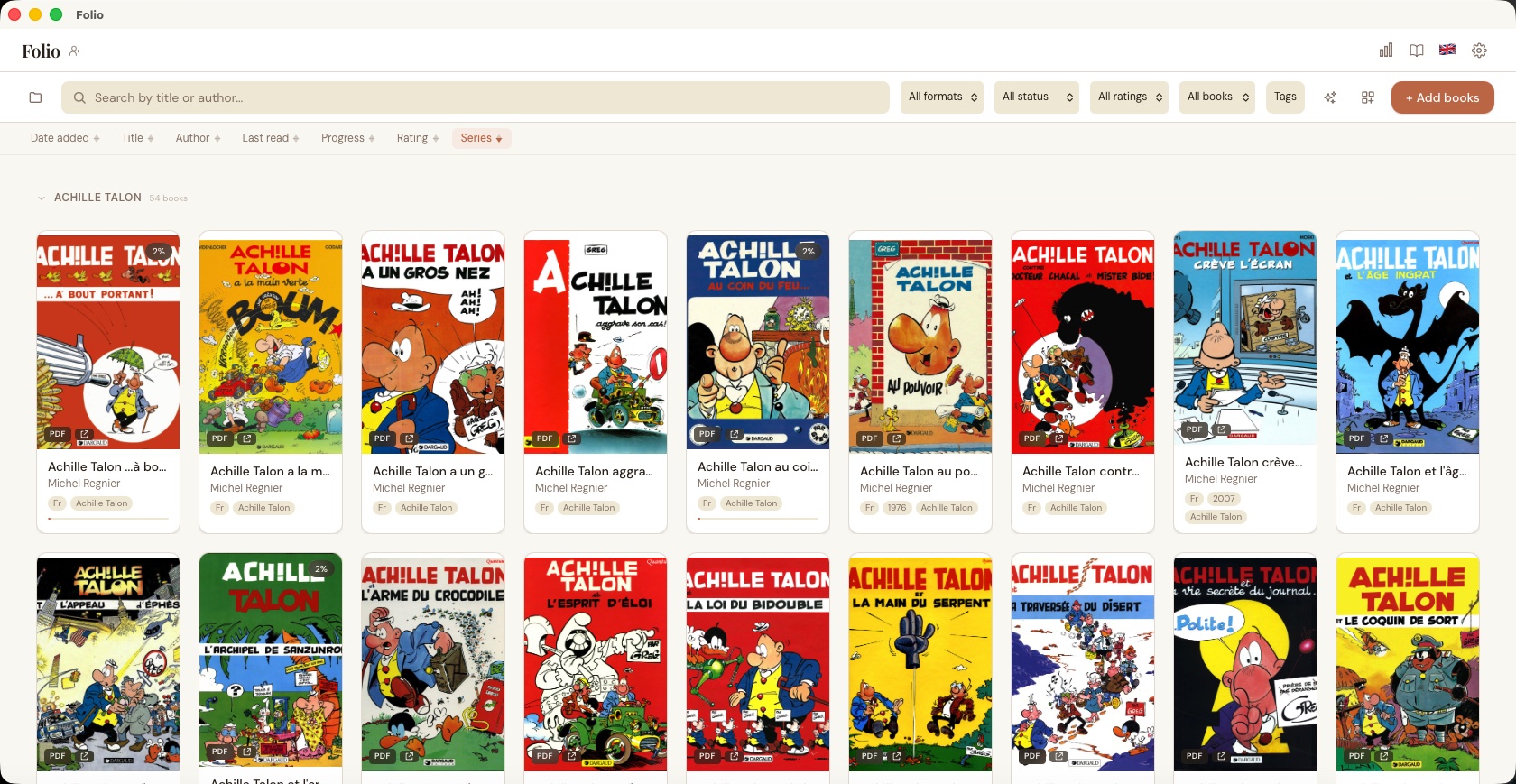
Books are shown as a cover grid. Each card displays the cover image, title, author, star rating (if set), a reading-status badge, and a format badge for non-EPUB books.
The status badge in the top-right of the cover tells you where you are with a book:
- Active (green, shows the percentage) — in progress and read within the last 14 days.
- Paused (amber, shows the percentage) — in progress but untouched for more than 14 days.
- Finished (a checkmark) — read to the end.
- Unread books show no badge.
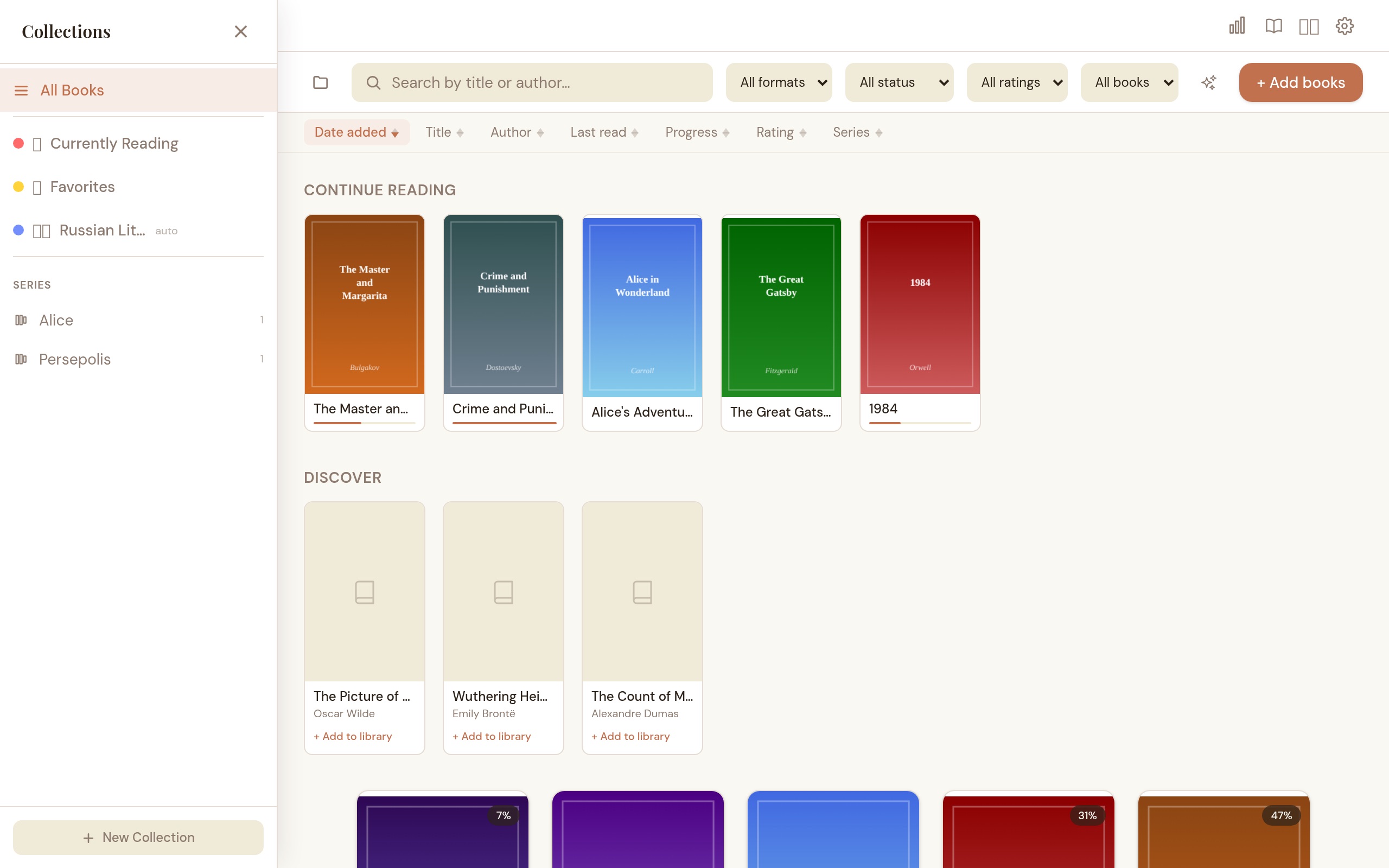
In the full library view, a “Continue Reading” row at the top shows your most recently read books, and a “Discover” row shows popular titles from your configured OPDS catalogs. Both sections are hidden when viewing a collection or series, so you see only the relevant books.
The grid is built for large libraries. Covers are stored as lightweight thumbnails, and only the rows currently on screen are rendered, so scrolling stays smooth even with thousands of books.
Searching and Filtering
- Search: Type in the search bar to filter by title or author. Results update as you type.
- Format filter: Filter by All, EPUB, PDF, CBZ, or CBR.
- Status filter: Filter by All, Unread, In Progress, or Finished.
- Want-to-read filter: A bookmark toggle next to the status filter narrows the grid to books you’ve flagged as want-to-read.
- Rating filter: Filter by minimum star rating (1+ through 5 stars).
- Sorting: Sort by date added, title, author, last read, progress, rating, or series — ascending or descending.
- Source filter: Filter by All, Imported, or Linked books.
- Tag filter: Click the Tags button to open a searchable dropdown. Select one or more tags to filter — books must have all selected tags (AND logic). Your tag selection persists between sessions.
All filters combine, so you can search for “asimov” within “epub” books tagged “sci-fi” that are “in progress.”
Want to read: Mark any book as want-to-read from its detail modal or the hover bookmark on its library card. The flag is independent of computed reading status and is preserved across backup and restore. An optional “Want to Read” home shelf (Settings → General, off by default) surfaces flagged books at the top of the library.
Editing and Removing Books
Hover over a book card to reveal action buttons:
- Edit: Opens a dialog to change the title, author, cover image, and tags.
- Delete: Removes the book from your library (with a confirmation prompt).
Bulk Actions
When you need to act on several books at once, click the selection icon in the toolbar (the grid icon next to the import button). This puts the library into selection mode:
- Click book cards to select or deselect them. A checkbox appears on each card.
- A floating action bar shows at the bottom with the selection count.
- Select all / Deselect all toggles between selecting every visible book or clearing the selection.
- Delete removes all selected books (with a confirmation prompt).
- Cancel exits selection mode.
Drag-and-drop is disabled while in selection mode to prevent accidental imports.
Undo: deleting a book, deleting a selection, and removing a book from a collection all show a brief Undo toast. Click it within a few seconds to reverse the action before it’s applied — nothing is actually removed until the toast expires.
Linked Books
By default, importing a book copies the file into Carrel’s managed library folder. With linked books, you can keep the file in its original location and still get full features: progress tracking, bookmarks, highlights, metadata, and collections.
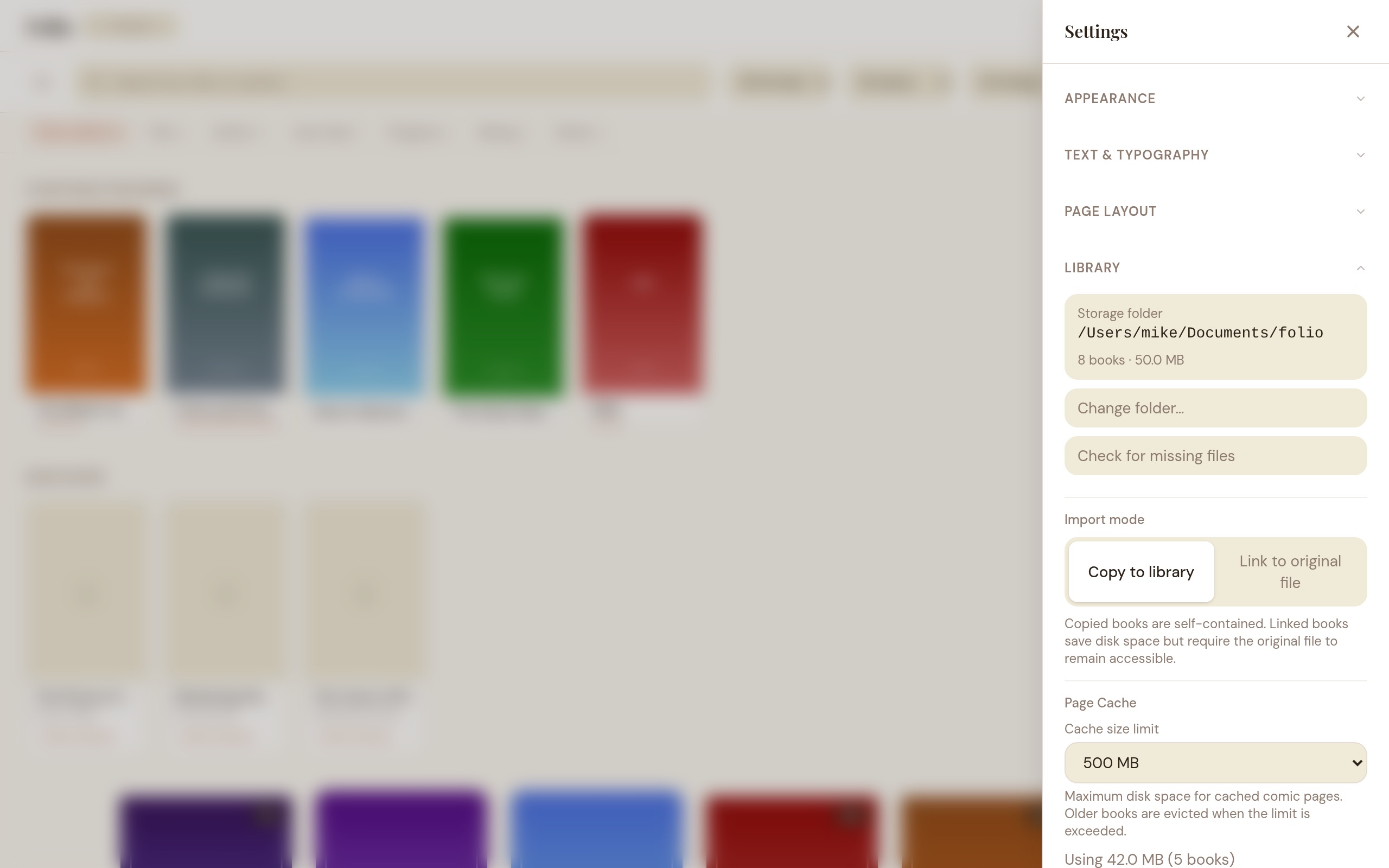
- Default import mode: In Settings > Library, toggle the default between “Copy to library” and “Link in place”. Applies to file picker, folder import, and drag-and-drop.
- Visual badge: Linked books show an external-link icon on their card to distinguish them from library-local books.
- Library filter: Filter by All, Imported, or Linked.
- Missing files: If the original file becomes unavailable (drive ejected, path moved), Carrel shows an error toast with an option to remove the entry.
- Copy to library: You can internalize a linked book later via the “Copy to library” action in the Edit Book dialog.
Remote backups and ZIP exports skip linked book files (metadata is still included).
Manual Collections
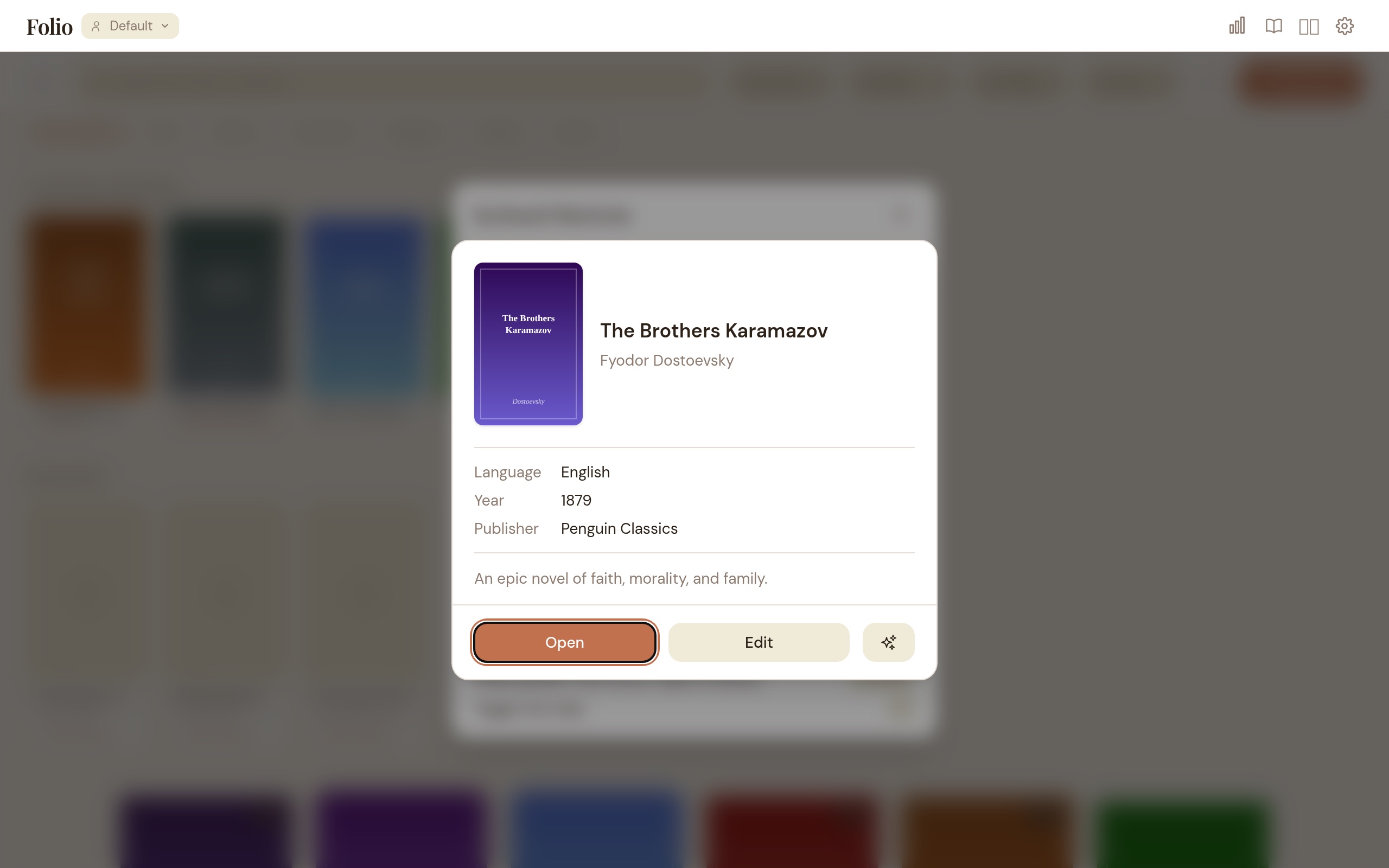
Collections let you organize books into groups. Open the collections sidebar by clicking the collections icon or pressing C.
Create a collection, then drag book cards onto it to add them. You can remove books from a manual collection via the book card’s context actions.
In the desktop app the Collections panel slides out as a wider panel that floats over the library instead of squeezing the book grid to one side; the library dims behind it, and you close it by clicking outside or pressing Esc. A filter box at the top narrows both collections and series to matching names live as you type (case-insensitive, with a clear button), and the Collections and Series lists each have a header you can click to collapse or expand independently. “All Books” always stays in view.
Automated Collections
Define rules and Carrel populates the collection automatically. Available rule types:
| Field | Operators |
|---|---|
| Author | contains, is |
| Title | contains |
| Series | contains, is |
| Language | is, contains |
| Publisher | contains |
| Description | contains |
| Format | is (epub, pdf, cbz, cbr) |
| Tag | is, contains |
| Date added | within last N days |
| Reading progress | is unread / in progress / finished |
Multiple rules are combined with AND logic — a book must match all rules to appear in the collection.
Smart suggestions
Click Suggest Collections at the bottom of the sidebar. Carrel scans your library and offers rule-based templates based on patterns it finds: authors with 3+ books, series with 2+ books, reading status groups, and non-dominant formats. Each suggestion shows how many books match. You can add it immediately, tweak the rules first, or dismiss it.
Collection options
- Custom icon (choose from preset emoji)
- Custom color (choose from preset palette)
- Export as Markdown
- Delete collection
Series Grouping
Books with series metadata are automatically grouped in two ways:
- Sidebar: A “Series” section appears below collections, showing each series with its book count. Click a series to filter the library to just those books, sorted by volume order.
- Sort by Series: Select the “Series” sort option in the library toolbar. Two view modes are available via a pill toggle: Expanded groups books under collapsible series headers sorted by volume. Stacked shows each series as a single tile with fanned-out covers — click a stack to drill in, press Escape or the back bar to return. Books without series data appear at the bottom.
Series data comes from book file metadata (EPUB/CBZ). You can also set or edit series info manually via the edit dialog on any book.
Reading EPUBs
Click any book card to open it. If you’ve read it before, Carrel picks up where you left off — same chapter, same scroll position.
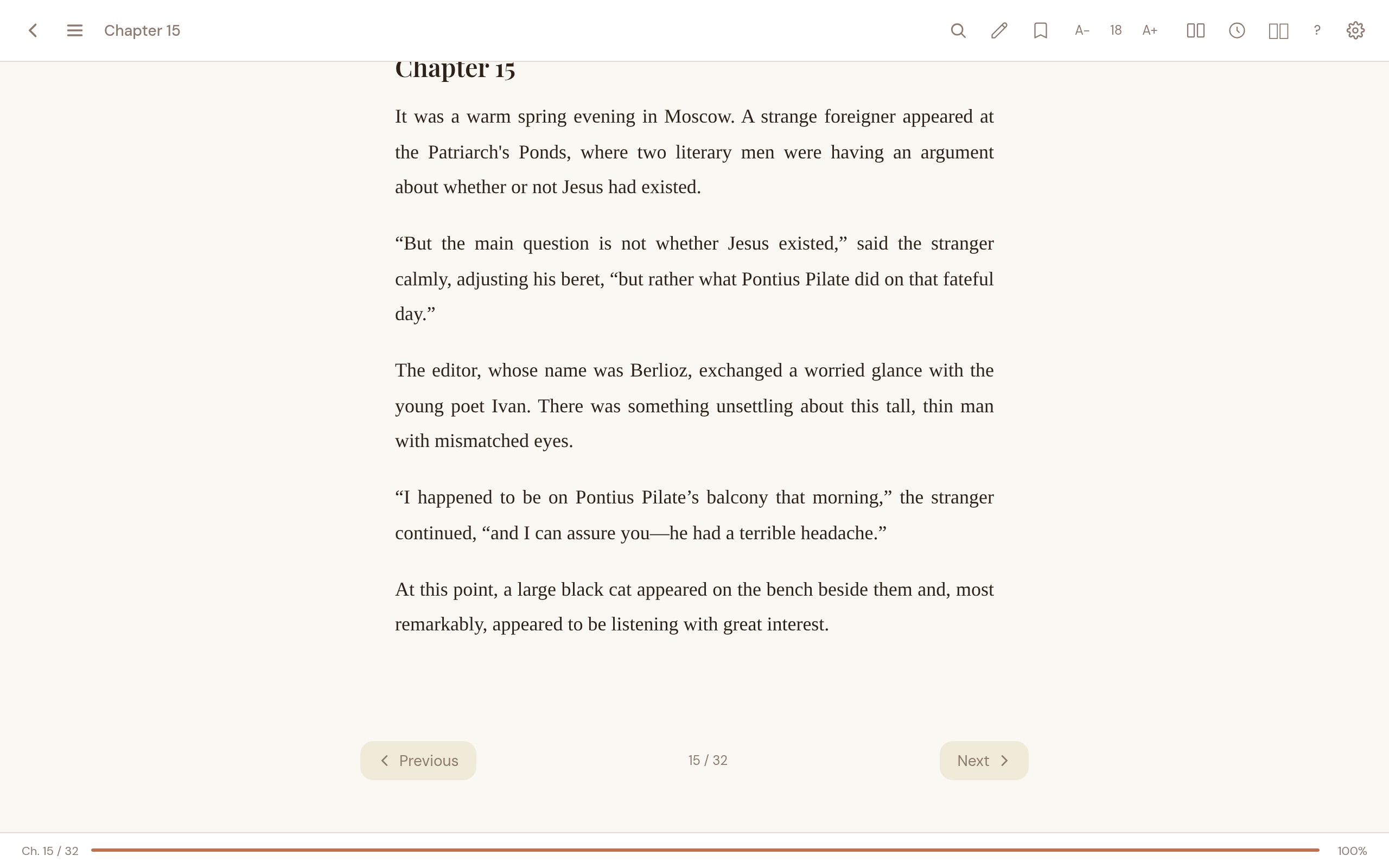
Carrel offers two reading modes for EPUBs, selectable in Settings > Page Layout:
Paginated mode (default)
Read one chapter at a time. Navigate with the Previous/Next buttons at the bottom, press the left/right arrow keys, or pick a chapter from the Table of Contents. Floating chapter arrows appear on the left/right edges when you scroll past the bottom navigation bar.
Continuous scroll mode
All chapters are loaded and rendered as a single scrollable page with chapter title dividers between them. Scroll naturally through the entire book. The Table of Contents still works — clicking a chapter scrolls directly to it.
Common to both modes
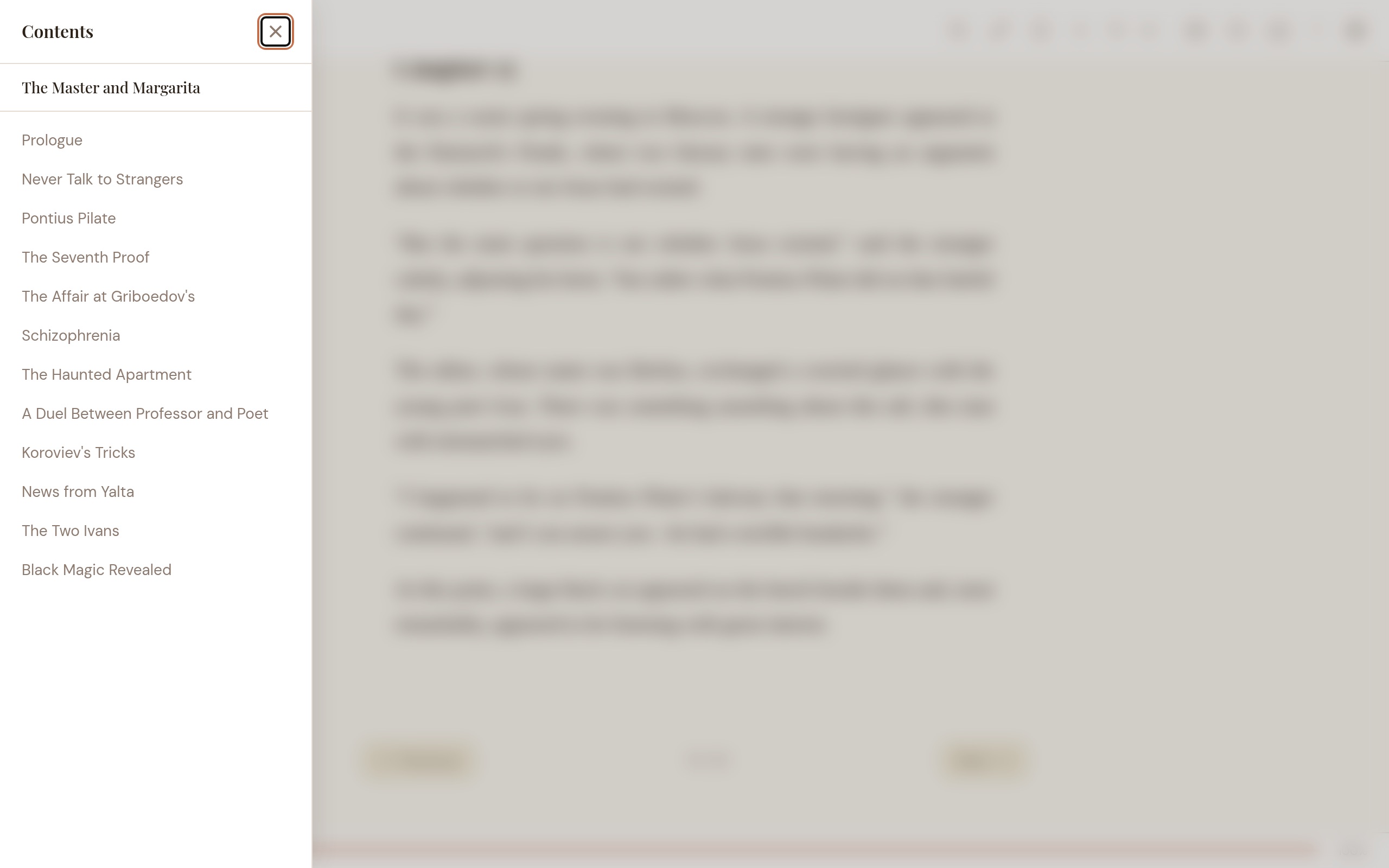
- Table of Contents: Click the list icon in the header or press
T. The sidebar shows a searchable, hierarchical chapter list with the current chapter highlighted. - Focus mode: Press
Dto hide all UI and read distraction-free. Move the mouse to the top or bottom edge to temporarily reveal controls. - Progress tracking: Your reading position is saved automatically and restored when you reopen the book.
- Time-to-finish: The footer shows an estimated reading time based on 250 words per minute. Hover for chapter-level and book-level estimates.
Reading progress
Progress is saved automatically as you read. The library shows a percentage on each book card. When you reopen a book, you return to exactly where you stopped. Carrel also records reading sessions (time spent, pages read) for the reading stats dashboard.
Returning to the library
Click the back arrow in the top-left corner or press Escape. Your progress is saved when you exit.
Book completion
When you reach the last page or chapter, Carrel shows a short celebration with the book cover, your total reading time, and a star rating you can set on the spot. It only fires once per book.
PDF and Comic Book Reading
PDF, CBZ, and CBR formats use a page-by-page viewer. Navigate with the Previous/Next buttons, arrow keys, or mouse wheel. The footer shows the current page number and total page count.
Go to page: Click the page label in the footer (e.g., “Page 5 / 45”). It turns into a number input — type the page you want and press Enter. Press Escape or click away to cancel.
Thumbnail strip: Press M or click the three-bar icon in the header to open a horizontal strip of page thumbnails below the reader. Click any thumbnail to jump to that page. Pages nearest to the current page decode first, so the strip fills outward. The strip remembers its open/closed state per book.
Split view: Press \ or click the split icon in the header to read two books side by side. The companion pane starts on the same book — click “Choose another book” to pick a different one. Each pane tracks its own progress and zoom. The pairing persists per book, so reopening restores both panes.
Page cache: When you open a comic for the first time, Carrel extracts all pages to a disk cache. Subsequent page turns read from disk (~1–5ms). PDFs work the same way: the first ten pages are rendered at high resolution and cached, with more cached on demand as you read. Reopening a cached book skips extraction entirely. Cache is managed automatically (LRU, 7-day expiry, configurable size cap in Settings > Library). A PDF or comic that lives on a network share (an SMB/NAS library in link mode) is copied to a local cache in the background when you open it, then every page renders from that fast local copy — in both the desktop app and the web reader — instead of reading over the network per page.
Zoom: Use Cmd/Ctrl + scroll to zoom in and out. A zoom level indicator appears with a reset button. Use Cmd/Ctrl + / − / 0 for keyboard zoom control. When you zoom into a PDF, Carrel re-renders the page at the higher resolution so text stays sharp. Zooming is instant: the page scales immediately as you adjust, and the sharper render swaps in quietly once the zoom settles — no loading spinner over the page.
Text selection and highlights (PDF): PDFs now have a selectable text layer in the desktop reader, just like EPUBs. Drag to select text, copy it to the clipboard, or highlight it in any of the five colors. Highlights are saved per page, reappear as colored bands when you return, and can be removed — and they flow into the same highlights panel, cross-book search, and shareable quote cards as EPUB highlights. Selection stays within a single page.
Highlights and Bookmarks
Highlights
Select text while reading to see a color picker popup. Choose from five colors: yellow, green, blue, pink, or orange. The highlighted text is saved with its position. Highlights work in both EPUBs and PDFs (see PDF and Comic Book Reading for PDF specifics).
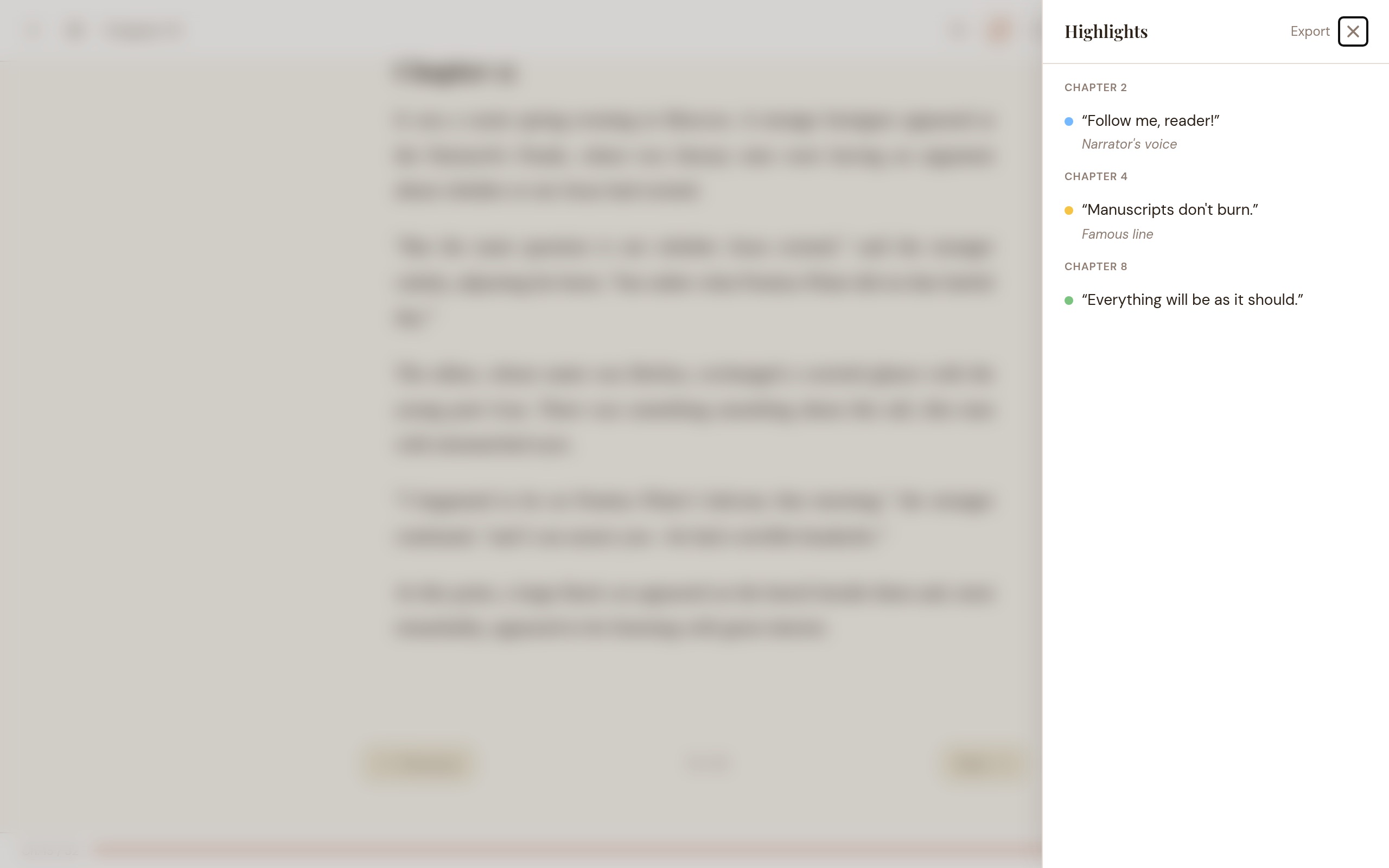
Open the highlights panel to:
- View all highlights grouped by chapter
- Add or edit notes on any highlight
- Click a highlight to jump to that chapter
- Delete individual highlights
- Export all highlights as Markdown
- Share a highlight as an image
Share as image
Turn a highlight into a shareable quote card. Use Share as image from the selection popup while reading, or per-highlight in the highlights panel. A dialog shows a live preview with a few choices — a style (Light, Sepia, or Dark), whether to include the book’s cover, and whether to show a small Carrel wordmark. Then Copy image to put the card on your clipboard, or Save as PNG… to write it to a file. Long quotes are trimmed to fit; a book with no cover or author simply leaves those out. The card is rendered locally.
Cross-book highlight search
Click the highlighter-search icon in the library toolbar to search across all your highlights and notes at once. Results are grouped by book and show the highlight text, color, note, and chapter. Click any result to open that book in the reader.
Bookmarks
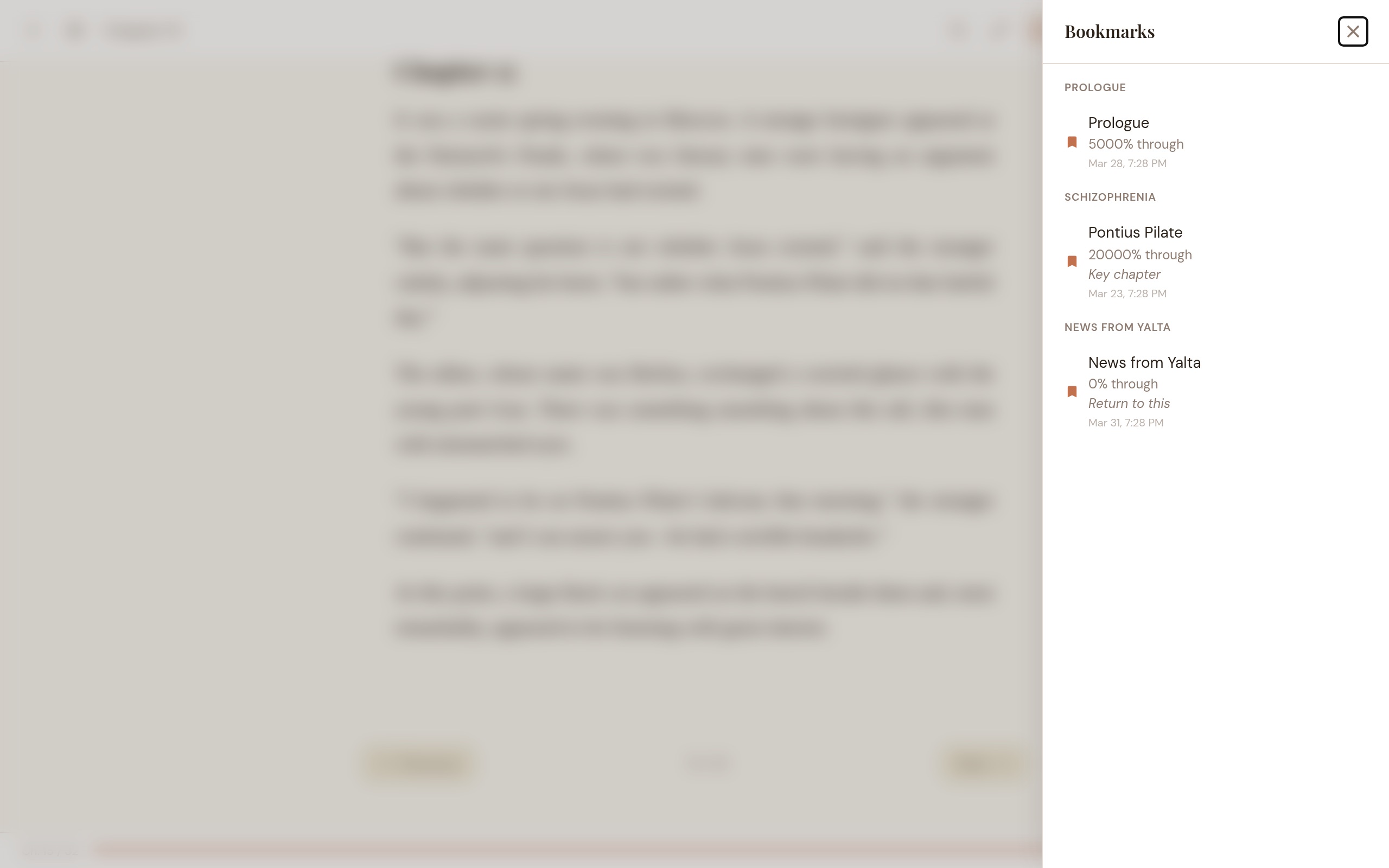
Press B in the reader to bookmark the current position. A toast notification appears — expand it to give the bookmark a name. You can also rename bookmarks later by clicking the name in the bookmarks panel (click to edit, Enter to save, Escape to cancel). Bookmarks are listed alongside your reading progress.
Full-Text Search (EPUB and PDF)
Search the full text of any EPUB or PDF book:
- Click the magnifying glass icon in the reader header or press ⌘/Ctrl+F to open the search bar.
- Type at least 2 characters to see results. Matches appear with chapter name and a text snippet.
- Click a result to jump to that chapter. Search highlights appear in blue in the text.
- Results are capped at 200 matches. If you hit the cap, try a more specific query.
- Press Escape to close the search panel.
For PDFs, the extracted text is saved alongside the book’s cached pages, so search is instant from the very first search of a session rather than only after the book has been searched once. The index builds quietly in the background when you open a PDF and is reused on every later open; deleting the book clears it.
Dictionary and Vocabulary
Word lookup (offline)
Select a single word in the reader and click Define in the selection popup to see its definition without leaving the page — parts of speech, numbered senses, an example, and synonyms, in a card anchored next to your selection. Definitions come from a prebuilt dictionary derived from Princeton WordNet 3.1.
Enable it once in Settings → Dictionary and click Download dictionary (~7 MB, downloaded on demand). It runs entirely on your device — no network lookups, no accounts — and you can delete it anytime to reclaim the space. Inflected forms resolve to their base word (selecting “running” defines “run”). If a word isn’t found the card says so, and until the dictionary is enabled the Define button doesn’t appear. English and offline-only in this version.
Vocabulary builder
Turn the words you look up into a study list. This is off by default and builds on the dictionary above. In Settings → Dictionary, turn on Build my vocabulary list; from then on every word you Define is saved to a per-profile list along with its definition, the book you were reading, and the sentence the word appeared in. Nothing is saved until you turn this on, and past lookups aren’t backfilled.
Open the Vocabulary screen from the top navigation. Each entry shows the word, definition, source sentence and book, and how many times you looked it up. A search box filters as you type; click a saved word to reopen its book at the spot you looked it up. You can delete a word or clear the whole list.
Click Review due (N) to quiz yourself with flashcards on the words that are due. Each card shows the word first; reveal the definition, then mark Got it or Missed. Getting a word right moves it up a box so it returns less often; missing it sends it back to daily review, on a five-box spaced-repetition schedule of roughly 1, 3, 7, 14, and 30 days. Saved words keep their definitions even if you later delete the dictionary or the source book; turning the setting off stops saving new words but keeps what you’ve collected.
The same lookups work from a phone or tablet through remote access: the web reader has its own Define button, saves to the same list, and runs the same flashcard review.
Don’t Track This Session
A toggle in the header (the eye icon, next to the language switcher) pauses passive reading tracking for the rest of the current app session — useful when you’re reading something you’d rather not show up in your stats or recently-read list. Click it to see exactly what pauses, and to switch it on or off.
Paused while it’s on:
- Reading progress — your place in books.
- Reading-time stats and streaks.
- The recently-read / “Continue Reading” list.
- Reading entries in the activity log (deliberate actions like importing or deleting a book are still logged).
Still saved: highlights and bookmarks stay in their lists exactly as normal, and the book stays in your library.
While it’s on, closing and reopening a book later in the same session still resumes where you left off — Carrel holds that position in memory for the session instead of writing it to the database. Restarting Carrel always starts fresh with tracking back on; the setting is never remembered between launches. Suppression covers every path the data would otherwise leak through, including the plugin event bus, the on-disk page cache, and outbound sync.
This isn’t an incognito or encryption feature — it only pauses the passive tracking listed above.
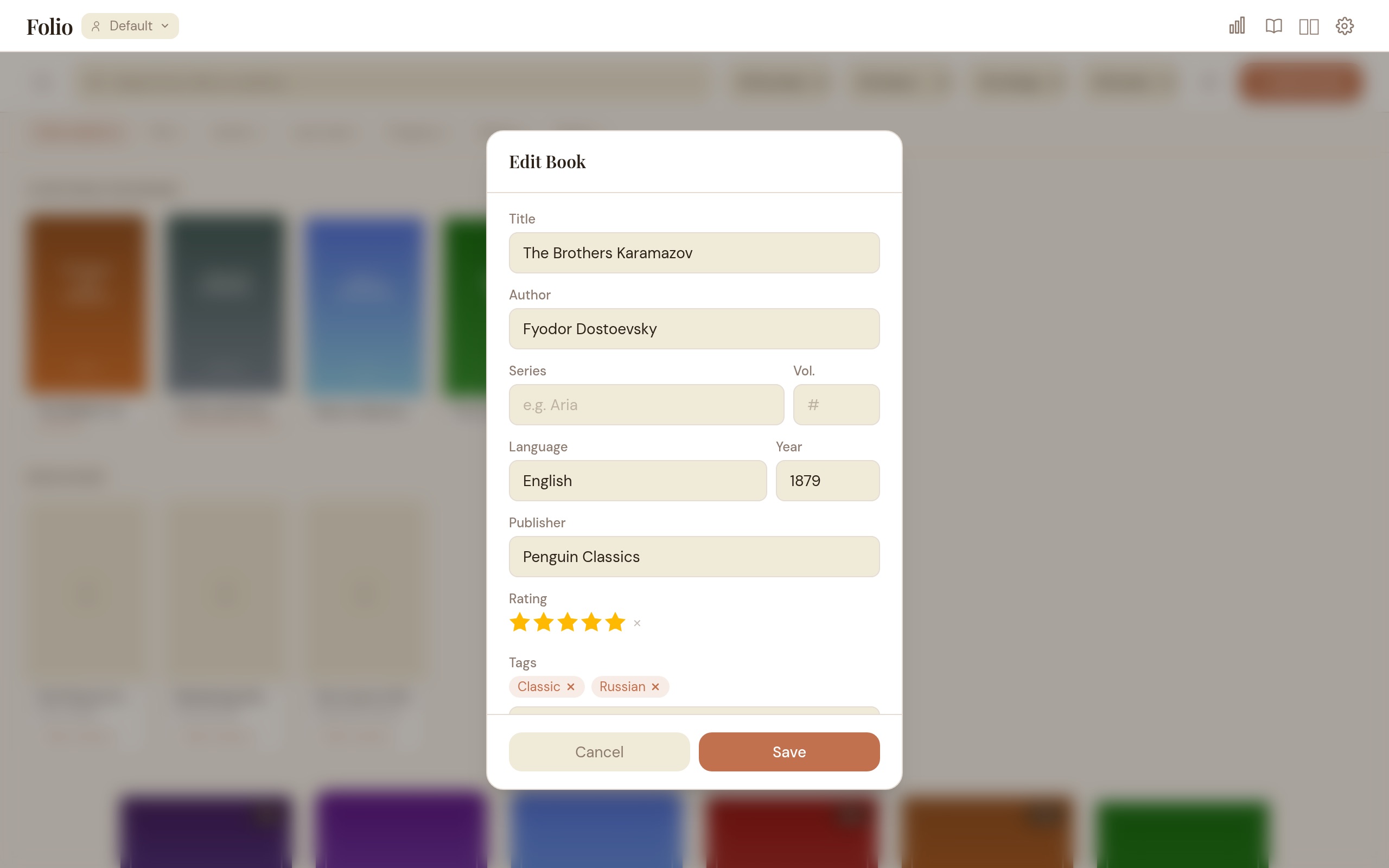
Book Metadata Editing
Click the edit button on any book card to open the metadata editor.
Editable fields
- Title
- Author
- Series and volume number
- Language
- Publisher and publish year
- Cover image (upload a JPG, PNG, or WebP)
- Star rating (1–5 stars — click a star to rate, click the same star again to clear)
- Tags (with autocomplete from your existing tags)
Automatic Metadata Enrichment
Carrel can automatically look up metadata for your books from multiple sources. Click “Search” in the edit dialog to manually look up a book by title and author, or let the auto-scan handle it.
Enrichment providers
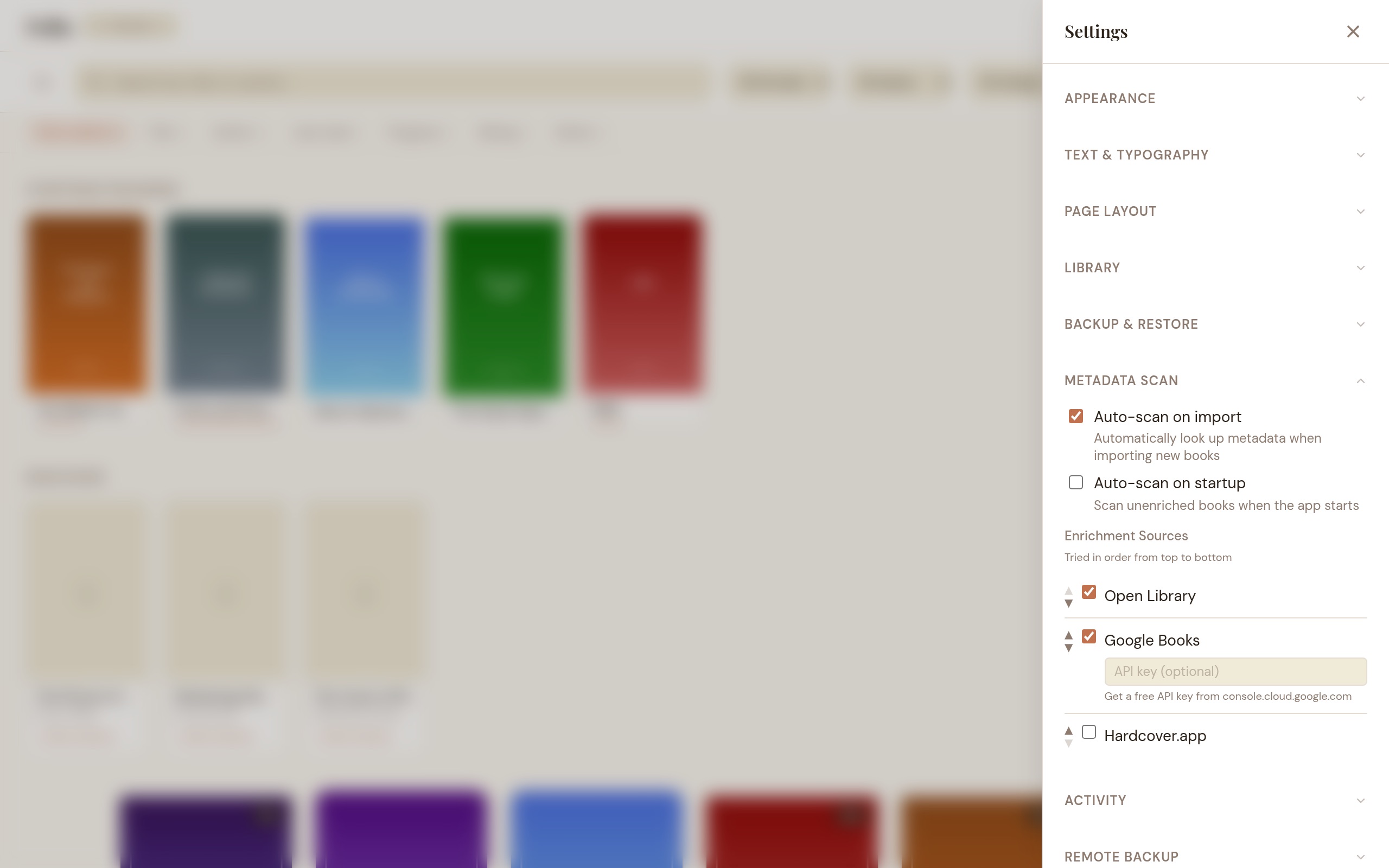
Providers are tried in order — the first one that finds a match wins. Configure which providers are active in Settings > Metadata Scan > Enrichment Sources.
| Provider | Coverage | API Key | Default |
|---|---|---|---|
| Google Books | General books, good international coverage | Optional (for higher rate limits) | Enabled |
| OpenLibrary | Open data, ratings, subjects | None | Enabled |
| Comic Vine | Comics, BD, manga — the most comprehensive free comics database | Free key from comicvine.gamespot.com/api | Disabled (needs key) |
| BnF | French national library — excellent for French editions | None | Enabled |
The scan uses multiple strategies in order of confidence:
- ISBN lookup — if the book contains an ISBN in its metadata, Carrel does a direct lookup (highest accuracy).
- Title + Author search — searches providers and auto-applies if the match is strong.
- Filename parsing — for CBR/CBZ comics and files with no embedded metadata, Carrel parses the filename to extract title, author, and year.
Scan controls
- Scan Library button in the toolbar (magnifying glass icon) — scans all unenriched books. Also retries previously skipped books (they may match with newly enabled providers).
- Per-book scan — click the scan icon in the book detail popup to enrich a single book.
- Progress indicator — shows “Enriching 3/12: Book Title” with a cancel button.
Settings
- Auto-scan on import (default: on) — newly imported books are automatically queued for metadata lookup.
- Auto-scan on startup (default: off) — scan unenriched books when the app launches.
Comics metadata
Comics (CBZ and CBR) get metadata from two sources:
- ComicInfo.xml — if present inside the archive, Carrel extracts writer, title, series, volume, year, language, publisher, genre, and summary automatically at import time.
- Enrichment providers — Comic Vine is recommended for comics. Get a free API key from comicvine.gamespot.com/api, enable it in Settings, then run a scan.
Catalog Browsing (OPDS)
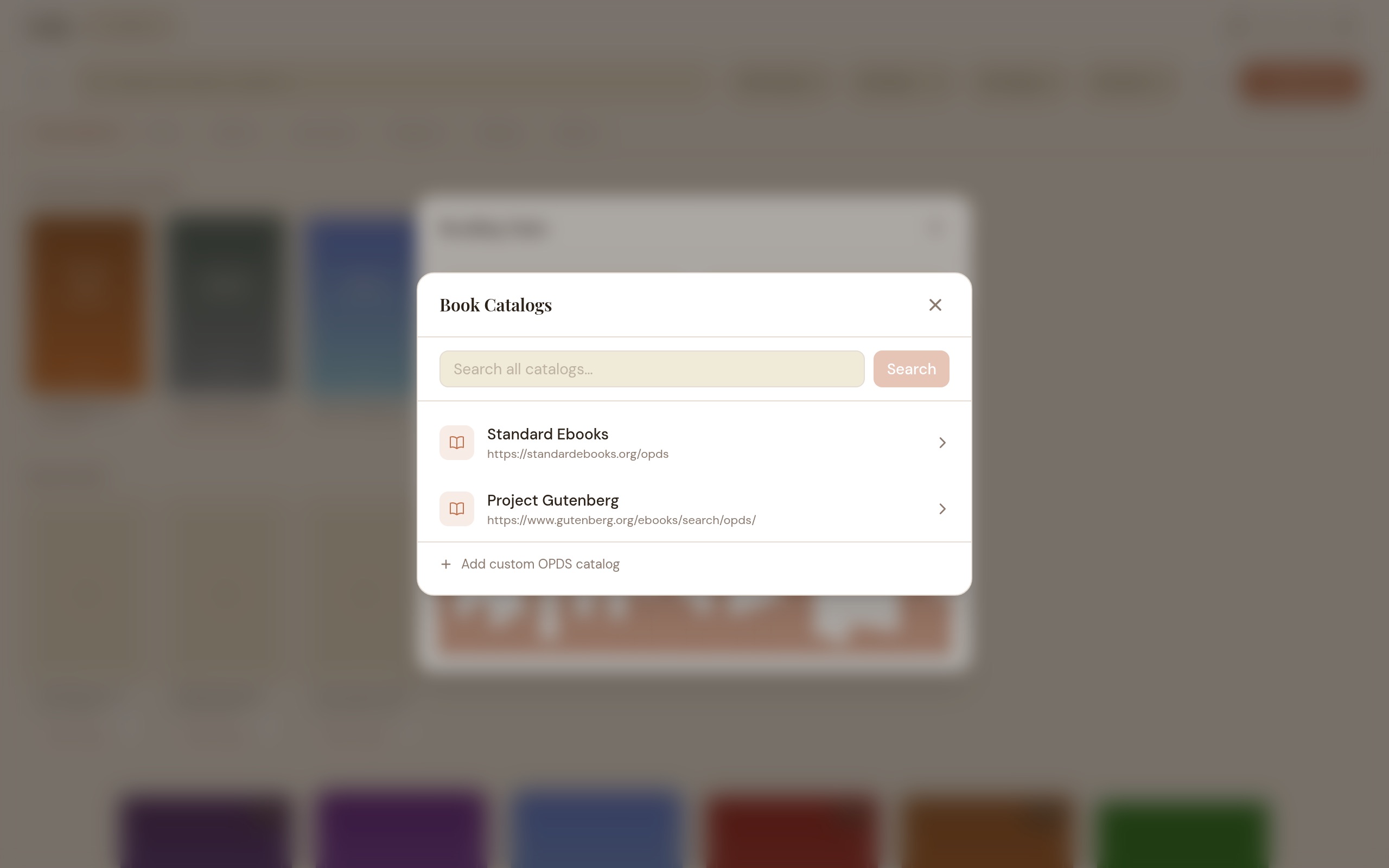
Carrel can browse online book catalogs that use the OPDS protocol (Open Publication Distribution System). Three catalogs ship out of the box — Project Gutenberg, Standard Ebooks (New Releases), and Wikisource — and you can add more from a curated preset list, from self-hosted Calibre servers, or by pasting any OPDS URL.
Browsing
Open the catalog browser from the library. Pick a catalog to browse its categories and entries. Each entry shows the title, author, summary, and cover when available.
Searching
Unified search: From the catalog list, type a query in the “Search all catalogs” bar. Carrel searches every configured catalog in parallel and shows aggregated results — one search, all sources.
Per-catalog search: When browsing inside a catalog that supports search, a “Search this catalog” bar appears at the top. Some catalogs publish their search as a separate OpenSearch description rather than a direct link; those are now resolved wherever they live, including catalogs on your LAN or the same machine.
Carrel’s own OPDS feed publishes its search the standard way too (an OpenSearch description at /opds/opensearch.xml), so other reader apps browsing your library get a working search box instead of no search at all.
Downloading
Click a download link to grab a book (EPUB, PDF, CBZ, CBR, or MOBI/AZW/AZW3) and import it directly into your library.
Discover
The library home page includes a Discover section showing popular and new books from your configured OPDS catalogs. Results are cached for 24 hours and fetched in the background so they don’t slow down startup. Click any Discover card to download and import the book.
Adding more catalogs
Browse presets: An inline picker offers a curated list of OPDS catalogs — Gallica, OpenEdition, ManyBooks, arXiv, Elephant Editions, and more. Filter by language or category, and click + Add on any row. Already-added presets show an “Added” badge.
Add custom URL: Enter the OPDS root URL of any catalog, including self-hosted Calibre/COPS servers and other Carrel instances on your LAN (e.g. http://192.168.0.12:7788/opds). The URL is validated and Carrel runs a quick connection test before saving, so a typo or unreachable feed is caught immediately instead of failing later when you browse. Custom catalogs can be removed at any time.
Catalogs that require signing in
Some catalogs don’t allow anonymous access — a Carrel Server instance you run yourself, for example. Carrel handles two kinds of credential: a username and password, or a single API key sent as a bearer token (Carrel Server calls its own key format ck_live_…).
You can enter one in either place:
- While adding the catalog — click + Sign-in required? on the add-catalog form to reveal the username/password or token fields. Carrel tests the feed with the credential before saving anything, so a wrong password fails the add instead of leaving a broken catalog behind.
- When browsing hits a sign-in wall — a catalog that answers “sign-in required” now says so and offers a sign-in panel on the spot, instead of being reported as an unreachable server. Enter the credential and retry the same request.
The credential is stored in your operating system’s keychain, not in Carrel’s database, and it’s only ever sent to the catalog it was set up for — a feed that links elsewhere never gets it. Two catalogs on the same server but at different paths keep separate credentials. Sign out from the catalog’s entry in the list to remove the stored credential; removing the catalog, or deleting the profile it belongs to, also removes it.
If the address is plain http:// and points anywhere other than your own machine, Carrel warns that the connection isn’t encrypted and asks you to confirm before sending the credential. It’s a warning, not a refusal — a NAS or home server on plain HTTP is common, and loopback traffic never leaves the machine.
Known limits: covers don’t appear for authenticated catalogs; unified search and the Discover row can only use a credential that’s already stored, so an authenticated catalog shows up in them only after you’ve signed in by browsing it directly; if a catalog’s main feed is public but its search is itself protected, search for that catalog stops working with no error shown; and a catalog holds one signed-in account at a time.
Themes
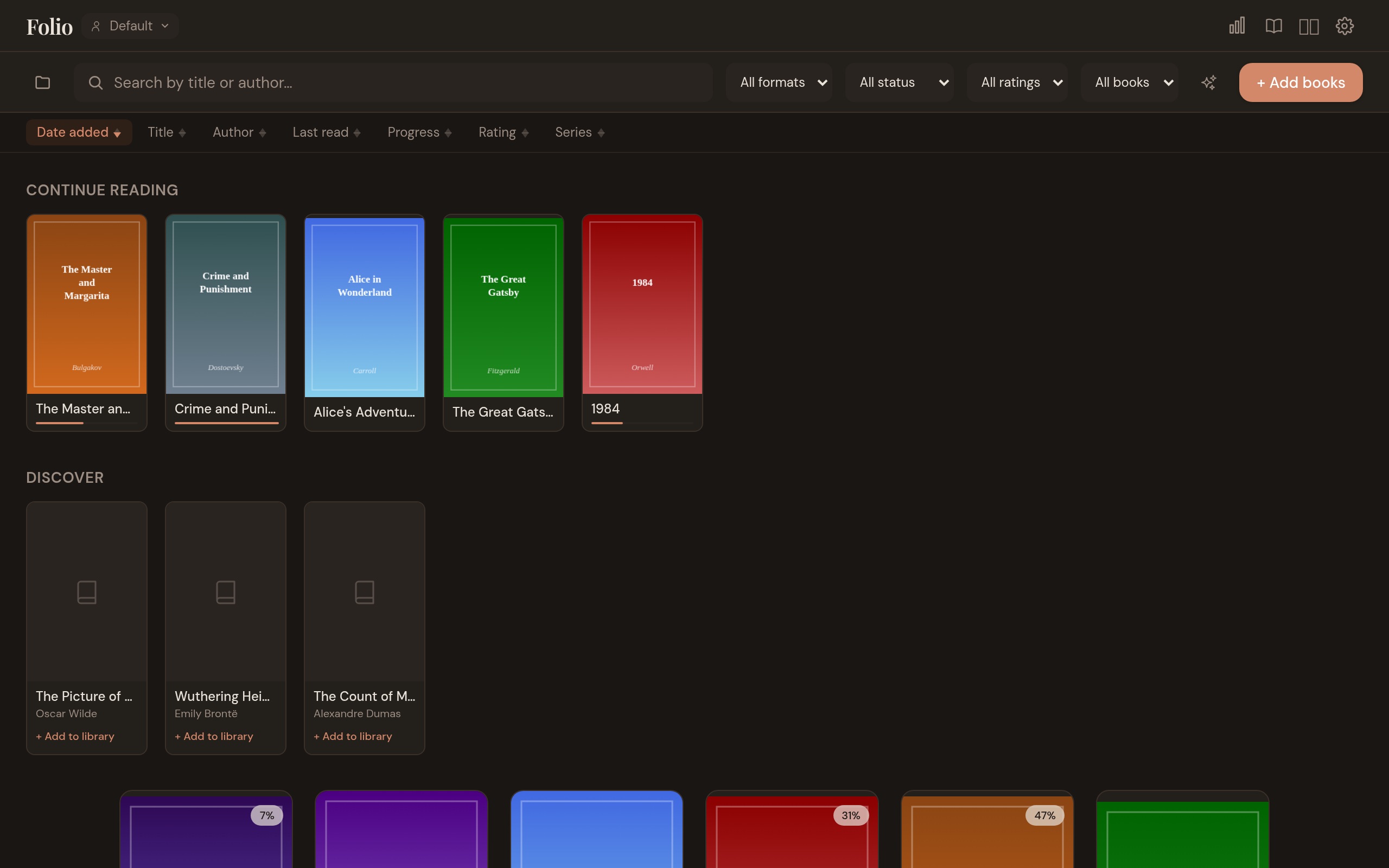
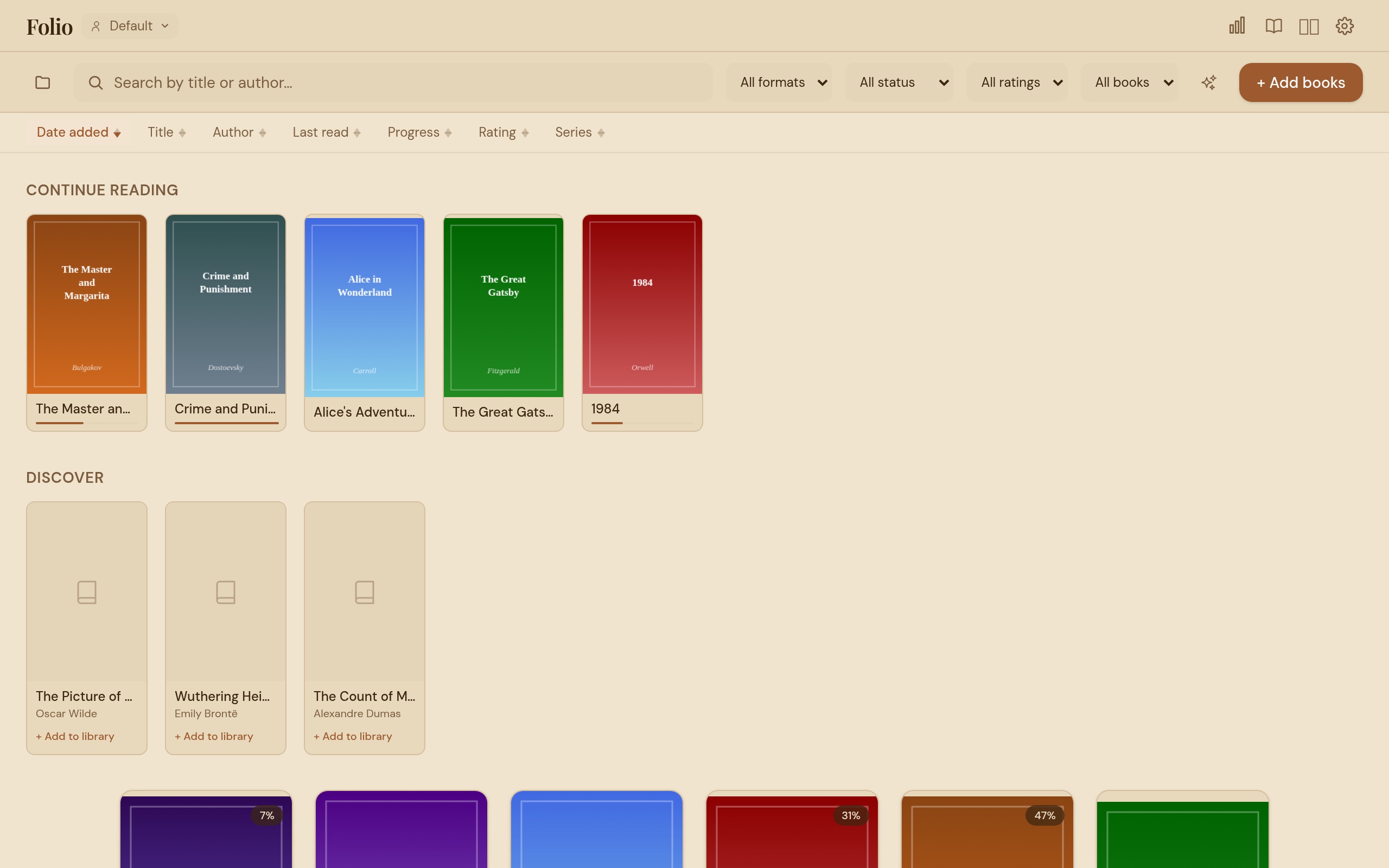
Click the gear icon in the reader header (or library toolbar) to open Settings. Settings are grouped into collapsible sections; a search box at the top filters them by name or keyword (e.g. “pin”, “css”, “backup”) and jumps straight to a match. For appearance, choose from four theme presets or create your own:
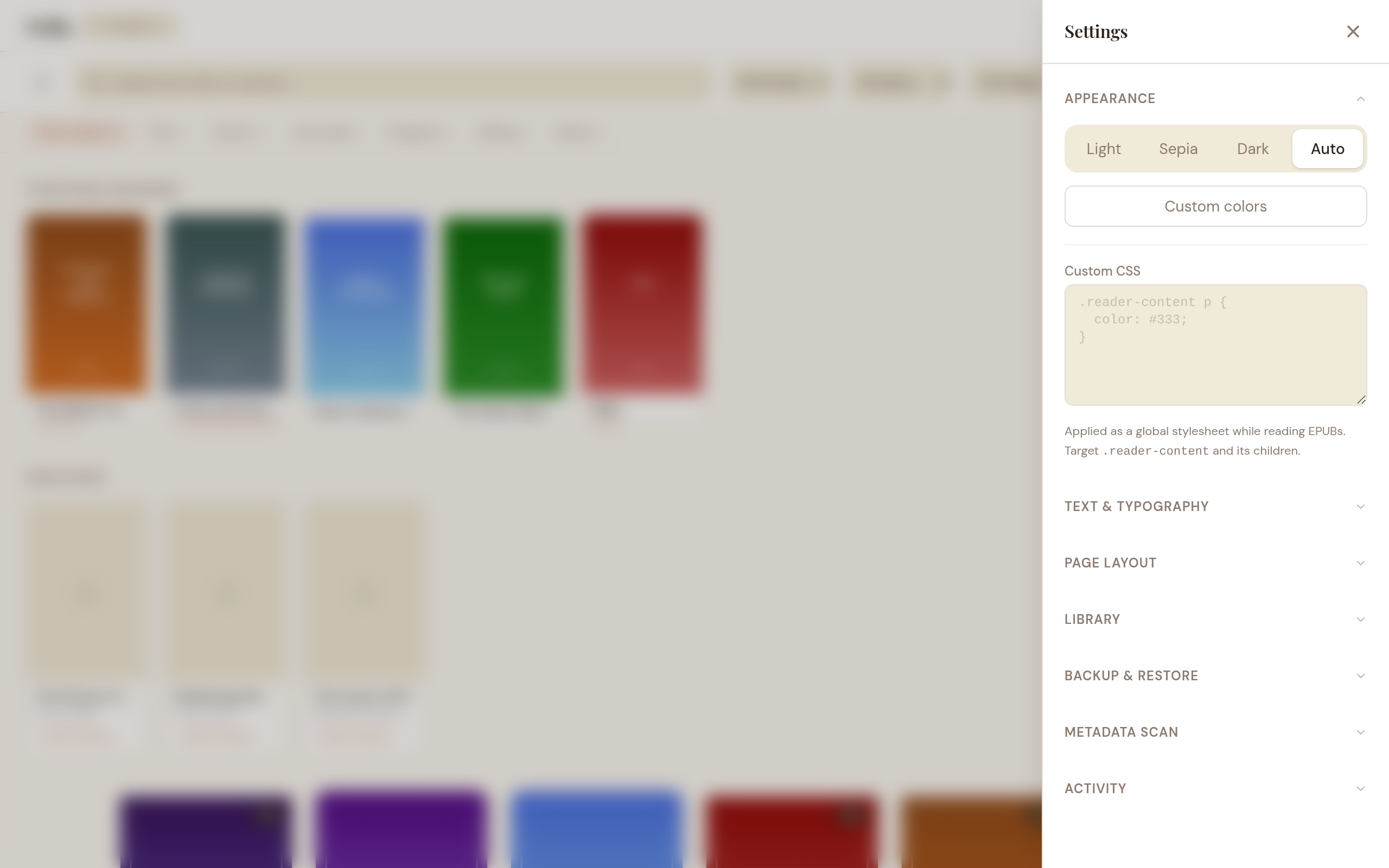
- Light — warm off-white with brown text (default).
- Sepia — deeper amber/parchment background with rich brown text, designed for comfortable extended reading.
- Dark — dark background with light text for low-light environments.
- Auto — follows your operating system’s light/dark setting.
Custom colors: Click “Custom colors” to open the color editor. Pick a background and text color — the remaining UI colors are automatically derived. Expand “Advanced” to fine-tune individual color tokens.
Saved themes
Save your current visual setup as a named theme (colors, font, size, and all typography settings). Click + Save as theme in Settings > Appearance > Saved Themes. Click any saved theme to apply it instantly. Hover to rename or delete. Up to 50 themes. Custom CSS is global and not included in saved themes.
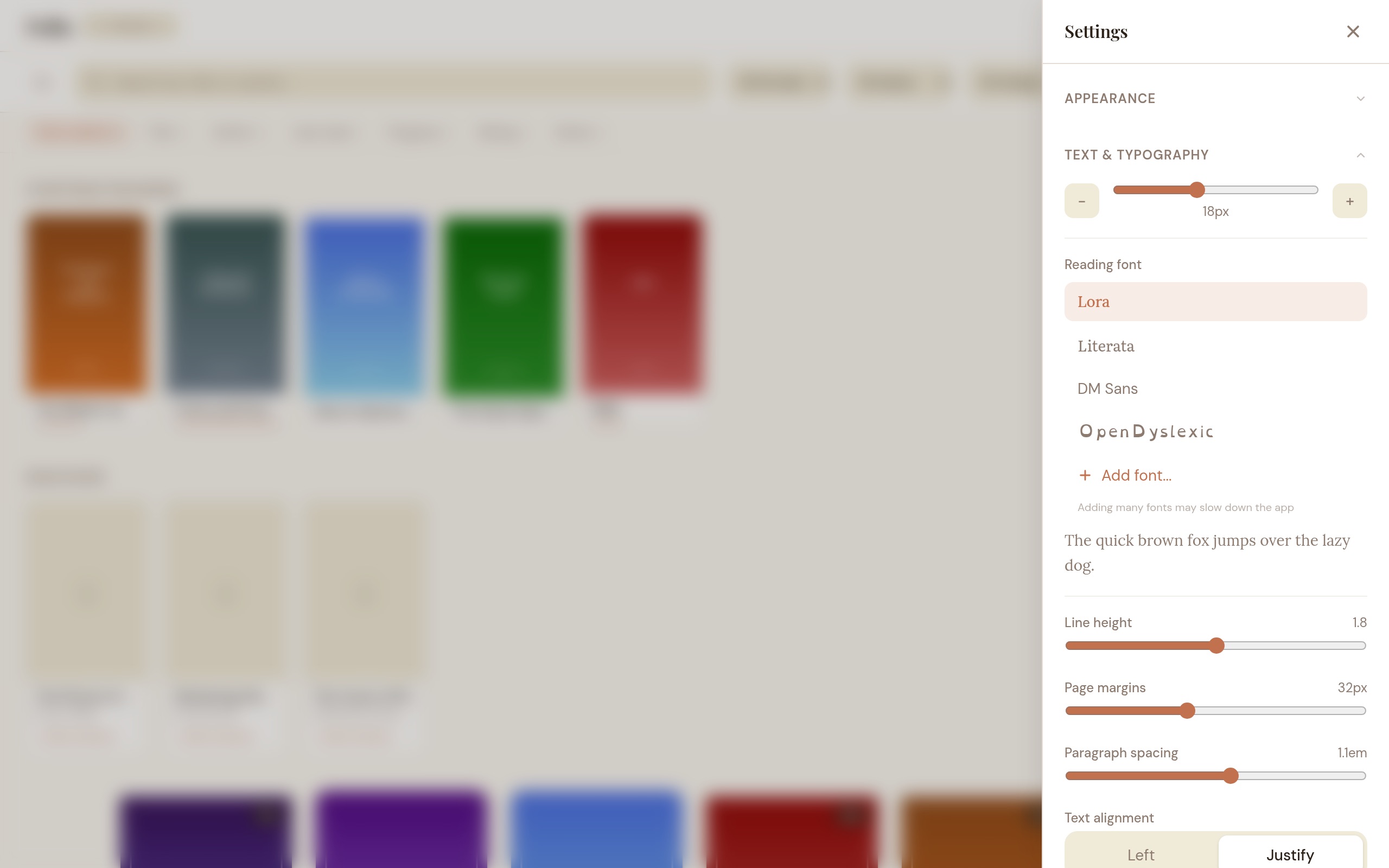
Reading font
Choose from four built-in fonts for EPUB reading content:
- Lora — elegant serif font (default).
- Literata — a serif font designed for e-reading (created by Google for Play Books).
- DM Sans — clean sans-serif font.
- OpenDyslexic — a font designed for readers with dyslexia, with weighted letterforms that prevent visual rotation and flipping.
You can also add your own fonts: click Add font... at the bottom of the font list and select a .ttf, .otf, or .woff2 file. Custom fonts appear alongside the built-in options. To remove a custom font, hover over it and click the X icon.
Built-in fonts are bundled locally — no internet connection required.
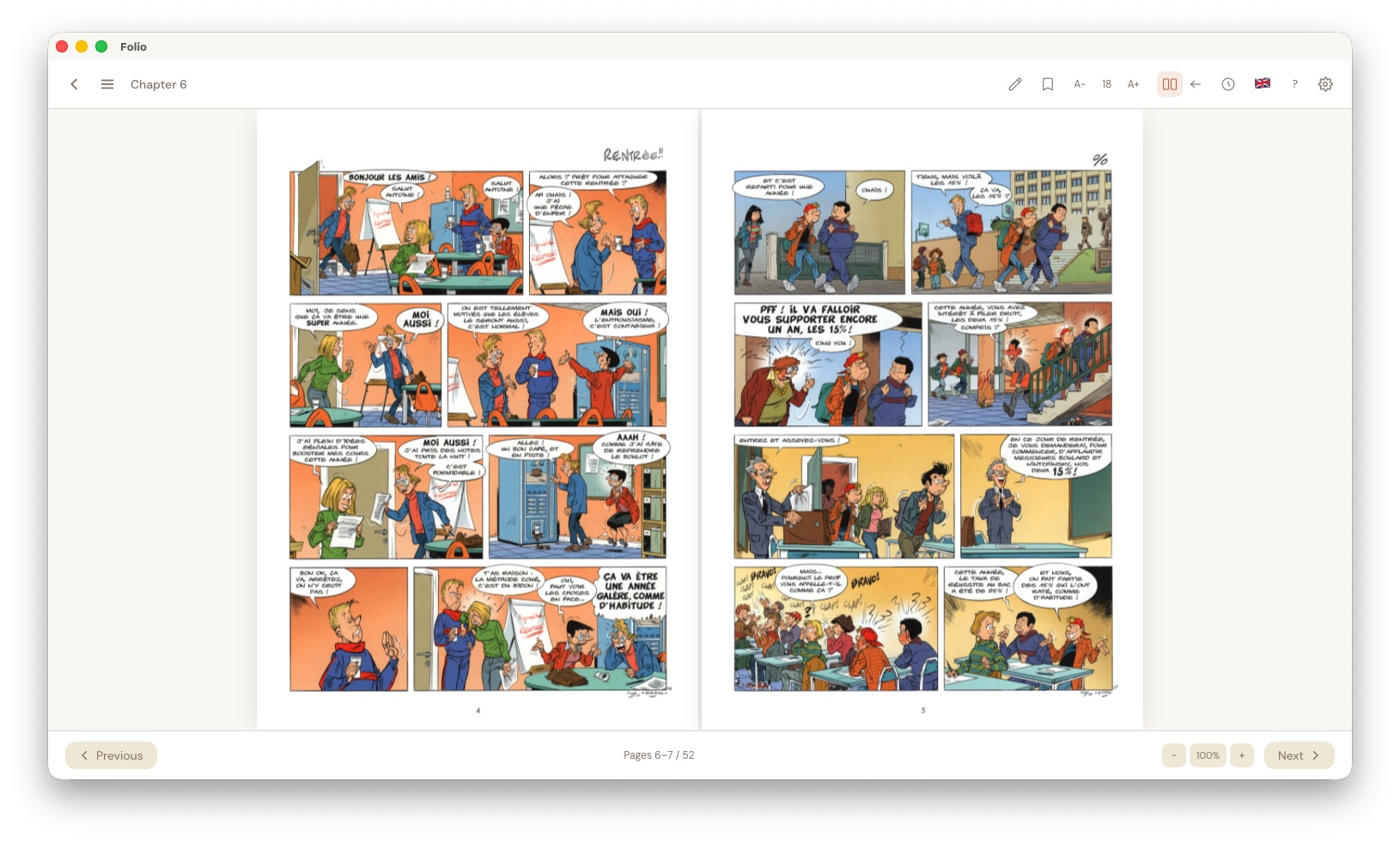
Dual-Page Spread
Show two pages side by side, like an open book. Works for all formats: comics (CBZ/CBR), PDFs, and EPUBs in paginated mode.
Toggling on/off
- Reader header: Click the dual-page icon (two rectangles) in the header bar. When active, the icon highlights.
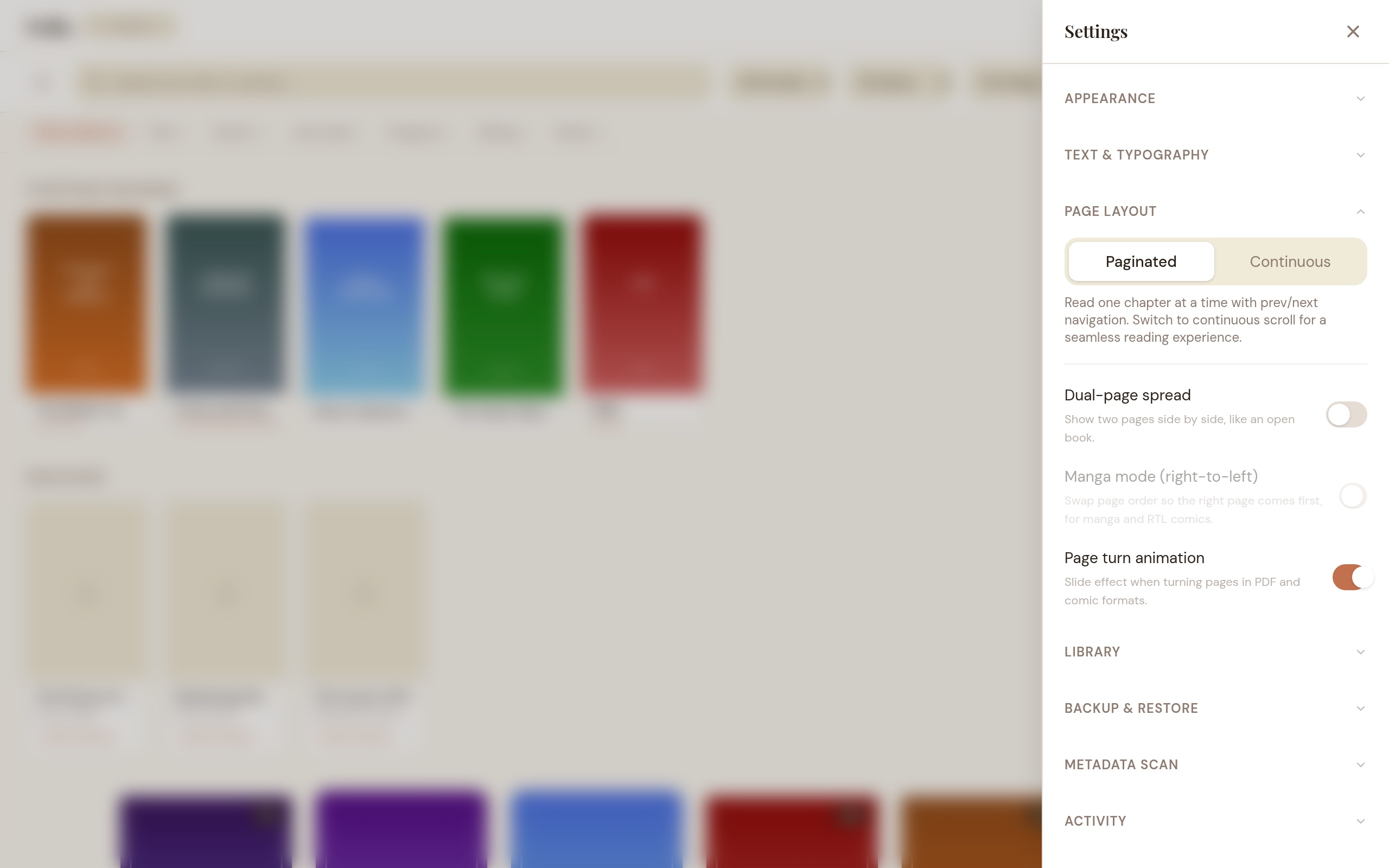
- Settings > Page Layout: Toggle “Dual-page spread” on or off.
Page pairing
The cover page (page 1) always displays solo. Subsequent pages are paired: 2–3, 4–5, 6–7, etc. If the last page has no partner, it displays solo.
Manga mode (right-to-left)
When dual-page is active, a second button appears in the header bar (left arrow icon). Toggle it to swap the page order within each spread — the right page displays on the left and vice versa. This also reverses the arrow key direction so that left-arrow advances forward, matching the RTL reading direction. For EPUBs, manga mode flows the text columns right-to-left.
Zoom and pan
In dual-page mode, zoom and pan apply to both pages as a unit. Pan is bounded so you can’t drag the content off-screen.
Both settings are global (apply to all books) and persist between sessions. Dual-page is automatically hidden when EPUB is in continuous scroll mode.
Font size
Adjust between 14px and 24px using the slider or +/− buttons in Settings, or the A−/A+ buttons in the reader header.
Page Turn Animation
When you turn pages in PDF or comic formats (CBZ/CBR), the new page slides in from the side with a short fade. It gives you a sense of direction when flipping forward or backward.
Toggle: Settings > Page Layout > “Page turn animation” — on by default. Turn it off if you prefer instant page changes.
Adjacent pages are preloaded in the background after you pause on a page, so the animation plays without any stutter. During fast navigation the preloads back off to keep the current page responsive.
This setting does not affect EPUB, which uses its own chapter-based navigation.
Advanced Typography
Fine-tune your reading experience under Settings > Appearance > Typography:
- Line height — adjust spacing between lines (1.2× to 2.4×).
- Page margins — control horizontal padding (0px to 80px).
- Text alignment — choose between left-aligned or justified text.
- Paragraph spacing — set the gap between paragraphs (0em to 2em).
- Hyphenation — toggle automatic word breaking at line endings.
All typography settings apply to EPUB content only and are saved globally.
Custom CSS
For advanced customization, you can inject your own CSS that applies to EPUB reading content:
- Open Settings > Appearance and scroll to the Custom CSS section.
- Type or paste CSS rules in the text area.
- Changes apply immediately with a live preview.
- Use the Clear button to remove all custom CSS.
Profiles
Profiles give you completely separate libraries. Each profile has its own books, reading progress, collections, and highlights.
Create and switch profiles from the profile dropdown in the library header. The dropdown only appears once you have more than one profile. Non-default profiles can be deleted.
Profile lock
You can lock a profile behind a password, from Settings > Profile lock. This hides the profile from anyone using the app casually — a housemate, or someone picking up your laptop — by requiring the password before it can be switched into, including at startup if the locked profile is the one that opens automatically. Set it when creating a profile (a “Lock this profile” option in the create dialog) or later from Settings.
Your books, database, and cached pages are not encrypted; anyone with file-system access to this computer can still read them. It’s a deterrent, not protection against an unencrypted disk, a cloud sync of your app-data folder, or another OS account on a shared machine.
- Setting a lock: open Settings > Profile lock while the profile is active and choose a password. Any passphrase works — it isn’t limited to digits like the web-access PIN.
- Switching into a locked profile prompts for its password. There’s no lockout after wrong attempts — the check itself is intentionally slow (hashed with Argon2id in your OS keychain) to discourage guessing.
- Remote access: a locked profile is not served over the web/OPDS server until it has been unlocked in the desktop app for that session. The profile password is never asked for over the web.
- Changing or removing a lock from Settings requires the current password.
- Forgot the password? The unlock prompt has a “Can’t sign in?” link that clears the lock after a deliberate confirmation. This never touches your books or library — it only removes the lock.
Backup and Restore
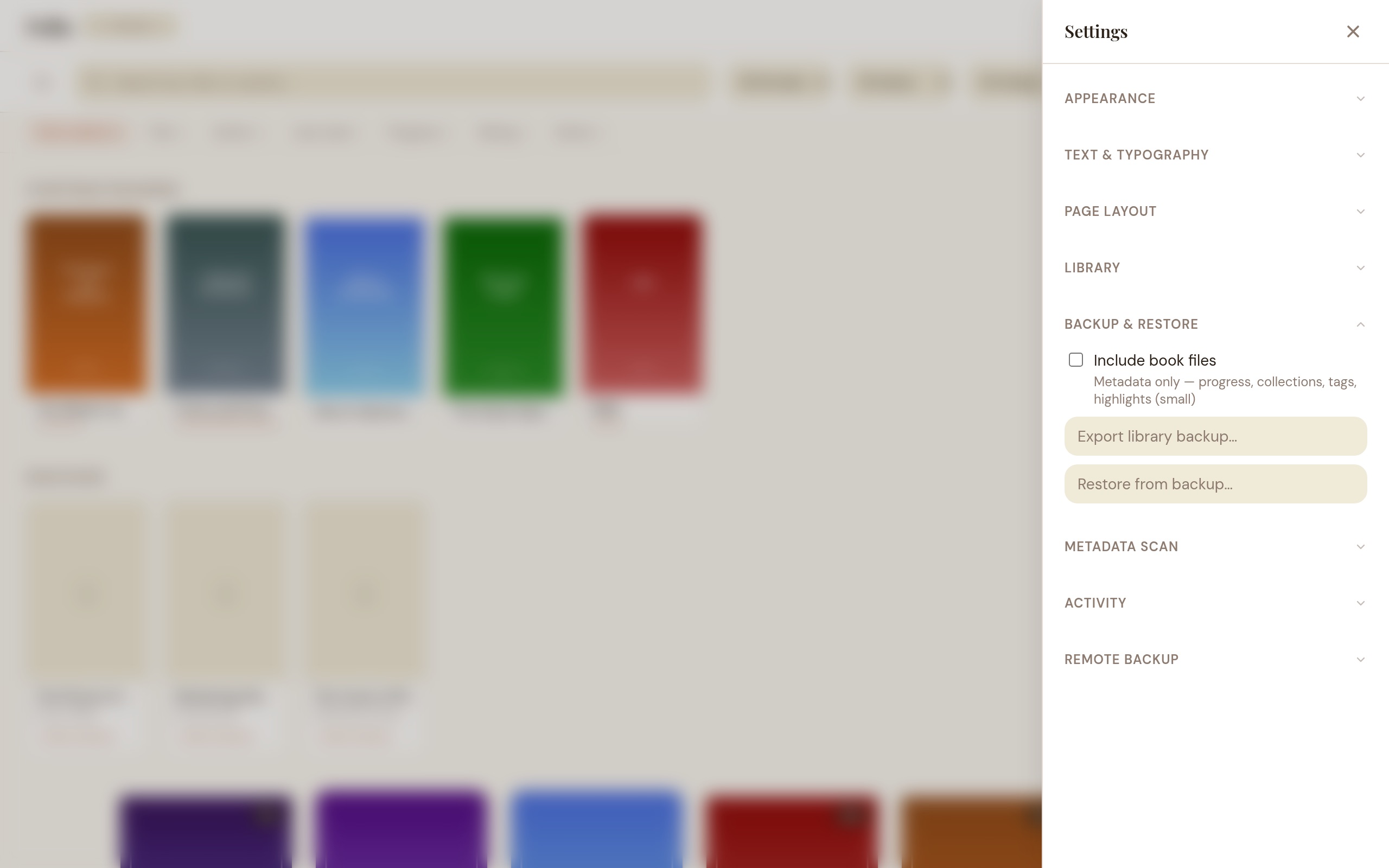
From Settings > Backup & Restore you can export and restore library backups.
Export options
- Metadata only — small file containing your book metadata, reading progress, bookmarks, highlights, collections, and tags.
- Full backup — includes book files alongside the metadata. Linked books keep a reference to their original location rather than embedding the file, and cover images are stored as compact thumbnails to keep the archive small.
Restore from backup
Click “Restore from backup” to open the restore picker:
- Automatic backups — Carrel creates automatic backups before destructive operations like library cleanup. These are listed with their date, type, and file size. Click “Restore” on any entry.
- From file — Click “Choose file” to select a backup ZIP you exported previously.
Restoring a backup brings back your books and covers along with reading progress, bookmarks, highlights, collections, and tags. Existing data is not deleted — it’s a non-destructive merge, and restoring the same backup twice is safe. Linked books are restored as references to their original path, so that location must be reachable (for example, the drive mounted) on the machine you restore to. The library view refreshes automatically once the restore finishes.
Library cleanup
From Settings > Library, click “Check for missing files” to scan your library for books whose files no longer exist on disk (moved, deleted, or on a disconnected drive). Carrel automatically creates a metadata backup before removing any broken entries. The result shows how many books were removed and where the backup was saved.
If you try to open a book whose file is missing, Carrel shows a dialog offering to remove it from your library.
Remote backup
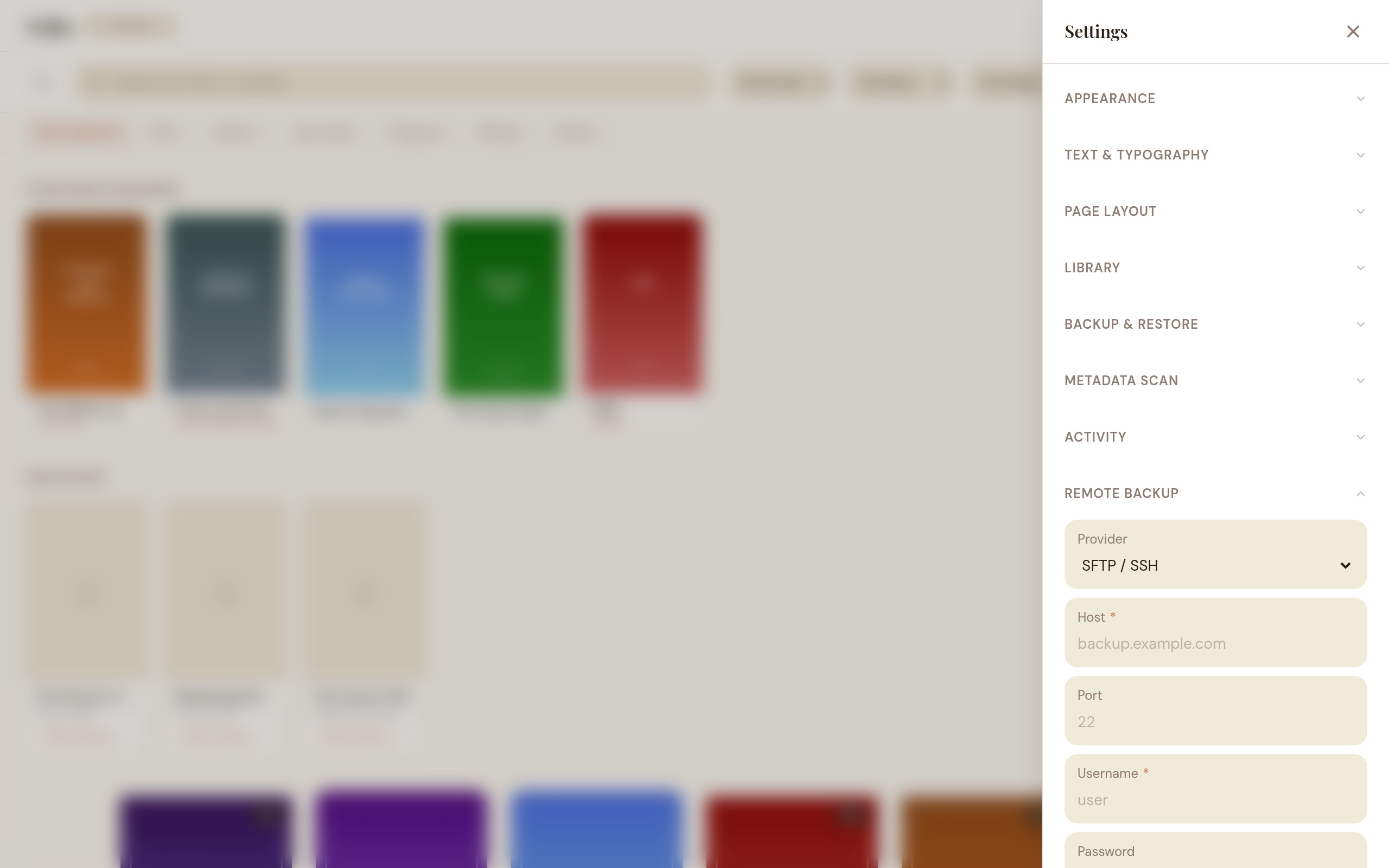
Carrel can sync your library to a remote storage provider. Configure in Settings > Remote Backup.
| Provider | Auth | Notes |
|---|---|---|
| AWS S3 | Access key + secret | Any S3-compatible service (MinIO, Backblaze B2, etc.) |
| FTP | Username + password | FTP and FTPS (TLS) |
| SFTP (SSH) | Username + SSH key | Key-based auth via system ssh |
| WebDAV | Username + password | Nextcloud, ownCloud, etc. |
How it works: Select a provider and fill in connection details. Click Save to store the configuration (passwords go in your OS keychain, not the database), or Test connection to verify the details reach the server — each reports its own result, so you can tell a save problem from a connection problem. Then click Backup Now to start a sync.
Book files are uploaded incrementally — only new or changed files are transferred. Metadata files always contain the full library. During backup, the button shows real-time progress like “Uploading books 3/12”. If a backup is interrupted, the next run picks up where it left off. Both successful and failed backups are logged in the activity log.
Multi-device Sync
If you read on more than one computer, Carrel can keep your reading progress, bookmarks, and highlights in sync across devices. Sync piggybacks on the same remote storage provider you already configured for backup.
Enabling sync
- Configure a remote backup destination (S3, FTP, SFTP, or WebDAV) as described above.
- In Settings > Remote Backup, toggle “Sync reading progress across devices” on.
How it works
- When you open a book: Carrel checks the remote storage for newer data from other devices. If another machine has more recent progress, bookmarks, or highlights, they are merged into your local library. This happens in the background with a 5-second timeout — the book opens immediately regardless.
- When you close a book: Carrel pushes your current reading state to remote storage in the background. Other devices pick up those changes next time they open the same book.
- Book matching: Books are matched by content hash (SHA-256), so the same file on different devices syncs correctly even if the filenames differ.
What syncs
- Reading position (chapter and scroll position)
- Bookmarks (including names and notes)
- Highlights (including colors and notes)
- Deletions — removing a bookmark or highlight on one device removes it on others
What does not sync
- Book files (use backup for that)
- Collections, tags, or star ratings
- Reading statistics
- Settings or theme preferences
Conflict resolution
When the same item is edited on two devices, the most recent edit wins (based on timestamps). If timestamps are equal, the remote version is preferred. This is automatic — no manual conflict resolution needed.
Sync status
When sync is on, the Settings panel shows the time of the last successful sync. If a sync fails (network issues, server unreachable), an error message appears and clears automatically after the next successful sync.
Sync and backup are independent features. Sync is a lightweight, per-book data exchange for reading state. Backup is a full library export. You can use one without the other, though both need a remote storage provider.
Remote Access
Browse and read your library from any device on the same WiFi — phone, tablet, or another computer — without installing anything. Two surfaces are available, toggled independently:
- Web UI — an HTML library browser for phones, tablets, and other computers.
- OPDS — an Atom catalog feed for ebook reader apps (KOReader, Thorium, Calibre, Moon+ Reader, etc.).
The server runs whenever at least one toggle is on. Turn both off to stop it entirely.
Setting up
- Open Settings and scroll to the Remote Access section.
- Enter a PIN (this is the password for web access) and click Save PIN. An “Unsaved” indicator shows while the typed PIN differs from the saved one, and a valid PIN is also saved when you click away — so you won’t lose it by closing the panel mid-type.
- Tick Web UI, OPDS, or both.
- A URL and QR code appear. Scan the QR code with your phone or type the URL into any browser.
The server runs on port 7788 by default. The port is editable while the server is running.
Using the web interface
Open the URL in a browser. The web reader looks and behaves like the desktop app — same warm palette, light/dark/system theme, and typography, not a stripped-down mobile page. You get:
- Login screen — enter the PIN you set in the desktop app.
- Home — “Continue Reading” and “Recently Added” shelves for quick access to what you’re in the middle of.
- Library — a grid of book covers with search, series/collection filters, and a sort dropdown (date added, title, author, last read, rating). It loads more books as you scroll, so it stays fast on large libraries. Books you’ve started show a progress badge on the cover, and a “Want to read” toggle in the filter bar narrows the grid to flagged books (flagged covers show a bookmark badge). Tap any book for details.
- Book detail — shows cover, title, author, format, and a progress bar. A single always-visible primary button — Continue (or Read, from the start) — keeps the row tidy on any phone width, with Start Over, Save offline, and Download in a ⋯ More menu. Mark or unmark want-to-read here too.
- Reader — EPUBs show chapter content with prev/next navigation, plus a Contents button (reflowable EPUB/MOBI) that opens a slide-in chapter list with the current chapter highlighted; tap one to jump. Books with no usable table of contents show a plain chapter label instead. PDFs and comics show page images with prev/next buttons, and swiping left/right on a touch screen turns the page with a short animation. Comic and PDF pages zoom: hold Ctrl and scroll (or pinch on a trackpad) up to 5× then scroll to pan; on a phone or tablet, pinch to zoom and drag one finger to pan, and double-tap to jump to 2.5× and back. Select text in an EPUB or MOBI to highlight it in one of five colors and add a note, all managed from a highlights drawer (🖍) that stays in sync with the desktop app (online only, not on offline-saved books). A bookmark button (🔖, every format) opens a drawer to save, name, rename, and jump to spots, book-scoped and synced across devices. With the dictionary installed and enabled, the selection popover also offers Define: it looks up the selection (or, for a longer selection, its first word) and shows the definitions by part of speech in a small card. If the vocabulary builder is on for the profile, the card gains a Save button that logs the word, and a 📚 button in the toolbar opens the words saved from this book — part of speech, definition, chapter, and date, with a tap to jump back to where you looked it up and a delete button per row. Both are online-only, like highlights, so they aren’t offered on an offline-saved book. Your position is saved as you go, so opening the same book later — on this device or another — resumes where you stopped.
- Reading Stats — time read, sessions, pages, books finished, streaks, and a 30-day chart.
- Collections — browse your collections and series, filter by name, sort alphabetically.
- Vocabulary — every word you’ve saved, across all books, with the book and chapter it came from and the date, a search box, a newest/alphabetical sort toggle, and a delete button per row. A Review N due bar at the top runs the same flashcard review as the desktop app: reveal the definition, then mark Got it or Missed to see the new box and when the word comes back, on the same five-box schedule. Shown when the vocabulary builder is on for the profile.
Everything stays on your local network. No internet connection needed, no data leaves your WiFi.
Reading typography (reflowable books): In the reader for EPUB and MOBI books, an Aa button opens a popover with four controls — font size (14–24 px), line spacing (1.2–2.4), reading font (Lora, Literata, DM Sans, or the dyslexia-friendly OpenDyslexic), and column width (Narrow, Medium, or Wide). Changes apply live and are remembered across books and sessions, and your position is kept when the text reflows. The fonts are embedded and served by Carrel, so a saved-offline book still renders in your chosen face over a secure context; over plain-HTTP LAN they load on first use.
Switching profiles: with more than one profile, the header shows which one you’re reading and lets you switch to another, so you can move between libraries from the couch instead of walking to the computer. There is one active profile shared by everything — switching here also switches the desktop app and every other browser or OPDS client, and any tab left open on the old profile reloads itself into the new one. A profile you’ve locked with a password is listed but greyed out, since Carrel never sends that password over the network; unlock it once in the desktop app and it becomes selectable remotely until Carrel restarts. Books saved for offline reading belong to the profile you saved them under and come back when you switch back.
On a phone, tablet, or installed web app, the primary destinations — Library, Collections, and Reading Stats — sit in a fixed bottom tab bar within thumb reach, and the bar tucks away while you’re reading. On a desktop browser the header icons stay where they were. On notched phones the installed app runs edge-to-edge, clearing the status bar and home indicator.
Installing to your home screen
The web UI can be installed like an app, so it opens full-screen without browser chrome and gets its own icon:
- iOS (Safari): open the web UI URL, tap the Share icon, then Add to Home Screen.
- Android / desktop (Chrome or another Chromium browser): open the URL, then use the browser’s Install app option (usually in the address bar or the ⋮ menu).
Once installed, the app shell (not your book content) can be cached for faster loads. Offline caching only kicks in over https or localhost. Over a plain HTTP address on your WiFi (the usual way to reach it, e.g. http://192.168.1.20:7788), the app still installs and looks the same — it just fetches the shell fresh each time rather than caching it offline.
Saving books for offline reading
Over a secure context (an https URL, e.g. behind a Tailscale or reverse-proxy certificate, or localhost), a book’s detail page offers Save offline. Carrel downloads the chapters, images, and comic/PDF pages into browser storage with a progress counter, then shows an “available offline” badge on the grid and a “Saved · size / Remove offline copy” state on the detail page. A saved book reads fully offline — if the server is unreachable Carrel falls back to the offline copy automatically, and opening the installed app with no connection boots straight into your downloaded books. Progress you make offline is queued and synced back when the connection returns, using a compare-then-push rule so a position from another device is never overwritten by a stale one. If the browser evicts a download under storage pressure, Carrel notices on next launch and clears the stale badge; deleting a book on the desktop removes its offline copy on next connect. This feature needs the secure context because service workers do; a plain HTTP address can’t save books offline.
Keyboard shortcuts (web)
On a device with a keyboard, the web UI supports the same kind of shortcuts as the desktop app:
/— focus the search box from the library view.Tab— move focus between book covers in the grid;EnterorSpaceopens the focused book.- In the reader:
←/→to turn pages or move between chapters,Home/Endto jump to the first/last page,Spaceto scroll,Fto toggle fullscreen,Escapeor Backspace to go back. ?— open a shortcuts overlay listing the full set.
OPDS for reader apps
If you use a reader app that supports OPDS (KOReader, Calibre, Moon+ Reader, etc.), you can connect it directly to Carrel:
- In the reader app, add a new OPDS catalog.
- Enter the URL:
http://<your-ip>:7788/opds - For authentication, use HTTP Basic Auth with any username and your PIN as the password.
- Browse your library and download books into the reader app.
Auto-start
Whatever surfaces were enabled when you last closed Carrel start automatically next time. Untick both checkboxes to disable auto-start.
Tray menu
The system tray shows the same two toggles (Web UI: ON/OFF, OPDS: ON/OFF). Click either to flip its state without opening Settings.
Security
- Your PIN is hashed (SHA-256) and stored in your OS keychain.
- Web sessions expire after 24 hours.
- Login attempts are rate-limited (5 tries per 5 minutes per device).
- The server accepts only reading-state changes — reading progress, the want-to-read flag, bookmarks, highlights, and saved vocabulary words with their review progress. Nobody can import, delete, or edit books, metadata, or collections from the web interface.
- Internal failures return a generic message to the client; the real error, with its kind, is logged on the machine running Carrel. Book listings don’t include stored file paths, and the routes that serve a book’s own bytes return their own short message rather than parser or OS text.
- All served content is sanitized to prevent malicious scripts in EPUB files.
Login audit trail
Carrel keeps a security log of login attempts against the remote-access server. Each entry records the timestamp, IP address, user-agent, and outcome (success, invalid PIN, or rate-limited). Entries are kept for 90 days (capped at 5,000) and pruned automatically. Your PIN is never written to the log. The trail is readable via GET /api/audit/login-history on the running server, and only when a web PIN is configured — the same rule the data export follows, since the log outlives the PIN that produced it.
Data export
Request GET /api/data-export from an authenticated client. The server returns a timestamped ZIP with your books metadata, reading progress, bookmarks, highlights, the activity log, and settings. Credentials and API keys are excluded. The endpoint requires authentication and a configured PIN.
Stopping the server
Untick both checkboxes (or use the tray menu). The server also stops when you close Carrel.
Activity Log
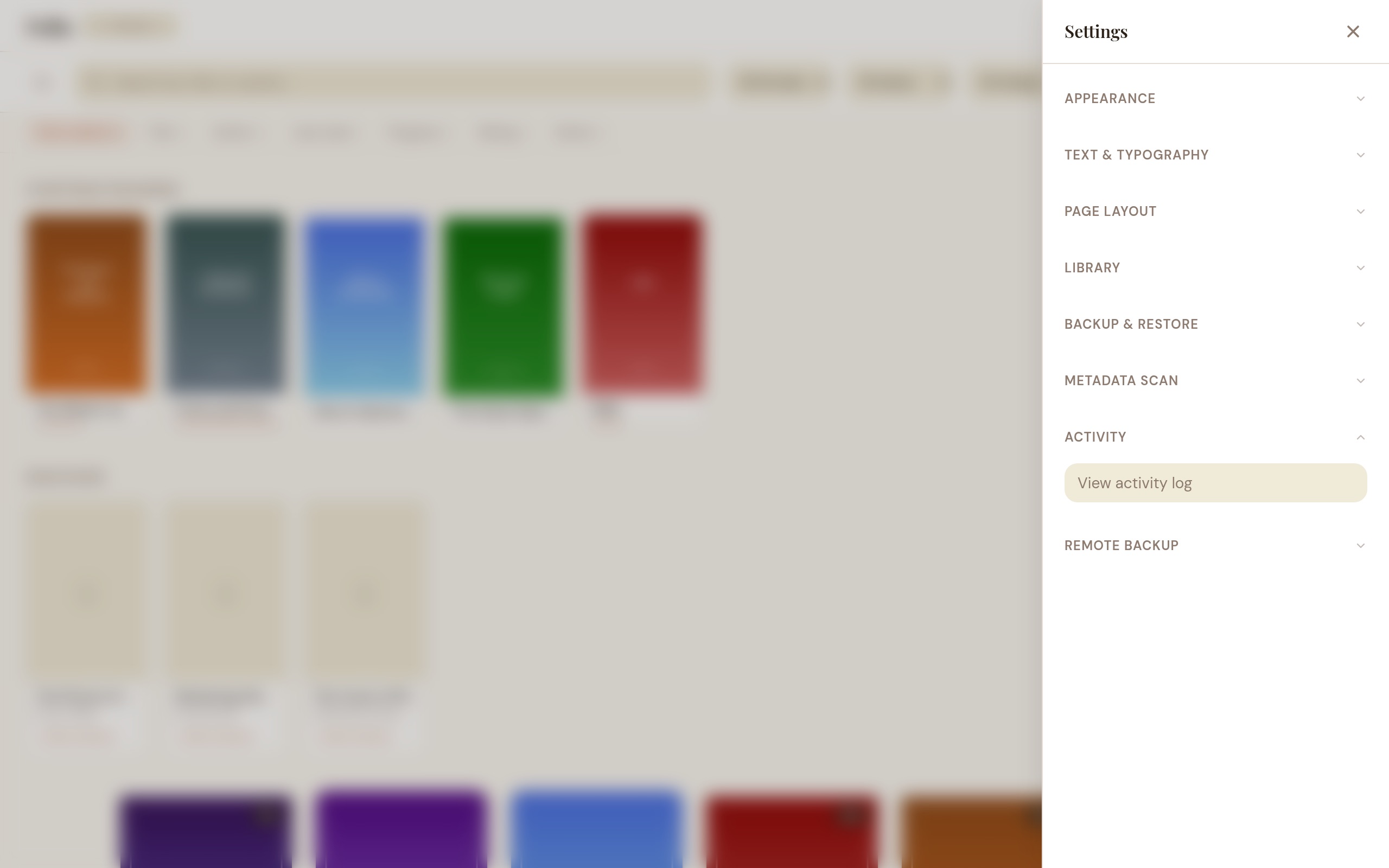
Carrel keeps a log of data-changing actions (imports, edits, deletes, collection changes, backup/restore, profile switches, and more):
- Open Settings > View Activity Log to browse recent activity.
- Filter by action type (e.g., only imports, only edits).
- Each entry shows the action, affected item, and timestamp.
- Pagination via “Load more” for long histories.
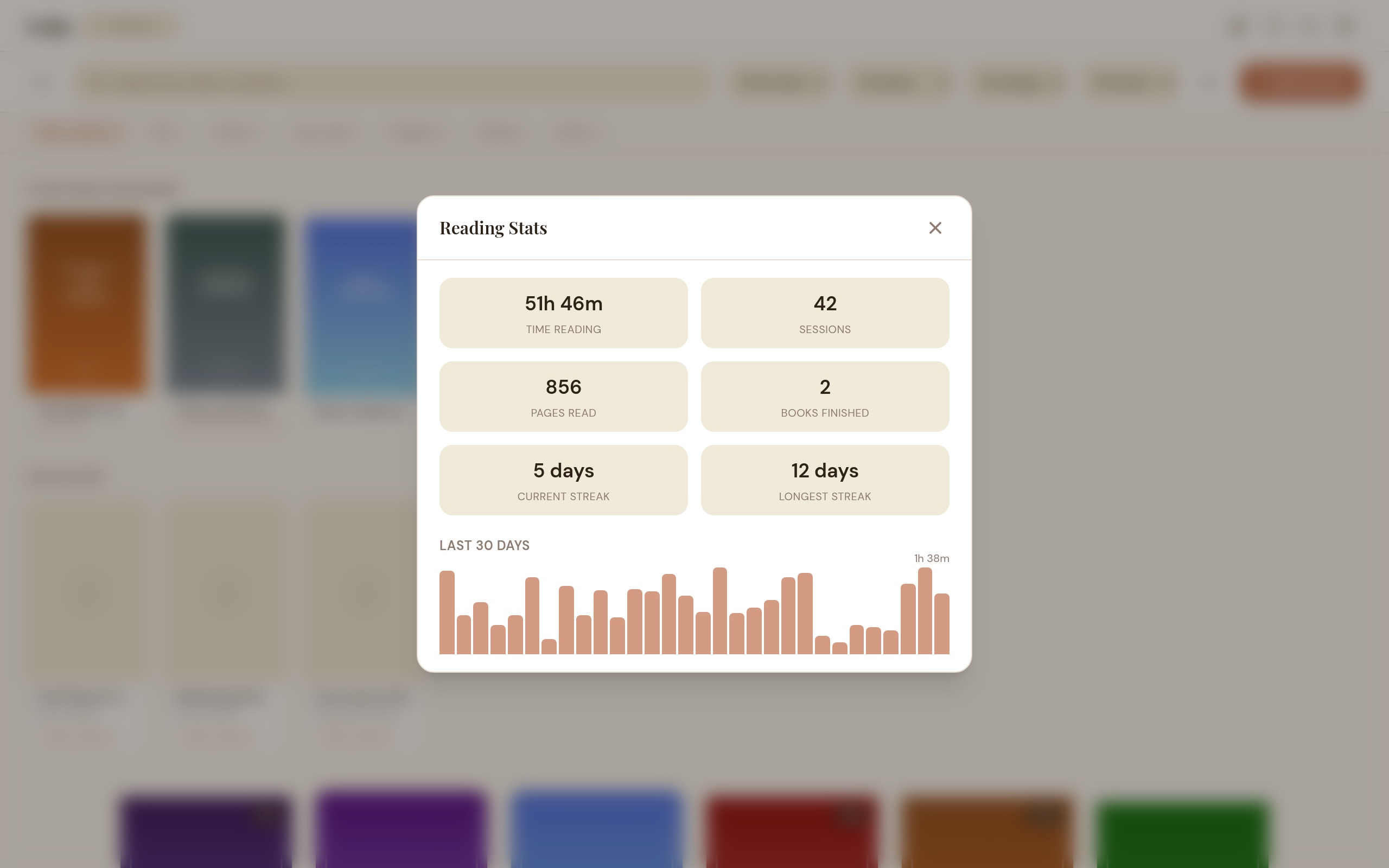
Reading Stats
Open the reading stats dashboard from the library toolbar (bar chart icon).
Tracked metrics
- Books — total number of books in your library.
- Time Reading — total time spent in the reader.
- Sessions — number of reading sessions.
- Pages Read — total pages turned (PDF/CBZ/CBR).
- Books Finished — books read to completion.
- Current Streak — consecutive days with reading activity.
- Longest Streak — your all-time record.
A 30-day bar chart shows your daily reading time over the past month. Stats are tracked automatically — reading sessions are recorded when you open and close a book, unless Don’t track this session is on, in which case that session’s time simply isn’t recorded.
Year-long heatmap
Below the bar chart, a GitHub-style calendar heatmap covers the last 365 days — each cell’s intensity is the minutes read that day. Hover or focus a day to see its date and reading time. Month labels track the visible window; days with no reading show as empty cells.
Yearly reading goal
Set a target number of books to finish this calendar year and track it with a progress ring, a pace indicator (“3 ahead of schedule”, “on track”, or “2 behind”), and a completed state once you cross the goal. The count reflects when a book was actually finished, so re-opening an old finished book doesn’t inflate this year’s total.
Daily reading-minutes goal
Alongside the yearly books goal, a “Reading goals” card lets you set how many minutes you want to read each day. A slim progress bar fills as you read and shows a “Goal met!” note once you reach it, resetting each day. It reads from reading time already tracked — no extra setup, and nothing leaves your device.
Per-book insights
A book’s detail view shows how you read that specific title: total time spent, number of sessions, date started, date finished, and average session length. Rows appear only when there’s data, so a book finished on another device (synced, with no local sessions) still shows its finished date.
Language
Carrel supports multiple interface languages. Currently available: English and French.
- Switching: Click the flag icon in the library toolbar or reader header. A dropdown shows available languages with flag emojis. Select one to switch immediately — no restart needed.
- Auto-detection: On first launch, Carrel detects your operating system language. If it matches a supported language, that language is used. Otherwise, English is the default.
- Persistence: Your language choice is saved and remembered across sessions.
Keyboard Shortcuts
Press ? at any time to see the shortcut reference.
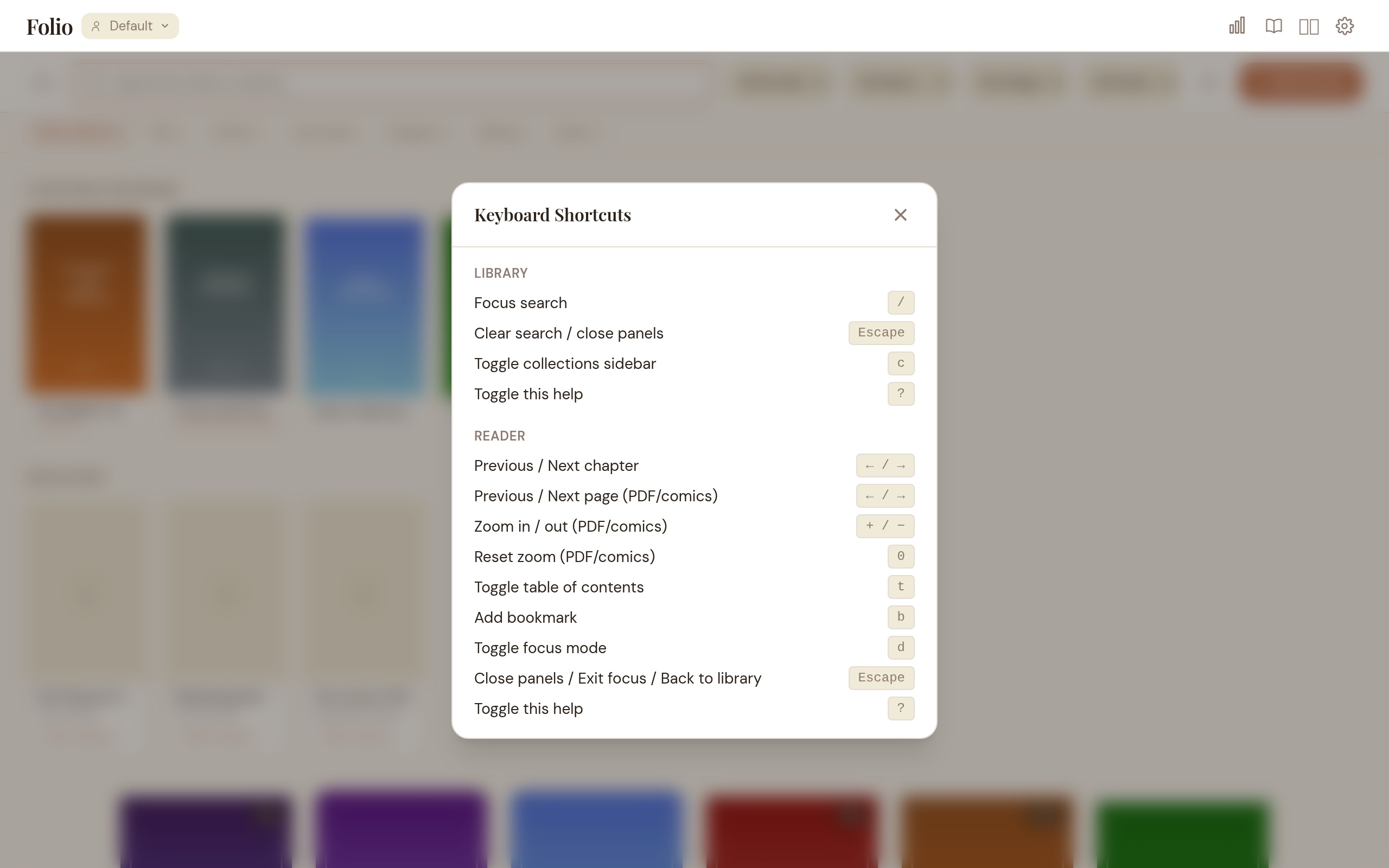
Library
| Shortcut | Action |
|---|---|
/ | Focus search bar |
C | Toggle collections sidebar |
Escape | Clear search / close panels |
? | Toggle shortcut help |
Reader
| Shortcut | Action |
|---|---|
← | Previous chapter / page |
→ | Next chapter / page |
⌘/Ctrl+F | Search in book (EPUB only) |
T | Toggle Table of Contents |
B | Add bookmark |
D | Toggle focus mode |
M | Toggle page thumbnails (PDF / CBZ / CBR) |
\ | Toggle split view |
Escape | Close panel / exit focus mode / back to library |
? | Toggle shortcut help |
Troubleshooting
“Failed to load book”
The file is probably corrupted or uses a format variant the parser can’t handle. Try re-downloading the file, or open it in another reader to check if the file itself is the problem.
Supported formats
Carrel supports EPUB (versions 2 and 3), PDF, CBZ, CBR, and MOBI/AZW/AZW3. MOBI works on arm64 macOS, Windows, and Linux. The Intel (x86_64) macOS build is the only release without MOBI support, so reach for it if you don’t need Kindle formats. DjVu is not supported.
How libmobi (the MOBI parser, LGPL v3+) is delivered depends on the platform:
- macOS (Apple Silicon): statically linked into the app — nothing to install.
- Windows: statically linked into
carrel.exe— the installer is self-contained. - Linux (Debian / Ubuntu):
sudo apt install libmobi0. The.debdeclares it as a dependency, so installing Carrel pulls it in automatically. - Linux (Fedora / RHEL):
sudo dnf install libmobi.
Where is my data stored?
Library database and app data:
| Platform | Location |
|---|---|
| macOS | ~/Library/Application Support/com.mike.folio/ |
| Windows | %APPDATA%\com.mike.folio\ |
| Linux | ~/.local/share/com.mike.folio/ |
Book files: Imported books are copied to the library folder, which defaults to ~/Documents/Folio Library/. You can change this in Settings. Since Carrel keeps its own copy of each book, moving or deleting the original file has no effect on your library.
The app won’t start
Check that your OS meets the minimum version listed in Getting Started.
macOS — “damaged and can’t be opened”: This is a Gatekeeper quarantine flag on unsigned apps. Run the following in Terminal, then try launching again:
xattr -cr /Applications/Carrel.appAlternatively go to System Settings > Privacy & Security and click Open Anyway after the first blocked launch attempt.